Signals
A.J
Watchapp
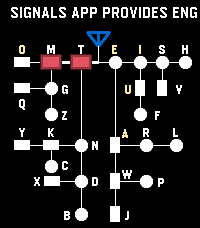
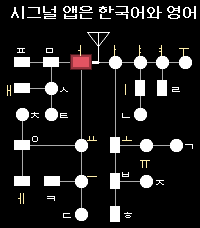
Description
Signals — Touch. Learn. Play.

Practice English and Korean Morse code with touch input, sound, and visual guidance. Save and replay sentences, then challenge yourself in Game Mode as letters advance and speed increases. Track your typing speed and game history in Settings.

Choose which codes to enable:
- English user can disable Korean Code in practice mode.
- Korean requires a Korean language pack.

---

[Practice Mode — Default Buttons]

- single-down   : Switch enabled codes.
- double-down   : Toggle sound.
- long-down     : Enter Game Mode.
- single-back   : Exit the app.
- double-back   : Open MENU.
- single-up     : Cancel the current character.
- long-up       : Clear all input.
- single-select : Replay the remembered sentence.
- double-select : Remember the current sentence.
- long-select   : Clear the replay memory.

During replay, single SELECT stops playback.

Cancel Character and Clear All Input can be
reassigned in MENU → Secondary Buttons.

You can see the REPLAY feature in action in the Reddit post below:
https://www.reddit.com/r/pebble/comments/1wsfat9/signals_a_touchbased_morse_code_trainer/

---

[Touch Input - Completing Characters & Adding Spaces]

By default, the bottom half enters dots and dashes, while the top half completes input.

- English: Tap the completion area to finish the current letter. Tap again when no letter is pending to add a space.
- Korean: Tap to finish the current Morse code for a consonant or vowel. Once the syllable is ready, tap again to commit it. Tap with no pending input to add a space.

Each tap performs one step. If a step has already completed automatically, the tap performs the next step.

Change the split direction and input area in MENU → Input Gestures & Key Mapping.

---

[Game Mode]

- Touch         : Start the game, then enter Morse code.
- single-down   : Switch enabled codes.
- double-down   : Toggle sound.
- single-back   : End the game and return to practice.
- long-down     : End the game and return to practice.
- double-back   : Open MENU and pause the game.

Replay controls are unavailable during gameplay.

[Inside MENU]

- UP / DOWN     : Navigate.
- SELECT        : Open a submenu or change an option.
- BACK          : Return.

---

[How to Play]

1. Save your sentences. In practice mode, double-click SELECT to remember the current sentence. It is also sent through PebbleKit JS (PKJS) and stored for the Settings browser. These saved sentences supply the game.

2. Fetch game sentences. Open MENU → Game → Fetch Sentences. Choose the sentence count in the same menu. Each fetch loads the next batch of saved sentences, wrapping around when it reaches the end.

3. Start playing. Hold DOWN to enter Game Mode, then touch the screen to start. Letters appear on the left and advance toward your input position on the far right.

4. Clear the letters. Enter and complete a character in Morse code to remove the rightmost matching visible letter. Clear every letter in every loaded sentence to win. If a letter reaches your input position, the game ends.

Single-click DOWN to switch enabled codes. Configure starting speed, minimum speed, and speed reset behavior in MENU → Game. View your game history and successful characters per minute in Settings.

Type a Sentence in Settings

Enter a sentence in Settings and tap Send to Watch. The watch immediately remembers it, ready for REPLAY with a single SELECT click. To add it to the browser’s saved game sentences, display it in practice and double-click SELECT.
- DeveloperA.J
- CategoryTools & Utilities
- PlatformsTime 2
- Updated2026-09-28
- Version0.9.0