A Watchface for Airline Crews

Ever been halfway through a PA and forgotten your flight number?

Ever stopped for a coffee, then found yourself wondering, "Was it B27 or C27?"

After a 14-hour day, the last thing you want to do is try to remember your flight number when the hotel asks for it.

That's why I built Next Leg. It keeps your flight number, route, gate, departure time, and current flight status on your wrist, so the information airline crews need is always just a glance away.


Features

• Displays your current or next flight at a glance, including flight number, route, gate, departure time, and current flight status.

• Automatically follows your schedule throughout your trip, advancing from one flight and duty period to the next.

• Current-month and next-month schedule support keeps Next Leg working smoothly across monthly schedule changes.

• Home Base awareness helps Next Leg better determine when your trip begins, continues, and ends.

• Hotel Mode displays your hotel room number, van time, and next report time during layovers.

• Flight Hold keeps your most recent flight information available after your final flight before transitioning into Hotel Mode.

• Customizable timing controls let you choose when flights appear before report, how long Flight Hold lasts, and when Hotel Mode ends before your next duty period.

• Day Tripper Mode (must be nice) skips Flight Hold and Hotel Mode when you're returning home without an overnight layover.

• Optional Enroute Mode provides additional in-flight and arrival information while continuing to follow your trip automatically.

• Inbound Flight Information lets you check information about the aircraft operating your inbound flight directly from the watch.

• Gate and departure change highlighting makes updated operational information easy to spot.

• Vibration alerts for gate changes, delays, and cancellations.

• Three customizable departure alert times let you choose when the watch reminds you before a flight.

• Wrist-flick controls provide quick access to manual refresh and additional flight information, with an optional second-flick refresh gesture.

• Light and Dark watchface modes let you choose your preferred display appearance.

• Multiple top-line display formats let you customize the information shown at the top of the watchface.

• Optional airline-code hiding provides a cleaner flight-number display.

• Displays the local calendar date and current Zulu (UTC) hour for quick operational reference.

Display Explained
Local Calendar Date

Displays the current calendar date in your local time zone.

Zulu Hour

Displays the current UTC (Zulu) hour for quick operational reference.

Report Time Lead

Choose how long before departure your report time is calculated. For example, a setting of 0100 displays a report time one hour before the scheduled departure.

You can also choose how far before report time Next Leg begins displaying your first flight of the duty period.

Flight Hold

After your final flight arrives, Next Leg can continue displaying that flight for a configurable period.

This gives you easy access to your flight number and other useful information when checking into hotels, boarding hotel vans, or whenever you're asked for your flight number after a long duty day.

When Flight Hold ends, Next Leg automatically transitions into Hotel Mode.

Hotel Mode

Hotel Mode keeps the watchface clean during a layover while still displaying the information you are most likely to need, including your:

• Hotel room number
• Van time
• Next report time

Before your next duty period, Next Leg automatically exits Hotel Mode and returns to the normal flight display. The timing of this transition can be customized in settings.

Day Tripper Mode

For trips without an overnight layover, Day Tripper Mode skips Flight Hold and Hotel Mode and moves directly toward your next appropriate schedule state.

(Must be nice.)

Enroute Mode

Optional Enroute Mode keeps additional flight information available after departure and through arrival.

It can use FlightAware arrival information to follow the flight through the end of the leg, with configurable behavior for handling arrival and gate-in information.

Inbound Flight Information

When enabled, Next Leg can display information about the aircraft operating your inbound flight, giving you a quick way to check its progress without reaching for your phone.

Getting Started

Create a FlightAware AeroAPI account at https://www.flightaware.com/aeroapi/.

Generate a personal AeroAPI key.

Copy your AeroAPI key into the Next Leg settings.

Enter your airline's IATA or ICAO code, for example AA or AAL.

Paste your flight schedule into Next Leg using the format shown in the settings.

Set your Home Base and any optional display, timing, alert, Hotel Mode, or Enroute Mode preferences.

Save your settings and you're ready to go.

Your schedule can be entered manually or quickly converted from a screenshot, PDF, or crew roster using an AI assistant.

Free Mode

Free Mode is enabled by default.

FlightAware currently provides up to a $5 USD monthly usage credit for Personal AeroAPI accounts. Free Mode is designed to help keep your monthly AeroAPI usage below that credit by automatically stopping live flight lookups before the configured limit is reached.

For most users, Free Mode should provide more than enough API usage for normal day-to-day flying without incurring additional charges.

If you require additional AeroAPI usage, simply disable Free Mode and choose your own monthly usage limit.

Important

Next Leg is provided for convenience and situational awareness only.

It is a secondary source of flight information. Always verify operational information using your airline's official systems.

Flight numbers, gates, departure times, delays, cancellations, arrival information, and other information displayed by Next Leg may occasionally differ from official operational information.

Bugs & Suggestions

Found a bug or have an idea to make Next Leg even better?

Email: night.watchman.pebble@proton.me

I read every email and genuinely appreciate bug reports, feature requests, and suggestions from the airline community.
 0
0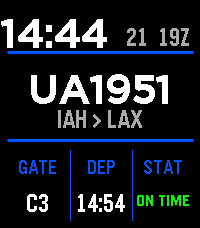 17
17