 20
20Milk Mama
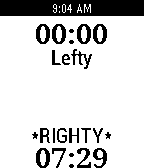
Tools & UtilitiesMilk Mama is a watchapp that let's Breastfeeding Mothers keep track of which side they've fed on, for how long and for how often. You can then go and see graphs of your baby's feeding habits over time to spot trends and patterns.
 20
20OneBusAway for Pebble
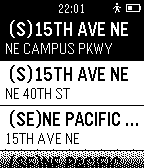
DailyOneBusAway on your Pebble!
 20
20Flood
GamesFill the board in as few moves as possible. Use the up and down buttons to change colors, and use select to pick. You have 26 moves to fill the board, or else it's game over!
 20
20Glance QuickLaunch
DailyGlance for QuickLaunch. Includes no watchfaces, launches straight to menu for use with QuickLaunch
 20
20+1
Tools & UtilitiesYou need an easier way of tracking the number of laps you do around that oval, or, the number of times you drink a glass of water. Whatever you need to keep track of, keep it simple, with +1, the simplest item counter. Tap either SELECT or UP to add one to your count. Once you have finished, reset it, by holding DOWN.
 20
20Health Export
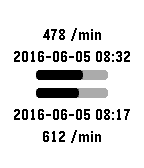
Tools & UtilitiesThis is a simple application for Pebble Watch that extract all the raw Pebble Health data gathered by the watch and POST it to a user-configured HTTP endpoint. The UI independently tracks the progress of watch-to-phone transfer (upper half) and of phone-to-webserver transfer (lower half). Note that the use has to obtain somehow the webserver that provides the HTTP endpoint. Data is sent with one request for each minute of Pebble Health data, and it encoded as a CSV line with the following fields: - UTC time stamp - number of steps - yaw in 1/16th of turn - pitch in 1/16th of turn - amount of movement - ambient light level - activity mask
 20
20Turbo Drift
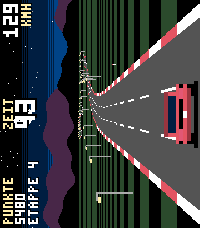
GamesTurbo Drift is an OutRun-style arcade racer made for Pebble Time 2. Hold your watch sideways like a tiny handheld: the bottom-left button steers left, bottom-right steers right, the middle button brakes. Brake into a curve at speed and you drift - your watch vibrates, smoke flies, and drift points pile up. FEATURES - Pseudo-3D road with curves, traffic and roadside palms, cacti, lamps and pines - Road forks before every checkpoint: go left or right, each side leads to a different landscape - 5 landscapes: coast, desert, sunset, night and snow - Beat the clock: every checkpoint adds bonus time - Drift system with vibration feedback - Original synth soundtrack with 2 songs plus sound effects (uses the Pebble Time 2 speaker) - Top 5 high score table with arcade-style initials - Online world ranking at pebble.ni3d.de/turbodrift - Play sideways (watch off) or upright on your wrist 7 free races, then unlock the full version once via KiezelPay (one-time purchase, no subscription). Made by Ni3D.
 20
20Pebble 8 Ball
GamesA pebble rendition of the classic magic 8 ball game.
 20
20RHR Tracker
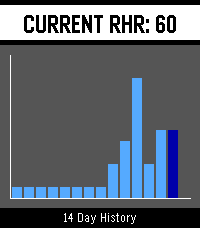
Health & FitnessThe app uses the information already gathered by Pebble Health, so it is very lightweight. It takes the heartrate measurements from the night before from 12:00 until 4:00 am. It discards any overly high or low ones, and then averages them for the Resting Heart rate daily value. It displays the current Resting Heart Rate Daily Value at the top, and has a 2 week graph and 120 day graph. Middle button to see the 120 days. Coded with Gemini.
 20
20Fate Dice
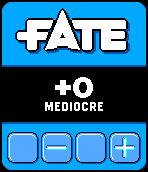
GamesWant a handy way to keep your Fate/Fudge dice with you on the trip? Or maybe you have a hard time keeping track of your Fate points? With this app you have both a set of dice and a points counter on your wrist, both styled to impress at the RPG table. May you roll well!
 20
20Swiss Chronograph
Tools & UtilitiesEnglish One swipe. That’s it. Are you tired of timer apps where your finger covers exactly what you are trying to set? Or of tapping through menus again and again just to start a simple countdown? Swiss Chronograph is different. Swipe once along the vertical ruler, choose your time, and you are done. The interface was designed to be as minimal as possible: as little visual clutter as possible and as few clicks as possible. The timer can be minimised and continues running in the background. When the countdown finishes, the display alternates between light and dark once per second while the digits invert with it. The alarm plays a proper 8-bit sound: 10 seconds of sound followed by a 2-second pause, repeated until the alarm is dismissed or stops automatically. Choose a permanent Light or Dark theme, or use Shake mode to switch between them with a movement of your wrist. Touch is the fastest way to use Swiss Chronograph, but every essential action is also available through the hardware buttons. That means the timer remains fully usable when the screen is wet, your hands are dirty, or you are wearing gloves. And yes, it is genuinely Swiss: it was designed and developed in Switzerland by a Swiss developer. The project is open source. Have fun with it! Greetings, Maru Deutsch Ein Swipe. Das war’s. Bist du es auch leid, dass du bei Timer-Apps mit dem Finger genau das verdeckst, was du einstellen möchtest? Oder dass du dich durch Menüs klicken musst, nur um einen einfachen Countdown zu starten? Swiss Chronograph ist anders. Ein Swipe über das vertikale Lineal, Zeit auswählen, fertig. Die Oberfläche wurde so minimalistisch wie möglich gestaltet: so wenig visuelle Ablenkung und so wenige Klicks wie möglich. Der Timer kann minimiert werden und läuft im Hintergrund weiter. Wenn der Countdown endet, wechselt der gesamte Bildschirm einmal pro Sekunde zwischen hell und dunkel, während sich die Ziffern passend dazu umkehren. Dazu spielt ein richtiger 8-Bit-Alarmton: 10 Sekunden Ton, danach 2 Sekunden Pause, bis der Alarm beendet wird oder automatisch stoppt. Du kannst dauerhaft ein helles oder dunkles Theme verwenden. Im Shake-Modus wechselst du mit einer Bewegung des Handgelenks zwischen beiden. Am schnellsten funktioniert Swiss Chronograph über Touch. Trotzdem ist jede wichtige Funktion auch vollständig über die Hardwaretasten bedienbar. Damit kannst du den Timer auch verwenden, wenn das Display nass ist, deine Hände schmutzig sind oder du Handschuhe trägst. Und ja, er ist tatsächlich schweizerisch: Er wurde in der Schweiz von einem Schweizer entwickelt. Das Projekt ist Open Source. Viel Spass damit! Gruss, Maru
 20
20PebbleRecorder
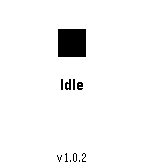
Tools & UtilitiesTurn your Pebble watch into a remote start/stop trigger for audio recording on your phone. Press a button on the watch, and a companion Android app records straight to a folder you choose — no need to touch your phone. You will need the companion android app from https://github.com/BigWebstas/PebbleRecorder/releases Or find it on the F-Droid App Store
 20
20NoodleBoy
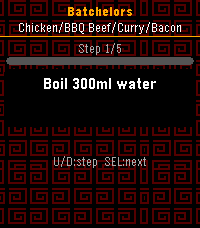
Tools & UtilitiesNoodleBoy is the ultimate Pebble companion for the sophisticated (or just very hungry) college student, late-night coder, and kitchen-phobic human. We’ve distilled the complex, high-stakes art of instant ramen into a series of foolproof alerts that ensure your sodium filled feast is perfection every single time. Why you need NoodleBoy: We done our research so you don't have to: We have searched high and low, far and wide for the biggest and best ramen brands and ensured they are there ready and waiting for you, if we are missing a brand you love, tell them to send me a sample so I can get them added. Dignity Preservation: End the "Walk of Shame" to the trash can. No more fishing a soggy, crumpled plastic wrapper out of the bin just to remember if it’s a three or four-minute boil. Precision Timing: Because there is a thin, dangerous line between "al dente" and "wet paper towel." The Flavor-Packet Reminder: Never again will you finish your soup only to find the seasoning packet hiding under the bowl like a salty ghost. Favorite your Favorites: Stuck in your noodle ways, stick to your slurp or die, hold select to add to your favorites so they will be at the top of your list Skip the timer: Think you know better than your noodle overlords, hold select or press down to skip the timer, your funeral at the end of the day What did i have to do again?: Been too eager to see what is next in your culinary journey? Press the up button to go back a step.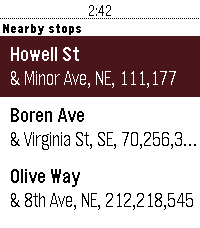 20
20BusGoodCarBad
Tools & UtilitiesPersonally, I know that the #1 thing I use a smartwatch for while in a city is transit information. I know plenty of other folks do the same. With the relaunch of the Pebble infrastructure, I wanted to provide a new solution for the new generation of both Pebble users and Pebble hardware. BusGoodCarBad will show you the info for stops nearest you and your personal favorited stops, too. Just open the app, and you're good to go! It's that simple. Supported regions and transit organizations: - Seattle, Washington (via Puget Sound Region OneBusAway) - New York City (via MTA BusTime) - Portland (via TriMet Web Services) Partially implemented regions and transit organizations: - Boston, Massachusetts (MBTA v3 API) (Works! But it shows you too many stations. Still usable, but needs some work on parsing). This project is a fork of CatchOneBus, developed by Yaoyu Yang and Dian Zhang in 2015 and 2016.
 20
20Hays High School Lunch Notifications
NotificationsAllows students of Hays High School to look at the lunch menu with a quick glance at their Pebble!