Open Gymnasium
Orbital Money Maker
Watchapp
Description
OPEN GYMNASIUM

Set and rest timer, heart-rate tracking and automatic workout logging for the Pebble Time 2. Every workout is saved as a spreadsheet-ready CSV in your own Google Drive.


WHAT IT IS

Open Gymnasium turns your Pebble Time 2 into a complete strength-training companion. You tell it which exercises you are doing, press one button for every set and every rest, and it records the whole session: your heart rate, how long each set and rest lasted, which exercise each set belonged to, and an estimate of the calories you burned.

When you finish, the workout is sent to YOUR OWN GOOGLE DRIVE as a tidy CSV file you can open in Google Sheets or Excel. There is no account with us, no cloud service and no subscription: your data goes from your watch to your phone to your Drive, and nowhere else.

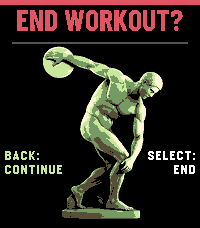
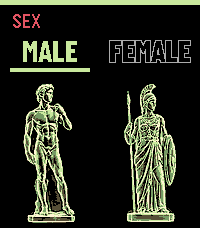
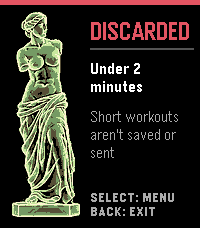
The app is dressed in Greco-Roman statues in neon green: the Discobolus, the Thinker, the Venus de Milo, David and Athena all turn up along the way.


HIGHLIGHTS

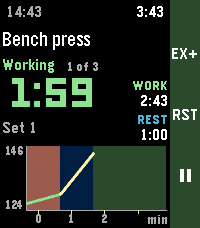
- One-button set and rest timer. Press SELECT to start a set and press it again to start the rest. The big clock changes colour with what you are doing: green while working, blue while resting, yellow for the warm-up and red when paused.

- Your exercise list on your wrist. Make "days" such as Push day or Legs on your phone and list the exercises in order. The watch shows the exercise you are on and where you are in the day (for example 2 of 5).

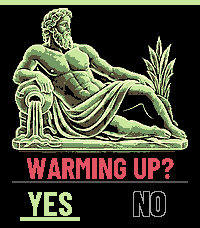
- Warm-up built in. After you pick a day, the watch asks "Warming up?". Say yes and a Warm up exercise is added at the start, with its own colours and its own set count.

- Heart rate all the way through. Live heart rate coloured by training zone, a graph of the whole workout with work, rest and warm-up stretches shaded behind it, and a summary at the end.

- Timed rest alarm. Set how long you want to rest. The watch can buzz like an alarm when the time is up (and keep buzzing until you start the next set, with a +30 second snooze), or buzz at regular intervals.

- Automatic export to Google Drive. One CSV file per workout, with a row for every set, every rest, every exercise change and every heart-rate reading.

- Quick record. Going for a run or a walk? Hold SELECT on the start screen to record at once with no exercise list, and press SELECT to mark a break.

- Made for mistakes. Pressed EX+ by accident? Hold UP within a minute and everything you did since goes back to the right exercise, both on the watch and in the saved file.

- Built for long sessions. Workouts of an hour or more keep their full heart-rate history, and the summary graph labels the minutes sensibly.


WHAT YOU NEED

- A Pebble Time 2 (the app is made for its 200 x 228 colour screen and heart-rate sensor).
- The Pebble / Rebble app on your phone, with the watch connected.
- A free Google account, to receive your workouts in Google Drive (about 10 minutes to set up, once).
- Optional, Android only: the Open Gymnasium Health Sync helper app, which uploads your workouts into Health Connect.


DOWNLOADS (Google Drive folder)

Everything you need to download is in this folder:
https://drive.google.com/drive/folders/1TcKN7BK410Mwz1CnRDCwd1dCp9fWFO38?usp=drive_link

- Code.gs: the Google Apps Script that saves your workouts to Drive.
- OpenGymnasiumHealthSync.apk: the optional Android helper app for Health Connect.
- screenshots_overview.png: a picture of every screen of the app.


GETTING STARTED (10 minutes, once)

Step 1: Install the app
Install Open Gymnasium on your Pebble Time 2 from the Pebble / Rebble app store. In the watch's app menu you will see it with a green helmet icon.

Step 2: Make your Google Drive receiver
This small free script, owned by you, is what saves your workouts into your Drive.

1. Download Code.gs from the Google Drive folder above.
2. Go to script.google.com and click New project.
3. Delete everything in the editor, paste in the contents of Code.gs, and save.
4. Open Project Settings (the gear icon), scroll down to Script Properties and add a property:
   Name: UPLOAD_TOKEN
   Value: a long random password of your own (for example 30 random letters and numbers). This is your secret key, and it stops anyone else writing to your Drive.
   Optional second property: FOLDER_NAME, the Drive folder to save into. The default is Open Gymnasium.
5. Click Deploy, then New deployment. Choose the type Web app and set:
   Execute as: Me
   Who has access: Anyone
6. Click Deploy, approve the permission request (Google asks you to allow the script to use Drive), and copy the Web app URL, which ends in /exec.

About "Anyone": it only means the address can be reached without signing in, because your phone cannot sign in for you. Nobody can save anything without your secret UPLOAD_TOKEN.

Step 3: Tell the app where to save
1. On your phone, open the Pebble / Rebble app, find Open Gymnasium and open its Settings.
2. Paste the Web app URL into "Apps Script web app URL".
3. Type the same secret into "Shared token".
4. Add your workout days and exercises (see below), then press Save.

That is it. Finish a workout of two minutes or more and a CSV file appears in your Drive folder a few seconds later.

Optional: upload workouts to Health Connect (Android)
1. Install OpenGymnasiumHealthSync.apk from the Google Drive folder above (Android will ask you to allow installing from that source).
2. Open the app, tap Settings, and enter the same Web app URL and token.
3. Tap Allow Health Connect access and allow everything it asks for.
4. Tap Sync now. From then on it copies your new workouts (heart rate, calories and an exercise session) into Health Connect every three hours.


USING THE APP, ONE WORKOUT AT A TIME

The start screen
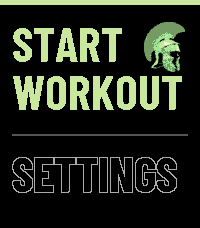
- START WORKOUT and SETTINGS are the two choices. UP and DOWN move between them.
- A green bar at the top means nothing is being tracked. It turns red while a workout is running.
- If a workout is already running, START WORKOUT becomes RESUME WORKOUT and takes you straight back to it.

Starting a workout
1. Press SELECT on START WORKOUT.
2. Choose your day from the list. The day you have gone longest without is at the top, with a note such as "Not done yet" or "3 days ago". Generic gives you plain Exercise 1, 2, 3 and so on.
3. Answer "Warming up?" with YES or NO.
4. The workout starts straight away. With YES you begin on the Warm up exercise. With NO you begin on the first exercise of your day, already in work mode.

During the workout
- SELECT: switches between a set and a rest. The strip beside the button says RST (rest) or WRK (work).
- UP: moves on to the next exercise (EX+).
- Hold UP: goes back an exercise. Within a minute of moving on it is treated as a correction, so what you did in between is credited to the exercise you meant.
- DOWN: opens the menu: Pause or Resume, Swap movement, Previous exercise, Jump to exercise, Settings, End workout.
- Hold DOWN: pauses. Hold again to resume.
- Hold SELECT: asks whether to end the workout.

The screen shows the exercise name, what you are doing (Working, Resting, Warm-up or Paused), the set number, the big timer, your heart rate, your total work and rest time, and a graph.

Exercises that you alternate between (for example Pull-ups and Curls) are supported. Tick "Alternating" on the phone and the watch swaps to the other movement after every set and tells you what comes next.

Quick record (no exercise list)
Hold SELECT on START WORKOUT. After the Warming up? question the watch starts recording on a simpler screen with your total time, work and rest time, heart rate and a live graph. Press SELECT to mark a break and press it again to carry on. Hold SELECT to stop.

If you walk away
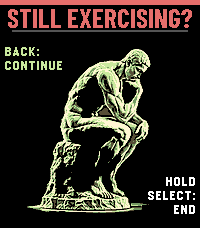
After 15 quiet minutes the watch asks "Still exercising?" (press BACK to carry on). After 20 minutes it pauses the recording, and after 25 minutes it ends and saves it, so a forgotten workout never runs all day.

Ending a workout
Hold SELECT, then press SELECT to confirm (BACK carries on). You then see one of two screens:
- DONE: your total time, average heart rate, time spent working and resting, and a graph of your heart rate with coloured sections for work, rest and warm-up. It also confirms that the workout was uploaded. Press SELECT for the start screen or BACK to leave the app.
- DISCARDED: workouts shorter than two minutes are not saved.

If the upload cannot be completed (for example no internet), the phone keeps the workout safe and uploads it later. A SAVED WORKOUTS row on the start screen lets you check or retry.


SAVING YOUR WORKOUTS: WHAT GOES INTO GOOGLE DRIVE

Every workout becomes one CSV file, for example workout_2026-10-22_0815.csv, in your Drive folder (Open Gymnasium unless you named another). It opens directly in Google Sheets or Excel. Each row says what happened and when, and includes:

- the day and the exercise (number and name), the set number, which set it was within that exercise, whether it was a warm-up or a working set, and which movement (A or B) for alternating exercises;
- every timer change: set start, set end, rest start, rest end, pauses, resumes, exercise changes and the end of the workout;
- your heart-rate readings (all of them, or one every 5, 10 or 30 seconds, as you choose in the settings);
- for each set, a summary row: how long the set lasted, the rest after it, average, highest, first and last heart rate, how far your heart rate fell during the first minute of rest, and an estimate of the calories used.

The calorie estimate is worked out from your heart rate, weight, age and sex (the Keytel formula). It is only an estimate and tends to run a little high for weight training. Leave your sex unset in the settings if you would rather not have one.

Because everything is plain CSV, you can chart your progress in a spreadsheet, keep a training log, or feed the files into other tools.


SETTINGS

You can change settings in two places, and they stay in step with each other: on the watch (Settings on the start screen) and on the phone (the app's settings page).

On the phone
- Workout days: up to 6 days, each with up to 10 exercises. You can reorder them, hide a day on the watch without deleting it, and mark an exercise as Alternating with a second movement.
- Personal settings: max heart rate, weight (in kg or lbs), age, sex, and how many heart-rate rows to put in the CSV.
- Watch settings: every setting of the watch app, listed below.
- Upload: the Web app URL and the shared token from Step 2.

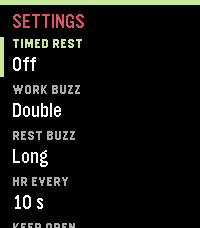
On the watch (Settings)
- Timed rest:
  Mode: Off, Alarm (buzzes when your rest time is up and keeps going until you start the next set; DOWN gives a +30 second snooze, which you can switch off) or Interval (buzzes every so often during the rest).
  Alarm after, Repeat every and Buzz every: set in minutes and seconds, in steps of 5 seconds, on big digits. While you rest in Alarm mode the clock turns from blue towards red as the time runs out.
  Buzz: the buzz the alarm uses.
- Work buzz and Rest buzz: the vibration when a set or rest begins. Choose Short, Long, Double, Triple, Race (short, short, long, like "ready, set, go") or Off. Press SELECT to feel a sample.
- HR every: how often the heart rate is recorded, from every second to every 5 minutes.
- Keep open: whether the app reopens itself during a workout (Off, While timing, Always).
- Vibration: Normal or Strong.
- Light on alert: whether the backlight comes on with an alert.
- Button buzz: the small pulse when you press a button. Turn it off, together with the buzzes above, for a purely visual app.
- Personal settings: max heart rate, weight (the number first, then SELECT to pick kg or lbs), age, sex (pick Male or Female next to David and Athena) and the heart-rate rows for the CSV.

Your max heart rate matters: the live heart-rate number is coloured by training zone, as a percentage of it: blue under 60%, green 60-70%, yellow 70-80%, orange 80-90% and red above 90%. The default is 190.


GOOD TO KNOW

- All timing happens on the watch, so a workout carries on even if your phone is out of reach. The phone is only needed to upload at the end, and it keeps the file for later if it cannot.
- Your workout data, your token and your Drive stay with you. The app does not use any account of ours, and sends nothing anywhere except to the Apps Script URL you provide.
- If a workout does not appear in Drive, open the app's settings on your phone and check the URL and token, and check that the Apps Script is deployed as a Web app with access set to Anyone.
- After changing the script, use Deploy, Manage deployments, Edit, New version so the change goes live.


CREDITS

- Typeface: Barlow Condensed (SIL Open Font License).
- The statue artwork is AI-generated and converted for the watch's colour palette.
- Built with the Pebble SDK.
- DeveloperOrbital Money Maker
- CategoryHealth & Fitness
- PlatformsTime 2
- Updated2026-10-22
- Version1.0.3