Plugins are a dev preview. Enable them first in the Pebble mobile app: Settings → Plugins → Plugins/permissions preview. Learn more
 48
Claude
Send messages to Claude from your Pebble watch or Index ring: to a Claude chat, to a Claude Code session, or to Claude Duet.

On an Index 01 ring, either choose Claude as your hold-and-talk destination in Index settings, or start with "Send to Claude", for example "Send to Claude, draft a reply to the landlord".

Say "Claude" followed by your message, for example "Ask Claude to draft a reply to the landlord" or "Tell Claude Code to fix the flaky test". By default each message starts a new Claude chat. In the plugin settings you can instead send to a default chat or Claude Code session, and give chats short nicknames so they're easy to say. If your account has Claude Duet, you can turn it on in settings to send to its main conversation. You read replies in Claude.

If the plugin can't tell whether a message arrived, it won't send it again.

Security and privacy:
- You sign in on Claude's own sign-in page. The sign-in is stored in your phone's secure storage and is only used to talk to Claude. Disconnecting in settings removes it from the plugin.
- Messages go from your phone directly to Claude over HTTPS. They don't pass through Pebble or Core Devices servers.
- The source code is on GitHub.

To set it up, install the plugin, open its settings, sign in to Claude and pick your organization if you have more than one.

Anthropic doesn't offer a public API for Claude chats and Claude Code sessions, so this plugin uses the same connection as claude.ai. You need a Claude account.
 33
Home Assistant Bridge
One connection. Endless possibilities for your Pebble.

For setup, enter your Home Assistant URL and a long-lived access token. HTTPS is recommended. For a trusted private network, you can opt in to local HTTP. HTTP sends tokens and data unencrypted.

Home Assistant Bridge connects Pebble applications to your Home Assistant smart home through a centralized, secure plugin.

It provides access to device states, smart home controls, AI conversations, and text-to-speech, allowing developers to build Home Assistant-enabled Pebble apps without managing separate connections and credentials.

## Features
- Secure connectivity: Configure your Home Assistant server and authentication once, with credentials securely managed by the plugin.
- Smart home integration: Access entities, sensor readings, device states, and supported Home Assistant services.
- AI conversations: Communicate with Home Assistant's configured conversation agents.
- Shared voice settings: Configure TTS engines, STT engines, conversation agents, and Assist pipelines in one place.
- Audio streaming: Generate spoken responses through Home Assistant and stream them to compatible Pebble applications.
- Reliable playback: WAV validation, checksums, automatic retries, and progressive delivery help prevent corrupted or interrupted speech.
- Developer-friendly: Includes a reusable JavaScript and C audio SDK for integrating native Pebble speaker playback.

## For Developers — Adding Audio to Your App
Home Assistant Bridge includes an open-source audio SDK that allows other Pebble applications to use Home Assistant's text-to-speech capabilities.
Rather than implementing WAV processing, ADPCM encoding, Bluetooth audio transfer, and speaker buffering independently, developers can integrate the existing, tested audio system.

Audio SDK and integration guide:
https://github.com/ericlmccormick/Pebble-HA-plug-in/tree/main/sdk

### Required Files
Copy these three files into your Pebble application:

1. ha_audio.js — Phone-side audio processing
https://github.com/ericlmccormick/Pebble-HA-plug-in/blob/main/sdk/ha_audio.js
Place in `src/pkjs/ha_audio.js`.
Handles TTS requests, verified WAV retrieval, ADPCM encoding, sentence preparation, and Bluetooth audio transfer.

2. ha_audio.c — Watch-side audio playback
https://github.com/ericlmccormick/Pebble-HA-plug-in/blob/main/sdk/ha_audio.c
Place in `src/c/ha_audio.c`.
Provides native speaker playback, audio decoding, buffering, volume control, and playback diagnostics.

3. ha_audio.h — Watch-side interface
https://github.com/ericlmccormick/Pebble-HA-plug-in/blob/main/sdk/ha_audio.h
Place in `src/c/ha_audio.h`.
Defines the C functions used to initialize, control, and manage the audio system.

### Integration Requirements
Your application must declare the appropriate Home Assistant Bridge plugin permissions and include the required AppMessage keys.

Initialize the audio library on the watch, route incoming audio messages through its handler, and use the JavaScript library to request speech playback.

Complete setup instructions and example code:
https://github.com/ericlmccormick/Pebble-HA-plug-in/blob/main/sdk/README.md

The Bridge manages Home Assistant authentication and speech generation. The consuming application includes the audio SDK to handle Bluetooth transport and native watch playback.

Important: Native spoken playback requires a Pebble watch with a supported speaker. Other watches can still use Home Assistant's non-audio capabilities.

For a working implementation, see Home Assistant AI:
https://github.com/ericlmccormick/Pebble-Home-Assistant-AI

## Requirements
- A running Home Assistant installation accessible from your phone.
- Home Assistant authentication credentials.
- The appropriate plugin permissions granted to consuming applications.
- A configured Home Assistant TTS engine for spoken responses.

## Open Source
Home Assistant Bridge is an independently developed, reusable integration intended to expand what's possible with Pebble smartwatches.

Developers are welcome to explore the source code, integrate the audio SDK, contribute improvements, and build new applications using the Bridge.

## Support Development
If you find Home Assistant Bridge useful, or you're a developer building on top of it, please consider supporting continued development.

Support me on Ko-fi:
https://ko-fi.com/ericmccormick
 22
ChatGPT
Send messages to ChatGPT from your Pebble watch or Index ring: to your Dot, to a ChatGPT chat, to Codex sessions on your computer, or as a new Codex Cloud task.

On an Index 01 ring, either choose ChatGPT as your hold-and-talk destination in Index settings, or start with "Send to ChatGPT", for example "Send to ChatGPT, find me a good pasta recipe".

Say "ChatGPT" or "Codex" followed by your message, for example "Ask ChatGPT for a good pasta recipe" or "Tell Codex to run the test suite". With no chat named, the message goes to your Dot or your default chat, whichever you choose in the plugin settings. You can also start a new ChatGPT chat, reply in one of your 20 most recent ones, or give chats short nicknames so they're easy to say. You read replies in ChatGPT or Codex. For ChatGPT chats, your watch may show the start of the answer.

To reach Codex sessions on your computer, pair the computer in the plugin settings. Codex Cloud tasks run on a copy of one of your GitHub repositories, as they do on chatgpt.com.

If the plugin can't tell whether a message arrived, it won't send it again.

Security and privacy:
- You sign in with ChatGPT on OpenAI's own sign-in page. The sign-in is stored in your phone's secure storage and is only used to talk to ChatGPT and Codex.
- Messages go from your phone to OpenAI over HTTPS. They don't pass through Pebble or Core Devices servers.
- The source code is on GitHub.

To set it up, install the plugin, open its settings and sign in with ChatGPT.

OpenAI doesn't offer a public API for the Dot, ChatGPT chats or Codex sessions, so this plugin uses the same connections as the ChatGPT and Codex apps. You need a ChatGPT account.
 19
Muse
Send messages to your Muse assistant from your Pebble watch or Index ring.

On an Index 01 ring, either choose Muse as your hold-and-talk destination in Index settings, or start with "Send to Muse", for example "Send to Muse, plan a quiet Saturday for the two of us".

Say "Muse" followed by your message, for example "Muse, plan a quiet Saturday for the two of us". The message goes to your Main chat in Muse, and you read the reply in the Muse app. You can pick a different chat in the plugin settings, or name a chat when you speak. Your watch shows a confirmation when Muse has received the message. If the plugin can't tell whether a message arrived, it won't send it again.

Security and privacy:
- Messages go from your phone directly to Muse over an encrypted connection, the same one Muse's web app uses. They don't pass through Pebble or Core Devices servers.
- You sign in on Muse's own sign-in page. The session is stored in your phone's secure storage and is only used to talk to Muse.
- The source code is on GitHub.

To set it up, install the plugin, open its settings and sign in to Muse.

Muse doesn't have a public API, so this plugin uses the same connection as the Muse web app. You need a Muse account.
 16
Grok Bot
Send messages to your Grok Bots from your Pebble watch or Index ring, and read their replies.

On an Index 01 ring, either choose Grok Bot as your hold-and-talk destination in Index settings, or start with "Send to Grok Bot", for example "Send to Grok Bot, how did the deploy go?".

Say "Grok Bot" followed by your message, for example "Ask Grok Bot how the deploy went". The message goes to your default bot, or to the bot or group you name. You can give bots short nicknames in the plugin settings so they're easy to say, like "Send to work". To see what a bot wrote back, ask for its latest replies.

If the plugin can't tell whether a message arrived, it won't send it again.

Security and privacy:
- You sign in to Cursor in your phone's browser, the same way the Grok Bot app does. The sign-in is stored in your phone's secure storage and is only used to talk to Grok Bot.
- Messages go from your phone to Cursor and your Grok Bot computer over HTTPS. They don't pass through Pebble or Core Devices servers.
- The source code is on GitHub.

To set it up, install the plugin, open its settings, sign in to Cursor and pick a default bot. Cursor's sign-in lasts about 60 days, after which you sign in again.

Grok Bot doesn't have a public API, so this plugin uses the same connection as the Grok Bot apps. You need a Grok Bot account.
 14
Universal TTS
Give your Pebble a voice! Universal TTS is a powerful, flexible text-to-speech plugin that lets compatible Pebble apps and watchfaces speak using your preferred voice service. Instead of requiring each app to manage its own speech engine, Universal TTS provides one standardized interface. Configure your preferred provider once, and compatible apps can generate spoken responses without managing API keys or audio processing themselves. Features - 12 speech providers: Google Cloud TTS, Gemini, ElevenLabs, Microsoft Azure, Home Assistant, Deepgram, Cartesia, Speechify, Smallest AI, Inworld AI, Rime, and Fish Audio. - Live voice and model discovery: Browse available voices and models directly from supported providers. - Centralized configuration: Manage API keys, voices, models, and your preferred provider in one place. - High-quality speech conversion: Automatically converts generated audio into a Pebble-compatible format. - Reliable audio delivery: Uses verified audio chunks and optimized compression for Bluetooth transfer. - Local TTS support: Connect to compatible Home Assistant speech engines, including Piper. - Developer-friendly: A reusable SDK lets app developers add speech capabilities without implementing their own TTS pipeline. Requirements - A Pebble watch with speaker hardware and compatible firmware. - A compatible Pebble app or watchface that supports Universal TTS. - An API key or access token for your chosen provider, where required. - An internet connection for cloud-based services. ### For Developers Adding speech to your Pebble application is as simple as: `tts.speak("Hello from Pebble!");` The included JavaScript and C libraries handle provider communication, audio conversion, transfer, and playback. Open-source project: https://github.com/ericlmccormick/Pebble-Universal-TTS Support development: If you find Universal TTS useful, consider supporting future Pebble development at: https://ko-fi.com/ericmccormick 6
OpenCode
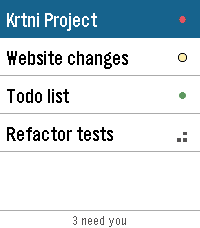
Control an OpenCode V2 server from Pebble. Send prompts, read the latest reply, answer agent questions, interrupt foreground sessions, and monitor background jobs. Requires a reachable OpenCode server and saved credentials.
 6
OpenCode Status
OpenCode Status puts your OpenCode sessions on your Pebble. See running sessions, questions, permission requests, and unread replies at a glance. Open a session to read its latest reply, answer questions, review permissions, or dictate a new prompt. Requires the OpenCode Pebble plugin, a reachable OpenCode V2 server, and plugins enabled in the Pebble app.
 6
Universal AI
One plugin. Multiple AI providers. Unlimited possibilities.

You can also add a custom provider by entering an OpenAI-compatible HTTPS endpoint and its model name. The plugin scopes API keys and conversation history to each endpoint.

Universal AI connects Pebble applications to your choice of AI service through a single, standardized interface. Instead of requiring separate integrations for each AI provider, applications can communicate with your preferred AI using one plugin.

Supported AI providers:
- Google Gemini
- OpenAI (ChatGPT models)
- Anthropic Claude
- xAI Grok
- OpenRouter
- DeepSeek
- Muse

Features
- Choose your AI: Configure your preferred provider and model.
- Bring your own API key: Each provider has independent, securely stored credentials.
- Full responses: Returns the complete AI-generated response to the requesting application, rather than just a notification or delivery confirmation.
- Conversation memory: Maintains conversation context across multiple messages.
- Universal compatibility: Provides a standardized API for Pebble developers.
- Privacy controls: Manage and clear locally stored conversation history.

How it works
Install Universal AI on your Pebble phone app, select an AI provider, enter your API key, and choose a model.
Compatible Pebble applications can then send requests through Universal AI and receive responses directly. Each application decides whether to display, summarize, speak, or otherwise use the response.
Universal AI handles communication with the AI provider. The application handles the user experience.

Important: An API key from your chosen provider is required. API usage may incur charges. Subscriptions such as ChatGPT Plus, Claude Pro, or Google AI Pro do not necessarily include API access.

For developers
Universal AI supports Pebble's standard "send_to_agent" action, "agent/chats" and "agent/configured" sources, plus an extended request/response API with conversation IDs, request tracking, and response retrieval.

Source code and integration documentation:
https://github.com/ericlmccormick/Pebble-Universal-AI

Support development
If you enjoy this plugin and want to support continued development:
https://ko-fi.com/ericmccormick
 2
Hermes for Index
Send spoken Index requests as text to your own Hermes dashboard. Choose whether to continue a dedicated Index conversation, follow your latest eligible Hermes chat (including desktop), or start fresh.

In the Pebble phone app, enable the plugins preview, install Hermes, then open Apps → Plugins → Hermes → Settings. Enter your reachable Hermes dashboard address (not the API port) and sign in. Password sign-in requires HTTPS and a compatible self-hosted Hermes dashboard; see the setup guide before installing. You do not need the Wristbound watchapp, companion APK or Telegram.

The send receipt confirms Hermes accepted your request. Read replies in Hermes. This plugin does not provide push alerts or audio playback. Latest mode has been tested in a fixture, but not yet on a physical Index.