Plugins are a dev preview. Enable them first in the Pebble mobile app: Settings → Plugins → Plugins/permissions preview. Learn more
 66
Google Home
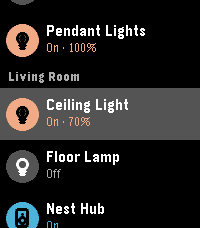
Control your Google Home devices from your Pebble watch or Index ring.

Turn lights on and off, set brightness and colour temperature, lock and unlock locks, set the thermostat, change speaker volume and playback, and run your household routines. For example "Turn off the living room lights". You can name a device, a room or a type of device. The plugin works with the devices and routines you already have; it can't add or remove anything.

This plugin uses an unofficial Google API. It talks to Google Home the same way the Google Home app does, not through Google's developer APIs. Google could change this at any time, and the plugin would stop working until it's updated.

Security and privacy:
- You sign in on Google's own sign-in page. The sign-in is stored in your phone's secure storage and is only used to read and control your devices.
- Commands go from your phone straight to Google over HTTPS. They don't pass through Pebble or Core Devices servers.
- The source code is on GitHub.

To set it up, install the plugin, open its settings and sign in with the Google account that owns your devices.
 8
Hue
Control your Philips Hue lights from your Pebble watch or Index ring.

Turn single lights, rooms or your whole home on and off, and dim them, for example "Dim the bedroom to 30 percent". Watchfaces and apps can also show whether lights are on.

Security and privacy:
- The plugin talks to your Hue bridge directly over your home Wi-Fi. It doesn't need a Hue account or Philips' cloud.
- It only goes online once, while pairing, to find your bridge.
- You pair by pressing the button on your bridge, and the pairing is stored on your phone.
- The source code is on GitHub.

To set it up, install the plugin, open its settings, press the button on your Hue bridge and tap Pair.
 5
Home Assistant Entities
Choose what goes on your watch by labelling it in Home Assistant.

Give any entity the label "pebble" and it appears on your Pebble, for any watchface or app that uses plugin data. Take the label off and it's gone. There's no list to manage on your phone.

- Sensor readings with units, ready for a watch: 21.5°C, 230 V, 40%
- Open, closed, on, off and away in plain words
- Lights, switches, locks, climate and media players
- Updates every minute
- Works away from home with Nabu Casa or your own domain
- Read only: it never changes anything in Home Assistant

You'll need a watchface or app that reads plugin data, Home Assistant 2024.4 or later, and an administrator's access token (the only way to read labels). The token stays encrypted on your phone and only goes to your server. Setup steps are in the plugin's settings.

Not affiliated with or endorsed by Home Assistant or the Open Home Foundation.

Keywords: home assistant, smart home, label, labels, sensors, plugin, entities, temperature, lights, locks, climate, home automation
 1
UK Grid
How clean Britain's electricity is right now, and what Octopus Agile charges for it.