 865
Muninn - Battery Wisdom
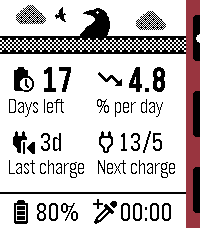
Muninn is an extremely lightweight battery tracking and prediction app. It uses the Wakeup API (every 6 hours) instead of the Background Worker to monitor trends and provide insight without negatively affecting battery life, using a moving average of readings over time to estimate days left, rate of discharge, next charge date, and more!

Note: the Settings page is used for web stats, available after a few days of samples have been collected.

Features:
- Negligible battery impact
- Days remaining and drain rate estimation
- Last observed charge and predicted next charge date
- Graph log of recent samples, up to 4 days
- Sync up to 120 days of data to the phone for long-term insights
- Upload and view all your data in web config page
- Set an AppGlance to show estimate in the launcher menu
- View general battery tips
- Pebble Plugin with useful battery stats (est. days remaining, battery life, discharge per day, etc.) on supported devices

Options:
- Custom low battery threshold notification (50%/20%/10%)
- Timeline pin at noon on the last day remaining
- High (above average) rate of drain notification
- One day left notification
- Auto-update of web config page stats (noon daily)

Important notes:
- If the watch is off at the next sample time, the app must be launched to allow wakeups to be resumed.
- The initial estimate may be an overestimate but will smooth out soon after.
 105
Shapeshifter - Automations & Watchface s
REQUIREMENTS
- Pebble app 2.0 or later (on 1.16 to 1.18, turn on Settings > Plugins > Plugins / permissions preview)
- Any Pebble except the Classic and Steel
- Still in development

WHAT IT DOES
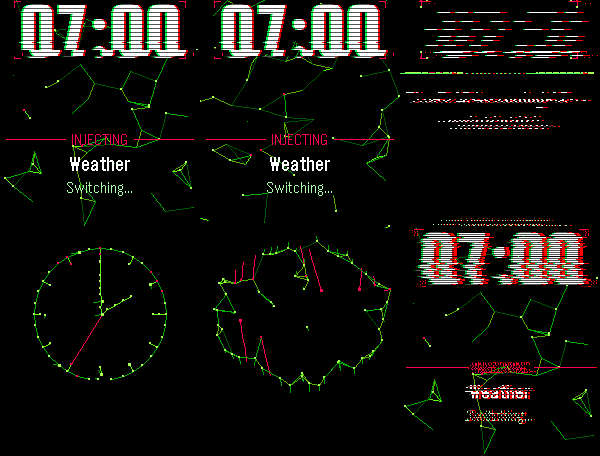
- Switches your watchface or opens an app on a schedule, or on events like calendar events, Quiet Time, holidays, day or night, low battery or your steps
- Beta events like walking, waking up, heart rate, places, Wi-Fi, rain or a plugin's value
- Shows a random watchface from a list, and a default one when no rule applies
- Runs automations at times you set: read a plugin or ask your AI, then notify you, pin to your timeline, show a note on the watchface or have a plugin act
- Drafts automations with AI from what you describe
- Lets other apps and watchfaces show your automations, and Index draft new ones
- Shows the week ahead as a calendar
- Syncs your watchfaces and apps from your Pebble or Rebble account
- Wakes the watch only when a switch or a check is due

PERMISSIONS AND DATA
- Only "Launch apps" is required. The others are used only by the rules and automations that need them.
- Draft with AI sends your chat, the draft, your watchfaces' names and what your plugins offer to your AI plugin, or without one to Claude (Anthropic) through my server, which keeps none of it. It shows you what it sent.
- An automation's Ask sends its prompt and what its steps read to your AI plugin.
- Your settings stay on your phone and watch, and sign-ins go only to Pebble or Rebble.

If you like it, tap the ❤️ or buy me a coffee at https://www.buymeacoffee.com/toaster2
 39
Halftone
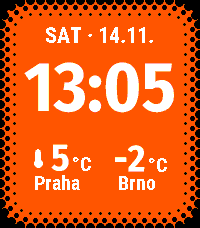
A bold Pebble clock with a halftone dot border.

Halftone puts a distinctive clock and two useful readings on your wrist. Choose weather, battery or other compatible Pebble readings, then make the face your own with colour, depth and shadow.

- Keep the time, date and two readings together.
- Customize the colours and dot-border appearance.
- Adjust depth, shadow, Bigger Text and text size.
- See a Timer countdown or music with its title, artist and available artwork.
- Choose your Activities and their order. A smaller secondary summary appears when space allows.
- Show Timeline Peek alongside the clock.

Activities are ongoing updates from other apps. Start a countdown in Timer, then return to Halftone to see the time remaining. Timer handles its controls and alarm. Open Activity can add an optional Quick Launch shortcut back to Timer.

For Pebble Time 2 and Round 2. Shared readings and Activities require a connected phone, plugin support enabled in the official Pebble phone app, and permissions for the chosen sources. Built-in music and notifications require Android. Notification summaries and message text are separate opt-in settings.

Free. Part of XOCE. No XOCE account, ads or analytics. Selected providers have their own requirements and privacy practices.
 28
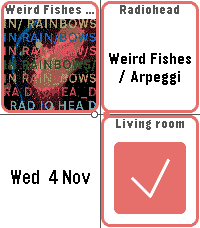
Dynamic
A Pebble watchface that makes room for your day.

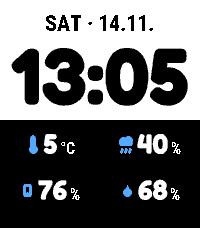
Keep a clear clock above your chosen readings. When music or a countdown is active, Dynamic rearranges the space to show it alongside the time.

- Choose Columns, Stacked rows or Four when idle. The four-reading grid keeps your selected pair when an activity or Timeline Peek needs room.
- Set separate colours for the clock and details, with day and night palettes.
- Hide reading titles or enable shake to switch your reading pair.
- Show music with its title, artist and available artwork.
- Choose and order your Activities: ongoing updates such as a Timer countdown. A smaller secondary summary appears when space allows.
- Adjust text size and clock format, with animated layout and track transitions.

Start a countdown in Timer, then return to Dynamic to keep it in view. Timer runs the countdown and alarm; open Timer to pause or change it. Open Activity can provide an optional Quick Launch shortcut back.

For Pebble Time 2 and Round 2. Shared readings and Activities require a connected phone, plugin support enabled in the official Pebble phone app, and permissions for the chosen sources. Built-in music and notifications require Android. Notification summaries and message text are separate opt-in settings.

Free. Part of XOCE. No XOCE account, ads or analytics. Selected providers have their own requirements and privacy practices.
 16
Dashboard (Plugin Demo)
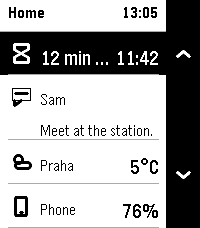
Dashboard demo app: show data from any plugin in 2 pages of 4 slots each. Configure which sources to use in the app's settings page. Tapping also allows taking actions (e.g. turning on lights, play/pause/skip music). Fun as a quicklaunch app.
 11
Dashboard
Your activity, notifications and pinned readings in one Pebble overview.

Open Dashboard for a quick look at one activity, a notification panel and two pinned items. Browse the full collections when you need more detail.

- Hold Up to browse Activities: ongoing updates such as a running Timer.
- Open Pinned to browse your chosen readings and shortcuts.
- Choose what each pin displays, its Select action and its Hold Select app shortcut, where supported by the source.
- Confirm actions when required by the source or your pin settings.
- Choose text size and a Light or Dark watch appearance. Available in 17 interface languages.

Start a countdown in Timer, then see its remaining time in Dashboard. Timer keeps control of the countdown and alarm; open Timer to pause or resume it. Available actions depend on the selected source.

For Pebble Time 2 and Round 2. Shared readings and Activities require a connected phone, plugin support enabled in the official Pebble phone app, and permissions for the chosen sources. Built-in music and notifications require Android. Pinned items here are Dashboard readings and shortcuts, separate from Pebble timeline pins.

Free. Part of XOCE. No XOCE account, ads or analytics. Selected providers have their own requirements and privacy practices.
 10
Open Gymnasium
OPEN GYMNASIUM

Set and rest timer, heart-rate tracking and automatic workout logging for the Pebble Time 2. Every workout is saved as a spreadsheet-ready CSV in your own Google Drive, in a phone folder you choose, or both.


WHAT IT DOES

- One-button set and rest timer, with a live heart rate coloured by training zone and a graph of the whole workout.
- Your workout days on your wrist: exercises in order, each with reps per set and a starting weight. Alternating exercises (for example curls and pull-ups) supported.
- Record the weight of every set on the watch, in kg or lbs.
- Optional warm-up, timed rest alarm, and Generic workouts (Exercise 1, 2, 3) when you have no plan.
- Pause stops recording. A forgotten workout asks "Still exercising?" and ends itself.
- A summary at the end: total time, average heart rate, work and rest time, and a heart-rate graph.
- One CSV per workout in your Google Drive: every set and rest, reps, weights, heart rate and two calorie estimates. Optional Android helper to copy workouts into Health Connect.
- No account, no subscription: your data goes from your watch to your phone to your Drive.


CONTROLS

- SELECT: start a set / start the rest.
- UP: next exercise. Hold UP: back an exercise.
- DOWN: weight up 1 kg or 5 lbs (with no weight yet it opens Record weight).
- Hold DOWN: menu (Pause, Record weight, Swap movement, Jump to exercise, Settings, End workout).
- Hold SELECT: end the workout.
- On the start screen, hold SELECT for a Generic workout.


WHAT YOU NEED

- A Pebble Time 2 and the Pebble / Rebble app on your phone.
- A free Google account.


SET UP (about 10 minutes, once)

Downloads: https://drive.google.com/drive/folders/1TcKN7BK410Mwz1CnRDCwd1dCp9fWFO38?usp=drive_link

1. Download Code.gs. At script.google.com create a New project, replace the code with Code.gs and save.
2. In Project Settings > Script Properties add UPLOAD_TOKEN with a long random password of your own (optional: FOLDER_NAME, default Open Gymnasium).
3. Deploy > New deployment > Web app, Execute as: Me, Who has access: Anyone. Approve the Drive permission and copy the Web app URL (ends in /exec). Nobody can save to your Drive without your token.
4. On your phone, open Open Gymnasium's settings: paste the URL and the token, choose Metric or Imperial, add your workout days and exercises, and Save.

Finish a workout of 2 minutes or more and its CSV appears in your Drive a few seconds later. If the phone is offline it keeps the workout and uploads it later.

Phone folder (Pebble mobile app 2.0 or later): in the phone settings pick Phone folder, or Google Drive and phone folder, tap Choose folder, pick a folder in Android's folder picker and Save. Phone folder alone needs no Apps Script URL or token. If a copy cannot be saved (folder access removed, no internet) the workout stays on the phone and is retried; choose the folder again if its access was removed.

Optional (Android): install OpenGymnasiumHealthSync.apk from the same folder, enter the same URL and token, allow Health Connect access and tap Sync now.


Typeface: Barlow Condensed (SIL Open Font License). Statue artwork is AI-generated.
 8
Open Activity
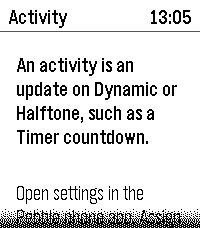
A button shortcut from your watchface to the app behind its activity.

See a Timer countdown on Dynamic or Halftone, then use a Quick Launch shortcut to open Timer. Open Activity uses recent activity information from your chosen watchface.

- Choose Dynamic or Halftone as the source watchface.
- Bind supported Quick Launch shortcuts to its large Primary activity or smaller Secondary row.
- Open the helper from the watch app list to read its setup guidance.
- Choose text size and a Light or Dark watch appearance in phone settings.

Assign Open Activity to the same shortcuts in Pebble's Quick Launch settings. If you switch between Dynamic and Halftone, update the source watchface in Open Activity too.

The shortcut opens the associated app, not a particular timer, song or notification. Timer's controls stay in Timer. When no valid activity destination is available, the helper returns to the watchface.

For Pebble Time 2 and Round 2, with one connected watch. Requires Dynamic or Halftone, a connected phone, plugin support enabled in the official Pebble phone app, and Launch Apps permission. The activity must provide an installed app to open.

Free. Part of XOCE. No XOCE account, ads or analytics.
 8
BBC Headlines
Headlines from BBC News or any RSS feed: a reader on your wrist, and a plugin for any watchface.
 7
Muse Chat
Before you install:
1. Turn on the plugin preview in the Pebble phone app: Settings > Plugins. Muse Chat's settings page and its bundled plugin need it.
2. You need a Muse account (muse.ai) and a computer to connect it once:
   a. On the computer, sign in to muse.ai in a browser (Chrome, Edge or Firefox).
   b. Open the developer tools (F12) > Application (Firefox: Storage) > Cookies > https://muse.ai, and copy the Value of the cookie named hatch_sess.
   c. In the Pebble app, open Muse Chat > Settings, paste it into the field and tap "Save and connect".
   hatch_sess is your Muse sign-in: move it to your phone only in a way only you can see, and don't share it.

Read and reply to your Muse chats from your wrist.

- Chats: open Main chat or any of your side chats, read the conversation, and switch chats from the watch.
- Reply: send a quick reply with one press, or dictate a message. Edit the quick replies in the settings.
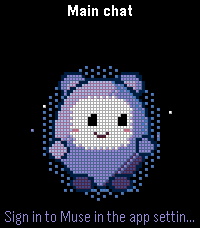
- Avatar: your Muse appears on the watch as an animated pixel avatar. It listens while you dictate, works while Muse thinks, writes along while the reply comes in, and cheers when it arrives. Ask Muse to design its own avatar from the settings page.
- Text size: small, medium or large text for the conversation. Black, white or gray background.
- English and Japanese, following your phone's language.

How to use:
- Main screen (the avatar): Up opens the conversation history, Down opens quick replies, Select opens the chat list, and long-pressing Select starts voice dictation.
- History: scroll with Up/Down, press Select to reload the latest conversation, long-press Select to dictate.
- A quick reply is sent as soon as you pick it. You can edit the phrases in the settings.
- Pick a chat in the chat list to switch to it.

Privacy: the Muse session you paste goes straight to the app's bundled plugin, which keeps it in the phone's secure storage. It is never sent to the watch, shown on screen or written to logs, and the field is cleared once you save. The app talks only to Muse's own services (muse.ai and its chat server hatch.metaaivm.com). The developer runs no servers and collects nothing.

Muse Chat is an unofficial personal project. It is not made, endorsed or supported by Meta or by Core Devices. It uses Muse's web interface, so a change on Muse's side can stop it working until it is updated.

For Pebble Time 2 and Pebble Round 2.
 7
Timer
Reusable countdowns, right on your Pebble.

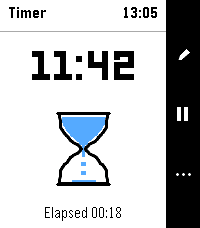
Save up to eight timers and control them with the watch buttons. Choose hours, minutes and seconds, start a countdown, then keep its duration ready for next time. Saved timers survive closing and reopening the app.

- Set a duration from five seconds to 24 hours.
- Pause, resume, reset or delete a timer on the watch.
- See the remaining time on a large countdown screen.
- Snooze a finished timer for one minute, or choose Done to dismiss it.
- Use vibration, with optional sound on Time 2. Round 2 uses vibration; sound respects system mute and Quiet Time.
- Choose text size and a Light or Dark watch appearance. Available in 17 interface languages.

Countdowns run on the watch. A scheduled alarm does not need a connected phone.

Want to keep a countdown on your watchface? Dynamic and Halftone can display Timer as an Activity, an ongoing update with the time remaining. Dashboard can display it too. This optional sharing needs a connected phone and plugin support enabled in the official Pebble phone app. Open Timer to pause, resume or change it.

Free. For Pebble Time 2 and Round 2. Part of XOCE. No XOCE account, ads or analytics.
 4
Tailscale Plugin
Tailscale plugin for Pebble
 4
OSM Map Background
This plugin generates map image with either your current location in the middle or selected custom gps coordinates that you can then use as background in watchfaces or watchfapps. You can select style, zoom level, layers and other options. Made by Claude.
 4
Astronomy
Astronomy brings the sun and the moon to every watchface and app on your Pebble. It is a phone-side plugin: install it once, and any face that supports plugins can show sunrise, sunset or the moon phase – no internet connection, no account, no API key.

WHAT IT PROVIDES
The sun (category "astronomy", item "sun"):
• sunrise, sunset and solar noon for today
• civil dawn and dusk (twilight)
• the next sunrise and the next sunset
• day length and whether the sun is up right now
• the sun's altitude, azimuth (with compass direction) and hour angle
• sunrise and sunset for the coming seven days

The moon (item "moon"):
• moonrise and moonset, the next moonrise and moonset
• the moon phase as a number, a short and a long name, and as a picture (drawn for your hemisphere)
• illumination in percent and the moon's age in days
• the next new moon and the next full moon
• the moon's altitude, azimuth and hour angle

FOR YOUR PLACES
You get one set of values for each of your weather locations in the Pebble app, or for your current position. If the phone has no position fix for a while, the last known one is used – the sun and moon hardly move with a few kilometres.

ACCURATE AND TIME-ZONE-PROOF
Everything is computed on your phone with established astronomical formulas (sun and moon after Meeus, the moon with parallax for your position). Checked against the reference library PyEphem for eight places and seasons from the Arctic to Sydney: rise and set times agree within a minute, positions within a tenth of a degree. All moments are delivered as exact timestamps, so faces show them correctly in any time zone, also after daylight saving changes. "Today" is the solar day around now, so polar day and polar night are handled too.

LANGUAGES
Phase names in English, German, French, Spanish, Italian and Portuguese, following your Pebble app's language.

FOR DEVELOPERS
Sources astronomy/sun and astronomy/moon, one instance per weather location (same instance ids as weather/location). Shapes: timestamp, numericValue, shortText, longText, boolean, icon/image and daily series. Permission: Location.

Used by the watchface Perpetual III. Made with Claude.
 4
Emberio
Your Ember mug on your Pebble.

See your drink's temperature and how many minutes of heat your mug's battery has left, change the temperature from your wrist, and get a buzz when your drink is ready or the battery runs low.

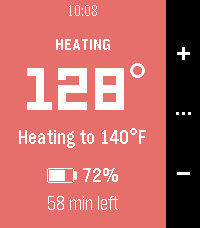
• The drink's temperature, big, on a background that shows what the mug is doing: orange heating, green perfect, blue cooling
• Target temperature, battery percentage, and minutes of heat left (or time to full on the coaster)
• Up/Down change the target. Select opens Latte, Coffee and Tea presets, heater on/off, alerts and units
• Alerts on your watch: drink ready, and low battery at the level you choose
• Watchface plugin: plugin-aware watchfaces and Complications can show your drink's temperature, battery and time left
• Every Pebble, with round layouts for Time Round and Round 2

You need:
• An Android phone with the free Emberio companion app, which talks to your mug over Bluetooth: https://github.com/aleminopuy/emberio/releases/latest
• An Ember Mug 2 (the Mug, Cup, Tumbler and Travel Mug should work too)

iPhone isn't supported.

Unofficial. Not made by, or affiliated with, Ember Technologies.

Open source (MIT): https://github.com/aleminopuy/emberio

Made with AI.