 22
22yamaNOTE
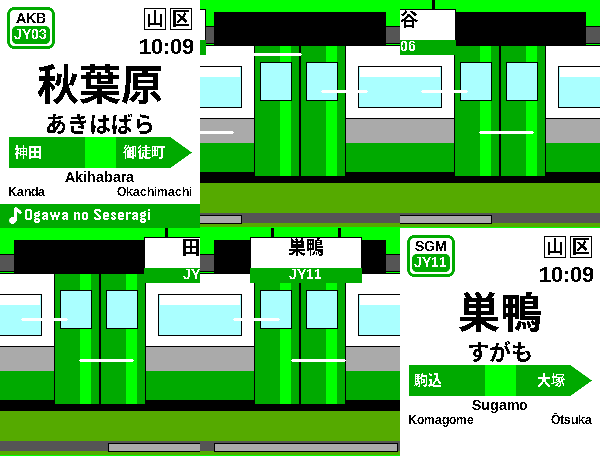
Tools & UtilitiesyamaNOTE — Yamanote Line departure-melody soundboard DESCRIPTION The Yamanote Line's departure melodies, on your wrist — a soundboard of all 30 stations. Ride the loop with UP/DOWN and every station appears as its authentic platform nameboard: JY badge, kanji / hiragana / rōmaji name, the green direction bar with the real neighbouring stations, and a platform clock. Press SELECT — or just tap the watch — and the station's departure melody plays through the speaker, with its name riding a green ♪ ticker along the bottom of the sign. Press or tap again to stop. WHAT'S IN v1.4.14 — "yamaNOTE" (launch build; highlights since the v1.0.0 package) • NEW NAME: yamaNOTE. Same app, same UUID — sideloads over any earlier build and keeps your settings. • EVERY MELODY RE-ENCODED FROM VERIFIED GROUND TRUTH. v1.0.0's machine transcriptions are gone: all pitched melodies are now hand-encoded from sheet music, fan scores, and note-by-note FFT analysis of the real station recordings (sources documented in the repo). Harmony voices, echo double-strikes (Haru tremolo), and register-true bass — with every note tuned for the watch speaker: sub-200Hz fundamentals lifted clear of the tiny driver's buzz range, click-free voice routing, and clean headroom (0% clip across all 19 renders). • TWO MELODY ERAS — new "Melodies" setting: Classic (2023), the beloved signature lineup (19 unique melodies), or Current (2026), today's JR East line where the standard JRE-IKST chime has replaced most classics while Kanda, Okachimachi–Tabata, Komagome, Ikebukuro, Takadanobaba, Ebisu, Takanawa Gateway and friends keep their tunes. • FAST TRAVEL — hold UP/DOWN to ride, release to arrive: - Quick slide: the nameboard zips station to station (200 ms each), direction-aware. - Cinematic: the E235 runs EXPRESS — doors close, the camera pulls back, and platforms streak past with their real hanging station signs and JY numbers until you release and the train brakes into your stop. • LOOP MAP QUICK-SELECT — settings row 0 opens a circular (truly circular, even on the tall emery screen) Yamanote map: 30 station dots, geographically oriented (Tokyo to the east), JY pill + kanji + rōmaji in the centre. UP/DOWN spins the loop, SELECT jumps there, BACK cancels. • NEW APP ICON — the green loop ring with a bell note at its centre, JY-signage style. (The watch launcher renders all menu icons grayscale — that's firmware; the store icon is full colour.) • Cinematic express signs carry the JY station number band, playing-ribbon layout no longer collides with the romaji rows, and dozens of smaller sign/animation fixes. • audio-previews/ in this folder contains PC-playable WAV simulations of the exact watch-speaker output for all 19 melodies (device-accurate render of the shipping note data), plus the Ueno/Shin-Ōkubo bell. CONTROLS UP / DOWN ......... previous / next station (hold to fast-travel; wraps around the loop) SELECT or tap ..... play / stop this station's melody Long SELECT ....... settings (loop map, dark mode, animation, melodies era, clock, volume, backlight) BACK .............. exit NOTES • Built from the Yamanote Loop watchface's sign renderer and train animations. • Melody set and station mapping follow yamanot.es; titles verified against Japanese departure-melody databases. • Speaker playback requires hardware with a speaker (Pebble Time 2). Melodies respect the system volume/mute.
 13
13Starspeeder
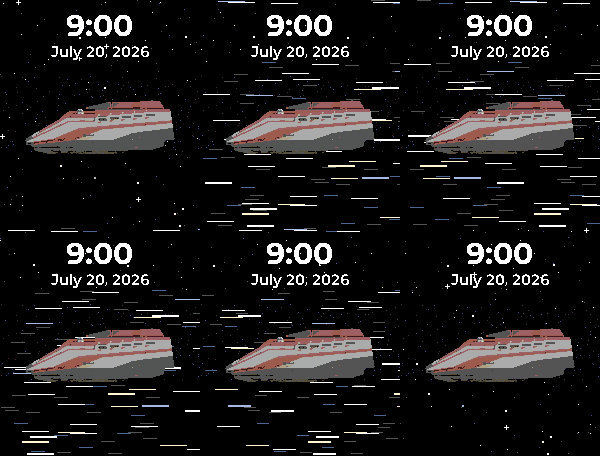
Faces# Starspeeder **A wrist-flick from hyperspace.** Starspeeder puts a Star Tours shuttle on your wrist — cruising through open space or resting on a hangar deck — beneath your time, date, and weather. ## Features - **Two backgrounds** — a near-black **starfield** drawn procedurally (mixed 1px/2px stars with a few brighter twinkles), or a procedurally drawn **hangar deck** where the shuttle sits landed on its skids. Pick one in Settings. - **Two shuttles** — the **Starspeeder 1000** in its classic rust-red-and-white livery (default), or the white-and-blue **Starspeeder 3000**. Every shuttle faces left, engines trailing. - **Wrist-flick animations** *(space only)* — flick your wrist and the stars come alive for a ~5-second burst, then ease back to still: - **Normal travel** — the starfield drifts steadily past the hull. - **Hyperspace** — stars stretch into streaking light lines and snap back. - **Off** — keep it perfectly still. Bursts are short and there's no idle animation, so the battery cost is tiny. - **Live weather with bespoke icons** *(optional)* — high/low temperature plus a matching hand-drawn condition icon (sun, clouds, rain, thunder, snow, fog, and a crescent moon on clear nights), in °C or °F. - **Show what you want** — independently hide the time or the date; the layout stays put so nothing jumps around. - **Configurable** — 12/24-hour time, six date formats, ship, background, wrist-flick animation, temperature unit, and weather on/off — all on the Settings page. ## Get the most out of it (one-time setup) Weather starts **off** so the face is clean out of the box and needs no account. To light it up: 1. Grab a **free** OpenWeatherMap API key at [openweathermap.org](https://openweathermap.org) — the watchface ships with no built-in key, so you supply your own. 2. Paste it into the watchface **Settings** page. 3. Turn **Show weather** on and pick °C or °F. ## Settings - 24-hour time (on/off) - Date format (six styles, from `31/12/2026` to `Dec 31`) - Show time / Show date - Ship — Starspeeder 1000 or 3000 - Background — Space or Hangar - Wrist-flick animation — Normal travel / Hyperspace / Off - Show weather (off by default) - Temperature unit — °F or °C - OpenWeatherMap API key ## Compatible watches - **Pebble Time 2** (Emery, 200×228 color) - **Pebble Round 2** (Gabbro, 260×260 round color)
 6
6Cruisin'
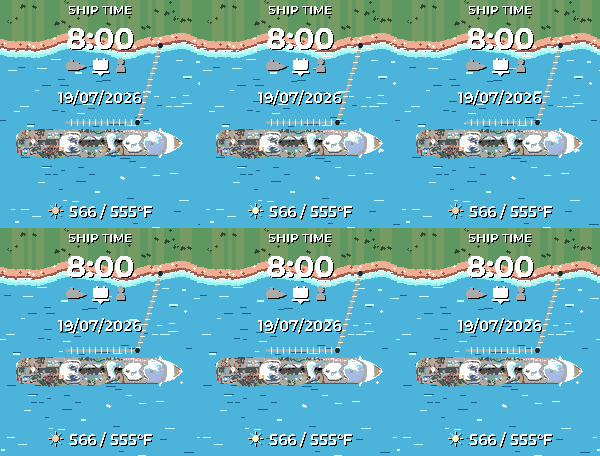
FacesCruisin' Set sail from your wrist. Cruisin' recreates the feel of a cruise-line app's home screen as a Pebble watchface: a top-down mega cruise ship glides across live tropical water beneath your ship time, date, and weather. Features A new itinerary every day — each date is deterministically a sea day (open water, churned white wake trailing the stern) or a port day (tropical shoreline with palm canopy, sandy beach, turquoise shallows, and a gangway to shore). Same date, same scene — it's your ship's schedule. Prefer one view? Pin the scene to always at sea or always in port in Settings. Live weather with bespoke icons — high/low temperature plus a matching hand-drawn condition icon (sun, clouds, rain, thunder, snow, fog — and a crescent moon on clear nights), in °C or °F. Day & night — after sunset the ocean and coast dim to night tones, at your own custom times or automatically from your local sunset. Water in motion (optional) — flick your wrist and the ocean comes alive: water streams fast past the hull on sea days and laps gently in port. Off by default to save battery. Configurable — 12/24-hour time, six date formats, temperature unit, weather on/off, scene mode (random / port / sea), day/night mode and times, and water motion — all in the Settings page. Get the most out of it (one-time setup) Weather starts off so the face is clean out of the box. To light it up: Grab a free OpenWeatherMap API key and paste it into the watchface Settings page. Turn Show weather on. Optionally switch Day & night from "At custom times" to "Automatically (from weather)" for sunset-accurate dimming. Compatible watches Pebble Time 2 (Emery, 200×228 color) Pebble Round 2 (Gabbro, 260×260 round color)
 43
43Touch Test
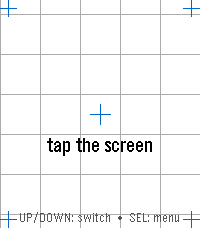
Tools & UtilitiesTouch Test — Watch Hardware Diagnostic A menu-first hardware diagnostic suite for your Pebble: 16 self-contained tests covering touch, buttons, motion, compass, heart rate, health, ambient light, haptics, sound, backlight, Bluetooth, battery, display, and device identity — fast, no-fuss, and event-driven so it won't touch your battery. Open the Diagnostics menu and tap or scroll to any test. SELECT opens it; BACK returns to the menu from any test, and BACK again from the menu leaves the app; holding BACK exits from anywhere. Sixteen diagnostics on Pebble Time 2, fourteen on Pebble Round 2: • Touch — tap anywhere and a red marker drops exactly where the watch registered your touch, with the raw x, y coordinate over a reference grid and crosshairs. The quickest way to check whether your touchscreen is aligned. • Zones — sweep your finger across the whole screen; each zone turns green until every one has registered ("ALL ZONES OK"), so you can find dead spots. SELECT resets and runs it again. • Buttons — press and hold BACK, UP, SELECT, or DOWN and watch the matching on-screen button light up, with a sustained "held" state while you keep holding. • Motion — a live tilt bubble-level, per-axis X / Y / Z readouts, and a "SHAKE!" flash, driven by the accelerometer. • Compass — a live needle and heading, plus a calibration view with a 16-sector heading-coverage ring and guidance for getting a clean fix. • Heart Rate — filtered and raw BPM, a pulsing heart glyph, and a scrolling trace of recent samples. • Health — steps, distance walked, active time, calories, sleep, and your current detected activity. • Haptics — six vibration patterns, with a waveform preview so you see the pattern before you feel it. SELECT plays the next one. • Touch Haptics — tap the screen and feel it buzz where you touched. A tap in the top half gives a short pulse, one in the bottom half a long one, with a crosshair marking the spot and a running pulse count — so you can check both that the vibration motor responds and that the watch registers your touch where you actually put your finger. • Piano (Pebble Time 2 only) — a one-octave touch keyboard with octave shift, waveform selection, and a 3-voice chord test. • Backlight (Pebble Time 2 only) — a color wheel; touch it to tint the RGB backlight LED to any color, with a live hex readout. • Bluetooth — live phone-app and PebbleKit connection status, a dropped-link counter for each, and a link-latency ping to your phone. • Battery — charge percentage as a filled ring, plus charging and plugged indicators. • Display — full-screen test patterns (color bars, gray ramp, solid colors, checkerboard, grid, edge-alignment frame) for spotting dead or stuck pixels. SELECT cycles the patterns. • Device Info — model, color, firmware version, resolution, free memory, and the detected hardware capability list — the first screen to check what your watch claims to be. Built for Pebble Time 2 (emery) and Pebble Round 2 (gabbro) — the Pebble models with a touchscreen. Lightweight and entirely event-driven: nothing polls in the background, so it won't drain your battery.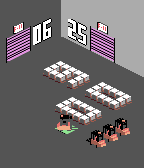 173
173Forklift Certified 2.5D
FacesFORKLIFT CERTIFIED 2.5D Pallets spell the time. A fleet of forklifts moves them — now in 2.5D. Welcome to the warehouse, rebuilt in depth. Forklift Certified 2.5D turns your watch into a tiny isometric loading dock. The time is spelled out in pallets — stacked into pixel-block digits — sitting on the floor of a real 2.5D warehouse with walls, roll-up dock doors, signage and a charging station. Every minute the crew wakes up: little forklifts roll out of the dock doors, drive down the aisles in true isometric perspective, and physically pick up, carry, and set down the pallets needed to rebuild the digits that changed. Then they reverse back to the charging bay and wait for the next minute. When several digits change at once (like an hour rollover), the whole crew turns out — up to four forklifts work different digits at the same time on Pebble Time and Pebble Time 2, steering around each other and the cargo as they go. On the round watches a single tireless truck restocks each digit in turn. It is a clock you will actually want to watch tick over. FEATURES • A 2.5D isometric warehouse — floor, walls, roll-up dock doors, signage and a charging station, all drawn in depth • Pallets form the digits — real cargo on a real warehouse floor, not numbers on a screen • Forklifts that genuinely drive, turn, reverse, lift and carry each pallet into place • Up to 4 forklifts working together when multiple digits change (Pebble Time / Time 2) • Charging station doubles as the battery gauge (green / yellow / red) • Centered date display • Follows your watch's 12h / 24h setting • Battery friendly — the screen only updates once a minute CUSTOMISE IT (from the Pebble phone app) • Light or dark warehouse • Pick your loading-dock door color • Date options: show or hide, MM-DD or DD-MM, optional no leading zeros • Battery saver: freeze the animation to save power • Schedule low power mode: pick a daily start and end time and the warehouse goes quiet automatically during that window (great for overnight) WORKS ON THE COLOR PEBBLES • Pebble Time 2 (emery) • Pebble Time (basalt) • Pebble Time Round (chalk) • Pebble Round 2 (gabbro) Square and round. The 2.5D warehouse is a color experience — black-and-white Pebble owners can keep the original top-down Forklift Certified.
 46
46Forklift Certified
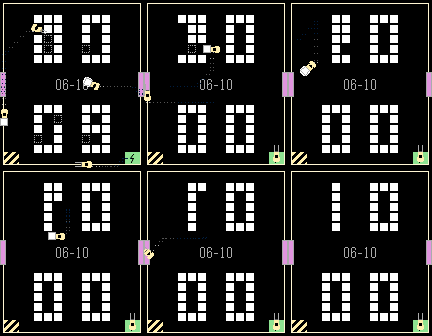
FacesFORKLIFT CERTIFIED Pallets spell the time. A forklift moves them. Welcome to the warehouse. Forklift Certified turns your watch into a tiny top-down loading dock. The time is spelled out in pallets — stacked into pixel-block digits, hours on top and minutes on the bottom. Every minute a little yellow forklift wakes up, drives out, and physically picks up, carries, and sets down the pallets it needs to rebuild the digits that changed. Then it reverses back to its charging bay and waits for the next minute. When several digits change at once (like an hour rollover), the forklift calls in its crew — up to four trucks roll out of the loading-dock doors at the same time, each rebuilding its own digit, steering around each other and the pallets as they go. It is a clock you will actually want to watch tick over. FEATURES • Pallets form the digits — a real warehouse floor, not just numbers on a screen • A forklift that genuinely drives, turns, reverses, lifts and carries each pallet into place • Up to 4 forklifts working together when multiple digits change • Charging bay doubles as the battery gauge (green / yellow / red on color watches, a filling level on black-and-white) • Centered date display • Follows your watch's 12h / 24h setting • Battery friendly — the screen only updates once a minute CUSTOMISE IT (from the Pebble phone app) • Light or dark warehouse floor • Pick your loading-dock door color • Date options: show or hide, MM-DD or DD-MM, optional 2-digit year, optional no leading zeros WORKS ON EVERY PEBBLE • Pebble Time 2 (emery) • Pebble Time (basalt) • Pebble 2 (diorite) • Pebble 2 Duo (flint) • Pebble Time Round (chalk) • Pebble Round 2 (gabbro) Square and round. Color and black-and-white.
 31
31JR Shinkansen
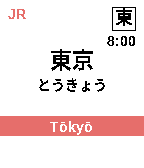
FacesJR Shinkansen — Tōkaidō・Sanyō Shinkansen watchface Version 1.0.0 DESCRIPTION Your wrist becomes a Shinkansen platform nameboard — and the station tells the time. This watchface puts you on the Tōkaidō・Sanyō Shinkansen, riding Tokyo ⇄ Hakata across all 35 stations. The line is the clock: one full run of the line takes one hour, and the train reverses direction every hour. At the top of an even hour you're at Tōkyō, rolling station-by-station toward Hakata and arriving by ~:58; odd hours run the line back, Hakata → Tōkyō. Which station is showing tells you the minute — and for the exact time, just read the platform clock, the way every Shinkansen platform has one. It's a real nameboard at every moment: the authentic station name in kanji, hiragana, and rōmaji, the boxed kanji station code, the JR wordmark, and a line-coloured strip carrying the rōmaji with the previous and next stops. The colour follows the operating company along the route — JR Central orange on the Tōkaidō, JR West blue on the Sanyō — and an optional direction chevron follows the way you're travelling. When the station changes, the board moves on like an arriving train. FEATURES • Authentic Shinkansen nameboard (新幹線駅名標) — cream board with the station name in kanji / hiragana / rōmaji, a boxed kanji station code, the JR wordmark, and a line-coloured strip with the real adjacent stations. • Company-aware colours — Tōkaidō stations show JR Central orange, Sanyō stations show JR West blue. • Travel-direction chevron (optional) — a ">" or "<" beside the station name, pointing the way the train runs: toward Hakata on even hours, back toward Tokyo on odd hours. Turn it on in Settings. • Tells time by riding the line — one full traverse = one hour across all 35 stops, reversing direction every hour, anchored to Tōkyō on the even hours and Hakata on the odd. • Platform clock for the precise time (12- or 24-hour). • Two selectable trains — the N700 series (duck-bill nose) or the 500 series (needle nose), single-door, shown in the cinematic transitions. • Cinematic train transitions — choose Off (a quick sign slide), Cinematic Short (the same train rolls forward to the next car's door), or Cinematic Long (the whole train departs, a new one arrives, and its doors open onto the next station). Pick whether it plays on every station change or wrist-flick only. • Tap or flick your wrist to peek — replays the transition on demand (and lights the screen). • Two route lengths — ride the Full line (Tokyo ⇄ Hakata, 35 stops) or the Short Tōkaidō run (Tokyo ⇄ Shin-Ōsaka, 17 stops). • Fits every Pebble screen — rectangular and round, colour and black-and-white, with adaptive layout so long names like Higashi-Hiroshima and Shin-Yamaguchi stay crisp. On round screens the JR wordmark mirrors the boxed station code, framing the board. COMPATIBLE WATCHES • Pebble Time 2 (primary) • Pebble Round 2 • Pebble Time / Pebble Time Steel • Pebble Time Round • Pebble 2 (black & white) SETTINGS Open the Pebble app, then this watchface, then Settings: • Route — Full (Tokyo ⇄ Hakata, 35 stops) or Short (Tokyo ⇄ Shin-Ōsaka, Tōkaidō only, 17 stops). Default: Full. • Train — N700 series or 500 series. Default: N700. • Cinematic train — the transition style: Off (quick sign slide), Cinematic Short, or Cinematic Long. Default: Cinematic Short. • Play cinematic on — Every station change or Wrist-flick only. Default: Every station change. • 24-hour time — switch the platform clock between 12- and 24-hour. Default: 12-hour. • Dark mode — flip to a black board with white text; the line strip keeps its company colour. Default: off. • Direction arrow — show a travel-direction chevron beside the station name. Default: off. • Peek on tap — turn the tap/flick-to-peek animation on or off. Default: on. • Backlight on tap — turn the tap/flick-to-light-the-screen behaviour on or off. Default: on.
 64
64JR East Yamanote Loop
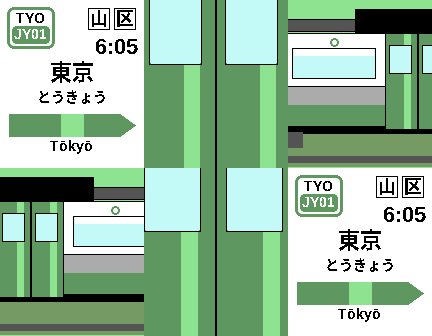
FacesYour wrist becomes a JR East Yamanote Line platform — and the station tells the time. The Yamanote Line circles central Tokyo in about 60 minutes, so this watchface turns one loop into one hour. Every two minutes the nameboard advances one station around all 30 stops: at the top of the hour you're at Tokyo (JY01), rolling station-by-station back around to Yūrakuchō by :58. Which station is showing tells you the minute — and for the exact time, just read the platform clock in the corner, the way every JR platform has one. It's a real sign at every moment: the correct JY station number on the badge, the authentic station name in kanji, hiragana, and rōmaji, and the actual neighbouring stations on the green direction bar. When the station changes, the sign slides in like an arriving train and settles onto the platform. Features Authentic Yamanote nameboard (駅名標 ekimeihyō) — JY number badge, station name in kanji / kana / rōmaji, and the green directional arrow bar with the real adjacent stations. Tells time the Yamanote way — one loop = one hour, a new station every two minutes across all 30 real stops, anchored to Tokyo on the hour. Platform clock for the precise time (12- or 24-hour). Train-arrival animation on every station change — the sign slides in and gives a little settle, like a train pulling into the platform. Optional Yamanote Cinema transition — switch the station change to a full speed-ramped sequence: the green doors close over the sign, the camera pulls back to the whole E235 train, it departs, the next train arrives, and the doors open onto the new station. (Off by default.) Tap or flick your wrist to peek — replays the animation on demand (and lights the screen). Dark mode and Timeline Quick View support — the board steps aside when a timeline event peeks in. Fits every Pebble screen — rectangular and round, colour and black-and-white, with layouts tuned so the Japanese names always stay crisp and uncut. Compatible watches Pebble Time 2 (primary) · Pebble Round 2 · Pebble Time / Pebble Time Steel · Pebble Time Round · Pebble 2 (black & white) Settings (Pebble app → this watchface → Settings) 24-hour time — 12- or 24-hour platform clock. (Default: 12-hour.) Dark mode — black board with white text; the line bar stays Yamanote green. (Default: off.) Cinema — play the cinematic train transition instead of the quick slide: Off, Wrist-flick only, or Every station change. (Default: off.) Peek on tap — turn the tap/flick-to-peek animation on or off. (Default: on.) Backlight on tap — turn the tap/flick-to-light-the-screen behaviour on or off. (Default: on.)