 37
What's Playing
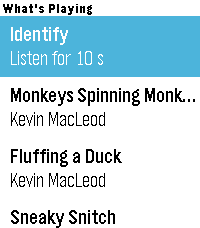
Tools & UtilitiesIdentify the music playing around you. Press Identify and your watch listens for up to ten seconds, then shows the song's title, artist and album. Your last ten matches stay on the main screen. Needs a watch with a microphone (Pebble Time 2, Pebble 2 Duo or Pebble Round 2) and a phone app that streams the watch microphone to the phone. The recording is sent to Core Devices' recognition service, which uses AudD to find the song. No account or setup needed.
 3
Remember The Milk
Reminders & TasksAdd tasks to Remember The Milk from your Pebble watch or Index ring. Say what you need to do, for example "Add oat milk to my groceries". The task goes to your Inbox, or to the list you name, with the due time you said. Remember The Milk reminds you using the reminder settings in your account. Security and privacy: - The plugin uses your own Remember The Milk API key, which you request from Remember The Milk. You then allow access on Remember The Milk's own page. - Your key and sign-in are stored in your phone's secure storage and are only used to add tasks to Remember The Milk. - Tasks go from your phone straight to Remember The Milk over HTTPS. - The source code is on GitHub. To set it up, request an API key on Remember The Milk's website, then open the plugin's settings, enter the key and shared secret, and allow access.
 11
Complication Face (Plugin Demo)
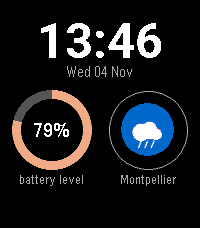
FacesA demo watchface built on the Pebble plugin API: the time and date with two slots, a number and a picture, filled from the readings you prefer in the Pebble app (for example phone battery, weather or your next event). Configure your preferred readings in Settings / Plugins / Complications.
 15
Weather Face (Plugin Demo)
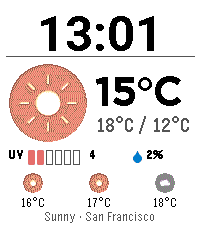
FacesA demo watchface built on the Pebble plugin API: time, current temperature with the day's high and low, a condition picture, UV index, chance of rain and your location, all read from the phone's weather plugin.
 74
Find My Phone
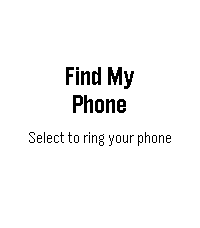
Tools & UtilitiesLost your phone? Pick Find My Phone in your watch's launcher and hit select to start ringing your phone
 23
Obsidian/Markdown Notes
Notes, Reminders & TasksSave notes as Markdown files in your Obsidian vault, or any folder, from your Pebble watch or Index ring. Say what you want to save, for example "Idea: a reading list for winter". Each note can be its own file, or be added to the end of a note you pick. Reminders are written as Obsidian tasks. Security and privacy: - The plugin only reads and writes the folder you pick on your phone. It has no internet access and needs no account. - Your notes are plain Markdown files, so they sync however you already sync your vault. - The source code is on GitHub. To set it up, install the plugin, open its settings and pick your vault folder.
 22
Claude
AI AgentsSend messages to Claude from your Pebble watch or Index ring: to a Claude chat, to a Claude Code session, or to Claude Duet. On an Index 01 ring, either choose Claude as your hold-and-talk destination in Index settings, or start with "Send to Claude", for example "Send to Claude, draft a reply to the landlord". Say "Claude" followed by your message, for example "Ask Claude to draft a reply to the landlord" or "Tell Claude Code to fix the flaky test". By default each message starts a new Claude chat. In the plugin settings you can instead send to a default chat or Claude Code session, and give chats short nicknames so they're easy to say. If your account has Claude Duet, you can turn it on in settings to send to its main conversation. You read replies in Claude. If the plugin can't tell whether a message arrived, it won't send it again. Security and privacy: - You sign in on Claude's own sign-in page. The sign-in is stored in your phone's secure storage and is only used to talk to Claude. Disconnecting in settings removes it from the plugin. - Messages go from your phone directly to Claude over HTTPS. They don't pass through Pebble or Core Devices servers. - The source code is on GitHub. To set it up, install the plugin, open its settings, sign in to Claude and pick your organization if you have more than one. Anthropic doesn't offer a public API for Claude chats and Claude Code sessions, so this plugin uses the same connection as claude.ai. You need a Claude account.
 1
Roam Research
NotesCapture notes to today's daily note in Roam Research from your Pebble watch or Index ring. Say what you want to save, for example "Note: Dana prefers the Thursday slot". It's added to today's daily note, grouped under one block if you like, with the time in front if you want it. Security and privacy: - The plugin uses an append-only graph token that you create in Roam. It can add notes to your graph but can't read anything in it. - The token is stored in your phone's secure storage and is only used to add notes. - Notes go from your phone straight to Roam over HTTPS. - The source code is on GitHub. To set it up, create an append-only token in Roam's graph settings, then enter it with your graph name in the plugin's settings.
 8
Muse
AI AgentsSend messages to your Muse assistant from your Pebble watch or Index ring. On an Index 01 ring, either choose Muse as your hold-and-talk destination in Index settings, or start with "Send to Muse", for example "Send to Muse, plan a quiet Saturday for the two of us". Say "Muse" followed by your message, for example "Muse, plan a quiet Saturday for the two of us". The message goes to your Main chat in Muse, and you read the reply in the Muse app. You can pick a different chat in the plugin settings, or name a chat when you speak. Your watch shows a confirmation when Muse has received the message. If the plugin can't tell whether a message arrived, it won't send it again. Security and privacy: - Messages go from your phone directly to Muse over an encrypted connection, the same one Muse's web app uses. They don't pass through Pebble or Core Devices servers. - You sign in on Muse's own sign-in page. The session is stored in your phone's secure storage and is only used to talk to Muse. - The source code is on GitHub. To set it up, install the plugin, open its settings and sign in to Muse. Muse doesn't have a public API, so this plugin uses the same connection as the Muse web app. You need a Muse account.
 11
Location Sharing
People & LocationSee where the people who share their location with you on Google Maps are, from your Pebble watch or Index ring. Ask "Where is Alex right now?" and you get the nearest address and how long it would take to get there from where you are, by car, on foot or by bike. It only shows people who already share their location with you in Google Maps. This plugin uses an unofficial Google API. It reads shared locations the same way Google Maps does, not through a public API. Google could change this at any time, and the plugin would stop working until it's updated. Security and privacy: - You sign in on Google's own sign-in page. The sign-in is stored in your phone's secure storage and is only used to read the locations shared with you. - Your own location is only used to work out travel times. - Locations come straight from Google to your phone over HTTPS. They don't pass through Pebble or Core Devices servers. - The source code is on GitHub. To set it up, install the plugin, open its settings and sign in with Google.
 6
Grok Bot
AI AgentsSend messages to your Grok Bots from your Pebble watch or Index ring, and read their replies. On an Index 01 ring, either choose Grok Bot as your hold-and-talk destination in Index settings, or start with "Send to Grok Bot", for example "Send to Grok Bot, how did the deploy go?". Say "Grok Bot" followed by your message, for example "Ask Grok Bot how the deploy went". The message goes to your default bot, or to the bot or group you name. You can give bots short nicknames in the plugin settings so they're easy to say, like "Send to work". To see what a bot wrote back, ask for its latest replies. If the plugin can't tell whether a message arrived, it won't send it again. Security and privacy: - You sign in to Cursor in your phone's browser, the same way the Grok Bot app does. The sign-in is stored in your phone's secure storage and is only used to talk to Grok Bot. - Messages go from your phone to Cursor and your Grok Bot computer over HTTPS. They don't pass through Pebble or Core Devices servers. - The source code is on GitHub. To set it up, install the plugin, open its settings, sign in to Cursor and pick a default bot. Cursor's sign-in lasts about 60 days, after which you sign in again. Grok Bot doesn't have a public API, so this plugin uses the same connection as the Grok Bot apps. You need a Grok Bot account.
 18
Google Home
Smart HomeControl your Google Home devices from your Pebble watch or Index ring. Turn lights on and off, set brightness and colour temperature, lock and unlock locks, set the thermostat, change speaker volume and playback, and run your household routines. For example "Turn off the living room lights". You can name a device, a room or a type of device. The plugin works with the devices and routines you already have; it can't add or remove anything. This plugin uses an unofficial Google API. It talks to Google Home the same way the Google Home app does, not through Google's developer APIs. Google could change this at any time, and the plugin would stop working until it's updated. Security and privacy: - You sign in on Google's own sign-in page. The sign-in is stored in your phone's secure storage and is only used to read and control your devices. - Commands go from your phone straight to Google over HTTPS. They don't pass through Pebble or Core Devices servers. - The source code is on GitHub. To set it up, install the plugin, open its settings and sign in with the Google account that owns your devices.
 25
Google Tasks & Keep
Notes, Reminders & TasksAdd reminders to Google Tasks and save notes to Google Keep from your Pebble watch or Index ring. Say what you need to remember, for example "Remind me to renew my passport on Friday", and it goes to Google Tasks with the time you said. Notes go to Google Keep. Both use one Google account. This plugin uses an unofficial Google API. Google Keep has no public API for personal accounts, so the plugin signs in and talks to Google Tasks and Keep the same way Google's Android apps do. Google could change this at any time, and the plugin would stop working until it's updated. Security and privacy: - You sign in on Google's own sign-in page. The sign-in is stored in your phone's secure storage and is only used to add reminders and notes. - Reminders and notes go from your phone straight to Google over HTTPS. They don't pass through Pebble or Core Devices servers. - The source code is on GitHub. To set it up, install the plugin, open its settings and sign in with Google.
 9
ChatGPT
AI AgentsSend messages to ChatGPT from your Pebble watch or Index ring: to your Dot, to a ChatGPT chat, to Codex sessions on your computer, or as a new Codex Cloud task. On an Index 01 ring, either choose ChatGPT as your hold-and-talk destination in Index settings, or start with "Send to ChatGPT", for example "Send to ChatGPT, find me a good pasta recipe". Say "ChatGPT" or "Codex" followed by your message, for example "Ask ChatGPT for a good pasta recipe" or "Tell Codex to run the test suite". With no chat named, the message goes to your Dot or your default chat, whichever you choose in the plugin settings. You can also start a new ChatGPT chat, reply in one of your 20 most recent ones, or give chats short nicknames so they're easy to say. You read replies in ChatGPT or Codex. For ChatGPT chats, your watch may show the start of the answer. To reach Codex sessions on your computer, pair the computer in the plugin settings. Codex Cloud tasks run on a copy of one of your GitHub repositories, as they do on chatgpt.com. If the plugin can't tell whether a message arrived, it won't send it again. Security and privacy: - You sign in with ChatGPT on OpenAI's own sign-in page. The sign-in is stored in your phone's secure storage and is only used to talk to ChatGPT and Codex. - Messages go from your phone to OpenAI over HTTPS. They don't pass through Pebble or Core Devices servers. - The source code is on GitHub. To set it up, install the plugin, open its settings and sign in with ChatGPT. OpenAI doesn't offer a public API for the Dot, ChatGPT chats or Codex sessions, so this plugin uses the same connections as the ChatGPT and Codex apps. You need a ChatGPT account.
 6
Apple Notes
NotesSave notes to Apple Notes from your Pebble watch or Index ring. Say what you want to save, for example "Note: the wifi code is on the router". It's saved as a new note, or added to the end of a note you pick, and syncs to your Apple devices through iCloud. This plugin uses an unofficial connection to iCloud. Apple has no public API for Notes, so the plugin talks to iCloud the same way the iCloud website does. Apple could change this at any time, and the plugin would stop working until it's updated. Security and privacy: - You sign in on Apple's own iCloud sign-in page. The sign-in is stored in your phone's secure storage and is only used to save notes. - Notes go from your phone straight to iCloud over HTTPS. They don't pass through Pebble or Core Devices servers. - The source code is on GitHub. To set it up, install the plugin, open its settings and sign in with your Apple ID.
 7
MET Norway Weather
WeatherWeather forecasts from the Norwegian Meteorological Institute (MET Norway) for your Pebble watch. Get the weather now, hour by hour for today and tomorrow, the week ahead, and sunrise and sunset, for each of your weather locations and in your units. It can be your watch's weather source, so watchfaces and apps that show weather use it. Security and privacy: - No account or API key. Forecasts come from MET Norway's free public weather service. - Your phone's location is only used for the current-location forecast. - The source code is on GitHub. To set it up, install the plugin and choose it as your weather source in the Pebble app's Weather settings.
 4
Stocks
FinanceShare prices for the stocks you pick, on your Pebble watchface or when you ask. Choose your tickers in the plugin settings. Each one shows its price and today's change, in money and as a percentage. Watchfaces that show stocks can display them, and you can ask, for example "How is Apple doing today?". Prices come from Yahoo Finance through an unofficial connection that Yahoo doesn't document, so it could change at any time. Security and privacy: - No account or sign-in. The plugin only requests prices for the tickers you choose. - The source code is on GitHub. To set it up, install the plugin, open its settings and add your tickers.
 11
Dashboard (Plugin Demo)
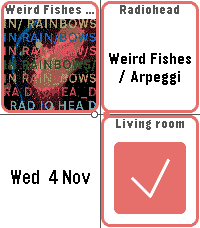
Tools & UtilitiesDashboard demo app: show data from any plugin in 2 pages of 4 slots each. Configure which sources to use in the app's settings page. Tapping also allows taking actions (e.g. turning on lights, play/pause/skip music). Fun as a quicklaunch app.
 4
Hue
Smart HomeControl your Philips Hue lights from your Pebble watch or Index ring. Turn single lights, rooms or your whole home on and off, and dim them, for example "Dim the bedroom to 30 percent". Watchfaces and apps can also show whether lights are on. Security and privacy: - The plugin talks to your Hue bridge directly over your home Wi-Fi. It doesn't need a Hue account or Philips' cloud. - It only goes online once, while pairing, to find your bridge. - You pair by pressing the button on your bridge, and the pairing is stored on your phone. - The source code is on GitHub. To set it up, install the plugin, open its settings, press the button on your Hue bridge and tap Pair.
 2
Notion
NotesSave notes and to-dos to Notion from your Pebble watch or Index ring. Say what you want to save, for example "Note: ask Sam about the deposit". Depending on your settings, it's added as a to-do under a "Todo" heading, as a new page, or as text at the end of a page you choose. Security and privacy: - You connect Notion on Notion's own sign-in page, and choose which pages the plugin can use. - Your connection is stored in your phone's secure storage and is only used to save notes to Notion. Disconnecting in settings removes it. - Notes go from your phone straight to Notion over HTTPS. - The source code is on GitHub. To set it up, install the plugin, open its settings, connect Notion and pick a page.