Codex Pigeon
shveg

Watchapp
Description
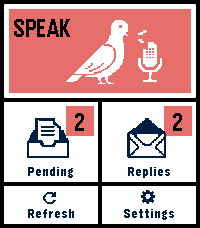
Codex Pigeon turns a Pebble Time 2 into a small voice mailbox for GitHub and Obsidian.

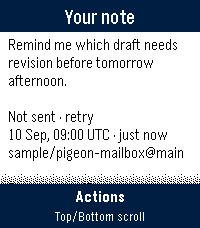
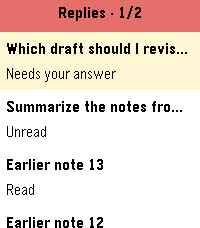
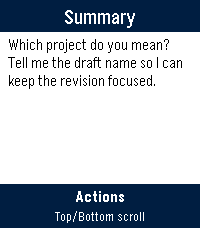
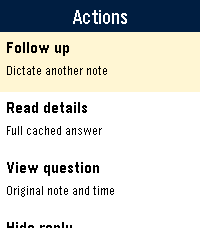
Dictate a note on the watch, review it, and send it to a private GitHub repository as a Markdown file. Later, refresh the app to read replies or dictate a follow-up in the same conversation. Touch controls and the physical buttons both work throughout the app.

Codex Pigeon is a transport tool, not a hosted AI service. It moves messages between the watch and a repository you control. What happens on the home computer is entirely your choice. You can use Codex, Claude, another model, a local model, a simple script, or no model at all. The Codex workflow is the only model-based setup tested end to end for this release.

HOW IT WORKS

The watch sends each request as a separate file in the repository's inbox folder. A process on your computer can read the request and create a matching file in the replies folder. GitHub carries the files between devices, while Obsidian presents them as ordinary local notes.

The file-per-message design keeps the mailbox append-only and reduces merge conflicts. Dismissing a reply hides it on the phone and watch only. It does not delete the GitHub or Obsidian copy.

SETUP

1. Create a dedicated private GitHub repository.

For example, create a private repository named pebble-mailbox under the fictional account example-user. Inside it, create folders named inbox and replies, plus a file named Conversation.md. Commit and push the initial structure.

2. Create a restricted GitHub token.

In GitHub, open Settings, Developer settings, Personal access tokens, Fine-grained tokens, then Generate new token. Limit repository access to the single mailbox repository. Grant only Contents: Read and write. No administration, workflow, issue, pull-request, organization, or account permissions are required.

Use an expiration date and store the token safely. github_pat_EXAMPLE_NOT_A_REAL_TOKEN is a fake example and must not be used. Never put a real token in source code, documentation, screenshots, Obsidian notes, or chat.

3. Connect the repository to Obsidian.

Clone the mailbox repository onto the home computer. You can open that folder as a dedicated Obsidian vault, or clone it as a folder inside an existing vault. Git performs the synchronization; Obsidian does not need a Git plugin unless you independently want one.

4. Configure Codex Pigeon.

In the Pebble phone app, open Codex Pigeon settings and enter the repository owner, repository name, branch, and fine-grained token. Example values are example-user, pebble-mailbox, and main. Test the connection, then save.

5. Choose what processes incoming notes.

A local worker can periodically pull the repository, find inbox files without matching replies, perform the requested work, write the response to replies using the same message ID, optionally update Conversation.md, then commit and push.

Codex Pigeon deliberately does not install that worker or decide what it may access. Configure your local tool with the permissions and project boundaries you consider appropriate. Watch messages should be treated as untrusted input, not as automatic permission to access unrelated files or services.

NO-AI USE

AI is optional. Codex Pigeon can be used as a voice-to-Markdown inbox, an append-only remote notebook, an input for a rules-based script, or a way to capture notes for manual review in Obsidian. Without a local worker, requests still reach the repository; replies simply remain manual.

PRIVACY AND LIMITATIONS

Use a private repository dedicated to this mailbox. Do not dictate passwords, API keys, payment information, clinical identifiers, or other highly sensitive material.

The GitHub token is stored in the Pebble phone app's app-specific local storage. This is not equivalent to the iOS Keychain. Revoke the token if the phone is lost, and use Erase credentials before transferring the device.

The paired phone must be connected over Bluetooth and the Pebble phone app must be available. If iOS has force-quit the companion app, reopen it before refreshing.

Version 0.4 supports Pebble Time 2, Round 2 platform. Tested on Time 2, stable battery and function. This is a beta of a small project, things can go wrong, or, just not be as good as you want them to be. Feel free to write me about any problem, or any idea.
- Developershveg
- CategoryTools & Utilities
- PlatformsTime 2, Round 2
- Updated2026-09-26
- Version0.52.0