Muse Chat
toyon
Watchapp
Description
Before you install:
1. Turn on the plugin preview in the Pebble phone app: Settings > Plugins. Muse Chat's settings page and its bundled plugin need it.
2. You need a Muse account (muse.ai) and a computer to connect it once:
   a. On the computer, sign in to muse.ai in a browser (Chrome, Edge or Firefox).
   b. Open the developer tools (F12) > Application (Firefox: Storage) > Cookies > https://muse.ai, and copy the Value of the cookie named hatch_sess.
   c. In the Pebble app, open Muse Chat > Settings, paste it into the field and tap "Save and connect".
   hatch_sess is your Muse sign-in: move it to your phone only in a way only you can see, and don't share it.

Read and reply to your Muse chats from your wrist.

- Chats: open Main chat or any of your side chats, read the conversation, and switch chats from the watch.
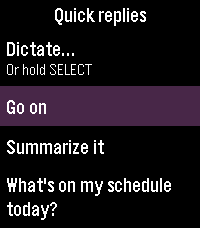
- Reply: send a quick reply with one press, or dictate a message. Edit the quick replies in the settings.
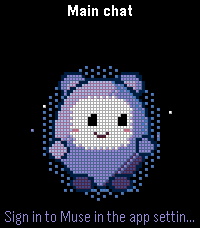
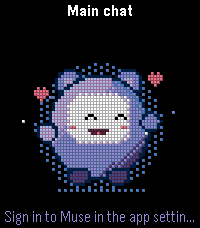
- Avatar: your Muse appears on the watch as an animated pixel avatar. It listens while you dictate, works while Muse thinks, writes along while the reply comes in, and cheers when it arrives. Ask Muse to design its own avatar from the settings page.
- Text size: small, medium or large text for the conversation. Black, white or gray background.
- English and Japanese, following your phone's language.

How to use:
- Main screen (the avatar): Up opens the conversation history, Down opens quick replies, Select opens the chat list, and long-pressing Select starts voice dictation.
- History: scroll with Up/Down, press Select to reload the latest conversation, long-press Select to dictate.
- A quick reply is sent as soon as you pick it. You can edit the phrases in the settings.
- Pick a chat in the chat list to switch to it.

Privacy: the Muse session you paste goes straight to the app's bundled plugin, which keeps it in the phone's secure storage. It is never sent to the watch, shown on screen or written to logs, and the field is cleared once you save. The app talks only to Muse's own services (muse.ai and its chat server hatch.metaaivm.com). The developer runs no servers and collects nothing.

Muse Chat is an unofficial personal project. It is not made, endorsed or supported by Meta or by Core Devices. It uses Muse's web interface, so a change on Muse's side can stop it working until it is updated.

For Pebble Time 2 and Pebble Round 2.
- Developertoyon
- CategoryTools & Utilities
- PlatformsTime 2, Round 2
- Permissions
- Updated2026-11-11
- Version0.2.7