 1
Health Companion
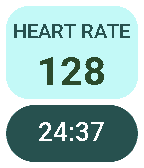
Health & FitnessDESCRIPTION See your live workout on your wrist: heart rate and elapsed time from Google Health, right on your Pebble. Health Companion works with the Google Health app (and Fitbit trackers such as Fitbit Air). Start a workout on your phone and the watchapp opens by itself, showing your heart rate and workout time, updated every second. FEATURES - Live heart rate and workout time, updated every second - Opens automatically when a workout starts, only once: leave it whenever you like - The workout clock runs on the watch, so it keeps going even when the phone is asleep - Clear “HR PAUSED” state when the phone stops sharing heart rate - Optional black Standby screen on the phone for live heart rate with the phone in your pocket, at minimum brightness - Clean, high-contrast layout for rectangular and round Pebbles, Pebble Time 2 included REQUIREMENTS - Android phone (Android 10 or newer) with the Google Health app - The free Health Companion Android app (companion APK, link above). Open it once: it guides you through the two permissions it needs. GOOD TO KNOW - When the phone screen turns off, Google Health stops sharing live heart rate. The Pebble keeps the time running and shows HR PAUSED until the screen is on again. For uninterrupted heart rate, tap the “Workout in progress” notification to open the Standby screen. Health Companion is an independent project. It is not affiliated with or endorsed by Google or Fitbit
 6
Simple Home
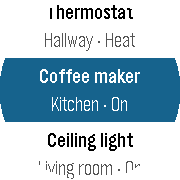
Tools & UtilitiesDESCRIPTION Control your Google Home devices straight from your wrist, with no extra app to install on your phone. Simple Home is a fast, minimal remote for the lights, smart plugs and thermostats you already have in Google Home. It uses the official Google Home plugin for the Pebble app, so sign-in and device control are handled by the Pebble app itself. FEATURES - All your switchable devices in one list, with live on/off state - One click on SELECT turns a light or plug on or off - Thermostats: see the target temperature and change it in 0.5° steps - Devices grouped by home, with your own order - Hide the devices you never use - Configure everything from the Pebble app settings: home, order and visibility of each device - Follows the watch Text Size setting - Works on rectangular and round Pebble. HOW IT WORKS - SELECT on a light or plug: toggle it - SELECT on a thermostat: UP/DOWN to change the temperature, SELECT to apply - Long-press SELECT: Move up, Move down, Hide, or assign the device to a home - Gear icon in the Pebble app: manage all devices from your phone REQUIREMENTS - Pebble app with plugins enabled (currently a preview feature) - The “Google Home” plugin by Core Devices, signed in to your Google account - Allow Simple Home to use the Google Home plugin when asked Simple Home is an independent app. It is not affiliated with or endorsed by Google. Google Home is a trademark of Google LLC
 3
Billable Hours
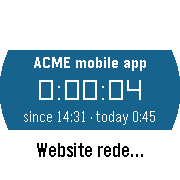
Tools & UtilitiesBILLABLE HOURS - track the hours you bill, project by project, from your wrist. Made for freelancers and consultants who are paid by the hour, with a different rate for each client. Select a project and its timer starts; select another one and the first stops by itself. At the end of the month you have a ready-made report with the hours of every day, the totals per project and the amount to invoice. WHAT IT DOES - ONE-BUTTON PROJECT SWITCHING: starting a project stops the previous one and saves it. - CONFIRMATION BEFORE STARTING OR SWITCHING, so a timer never starts by mistake (can be turned off). - THE TIMER KEEPS COUNTING WITH THE APP CLOSED. The launcher shows the running project and the elapsed time. - TODAY'S HOURS for every project, right in the list. - SUMMARY SCREEN: hours and amount for today and for this month, and the sync status. - FIX MISTAKES ON THE WATCH: "Stopped at...", "Started at...", edit start and end, delete, and create a past session by hand. - FULL HISTORY ON THE PHONE: edit, add or delete any session, month by month. - MONTHLY REPORT: hours day by day for each project, total hours, hourly rates, amounts and grand total to invoice. - EXPORT to Excel (CSV), plain text, clipboard or email. - AUTOMATIC BACKUP TO YOUR OWN GOOGLE SHEET, with a report sheet for every month and a monthly summary. Plus backup files you can save and import. - WORKS OFFLINE: the watch syncs with the phone as soon as it is back in range. - ENGLISH AND ITALIAN, custom currency symbol, follows the watch Text Size setting. - TOUCH SCREEN (Pebble Time 2, Pebble Round 2): drag to scroll the project list. Every action uses the buttons, so an accidental touch never starts anything. - Pebble Time, Time Steel, Time Round, Pebble 2, Pebble 2 Duo, Pebble Time 2, Pebble Round 2. GETTING STARTED 1. SET UP YOUR PROJECTS. In the Pebble app on your phone open the settings of Billable Hours. In the Projects tab add your projects with their hourly rate (up to 12 active projects, names up to 23 characters) and tap Save. 2. SET UP THE BACKUP (strongly recommended, 5 minutes, once). In Settings > Backup follow the guide "How to set it up": create a Google Sheet on a computer, paste the script (you can copy it from the app), deploy it as a web app, then paste its URL and your secret word in the app. From then on every change is copied to your sheet. HOW TO USE IT ON THE WATCH - START OR SWITCH: select a project and press SELECT, then confirm with SELECT (DOWN or BACK cancel). If another project was running it is stopped and saved. - RUNNING TIMER: the card at the top shows the project, the elapsed time and today's total. Press SELECT on it for: Stop now, Stopped at..., Edit start, Discard timer. - LONG-PRESS A PROJECT: Start now. Started at... - you started earlier than you pressed: if you forgot to switch, the previous session is shortened automatically. Create... - add a session by hand: choose start, end, confirm. Sessions that overlap others are refused, so time is never counted twice. - MORE > SUMMARY: today and this month, hours and amount, and the phone status (Synced / Offline). - MORE > RECENT SESSIONS: edit start, edit end or delete recent sessions. - THE TIME PICKER shows whether the chosen time is Today or Yesterday: "Stopped at 18:00" the next morning means yesterday at 18:00. If a time is not possible (in the future, or overlapping another session) the app moves it to the nearest valid time and tells you ("Adjusted to..."). ON THE PHONE (Billable Hours settings in the Pebble app) - PROJECTS: name, hourly rate, order, archive. - SESSIONS: every session of the month; change project, date and times, delete, or add one. - REPORT: choose the month and see each day's hours per project, total hours, rates, amounts and the grand total. Share it as Excel (CSV) or text, copy it, or email it. - SETTINGS: language (Automatic, English, Italiano), currency symbol, CSV format (Europe or US/UK), confirmation before starting a timer, backup. THE GOOGLE SHEET Besides the raw data, the sheet contains: - SUMMARY: one row per month with hours and amount per project, total hours and total to invoice. - REPORT YYYY-MM: one sheet per month with every day of the month by project, totals, rates, amounts and the list of sessions. Rates of closed months stay frozen, so invoiced amounts never change. Add your own sheets for formulas or pivot tables: the app never touches them. IMPORTANT - KEEP YOUR DATA SAFE - Removing the app from the Pebble app DELETES ALL ITS DATA, on the phone and on the watch. Set up the Google Sheet backup, or save a backup file regularly. - TO UPDATE THE APP, install the new version over the old one, WITHOUT REMOVING IT FIRST. - After a reinstall, open the settings and enter the Google Sheet URL and secret word again (or import a backup file): everything comes back, including the running timer. PRIVACY Your data stays on your phone and, if you set up the backup, in your own Google Sheet. Internet access is used only to reach your sheet (script.google.com). Nothing is sent anywhere else.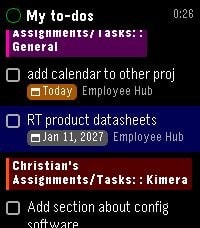 1
Basecamp To-Do
DailyA companion app for Basecamp To-Dos. I created this app for my own use with the help of Claude-code (it would have been too difficult for me to build otherwise). It may contain bugs or other issues; I have only tested it briefly on a Pebble Time 2. We use Basecamp at work, and I needed a way to quickly view my To-Dos. This app was born out of a specific personal need. I do not recommend using it as your primary To-Do app—there are better options out there. Furthermore, since we will likely stop using Basecamp at work soon, I will not be providing much ongoing support for this app. Instructions for obtaining an API key can be found in the settings; they should work (at least, they work for me). Features: - To-Dos are displayed using Basecamp’s aesthetic. - To-Dos with a due date appear on the timeline. - To show up in the companion app, it must be assigned to you.
 55
Simple Notes
Tools & UtilitiesFast, minimalist voice notes right on your wrist — now with TIMELINE and PHONE EDITING. Simple Notes is a clean productivity app designed for Pebble smartwatches, built especially for the new Pebble. No clutter, Yes intuitivity: just a fast way to capture your thoughts using your voice. Key Features: Instant Voice Dictation: Speak to your Pebble to transcribe reminders into text in seconds. One-Click Quick Launch: Assign the app to a Quick Launch. It will open straight to dictation, save your note, and close automatically. Zero extra clicks. Timeline Pins: Send any note to your timeline for today, tomorrow or the day after, either as an all-day pin or at a specific time with a reminder. Edit from Your Phone: Open the app settings in the Pebble app to read, edit, add or delete your notes with a full keyboard. Changes are sent straight to your watch. Respects Your Text Size: The whole interface follows your watch's Text Size setting (Settings > Display), from Small to Extra Large. Long notes shrink automatically to fit the screen. Smart Layout: The main list displays text previews with exact dates and times right below them. High Contrast UI: Features dynamic color inversion on the selected row for perfect readability under direct sunlight. How It Works (With touchscreen and buttons!) Record: Tap New Note or press SELECT (or use Quick Launch), then speak. Review: Swipe up/down or use UP/DOWN to browse your saved notes. Tap or press SELECT to open one. Swipe left/right to move between notes. Options: With a note open, tap or press SELECT to open the menu: - Timeline... : choose Today, Tomorrow or In 2 days, then All day or Pick a time (UP/DOWN to set hours and minutes, SELECT to confirm). - Delete: removes the note (and its timeline pin). Phone: In the Pebble app, open Simple Notes settings to manage your notes, then tap "Save to watch".