 6
6TTC Subway & Bus
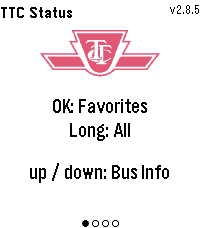
Tools & UtilitiesTTC Subway & Bus — Toronto transit at a glance, right on your wrist. Get real-time bus and streetcar arrivals for up to 5 saved locations (4 routes each), with countdowns that keep ticking between refreshes. Set a per-stop walk time and the watch buzzes the moment you need to leave to catch your bus. Check subway status for Lines 1, 2, 4, 5 and 6. Pick your favourite stations to filter alerts to just the ones that affect your commute, or long-press for all active outages. Features: Live arrival countdowns with "Arriving" and data-freshness indicators "Leave now" vibration based on your walk time to each stop Smart auto-refresh that speeds up as your bus gets closer Subway alerts filtered by your favourite stations Light and dark themes Easy setup from the phone settings page, just enter the route and stop numbers from any TTC bus stop sign
 7
7Nothing Battery
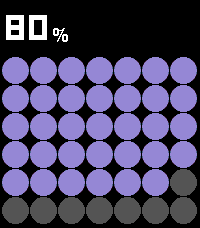
Tools & UtilitiesPebble Battery is a clean, glanceable battery app inspired by the Nothing Phone widget aesthetic. The main screen fills the display with a bold dot grid, purple on dark, red on light, where each circle represents a portion of your remaining charge. The current percentage is displayed prominently at the top using a dot-matrix LED-style font. Press UP or DOWN to open the summary view, which shows your estimated time remaining (or time until full when charging), drain rate in %/HR, and the last recorded delta. Press SELECT to toggle between dark mode (black background, purple dots) and light mode (white background, red dots, gray empty circles), your preference is remembered between sessions. When the battery drops below 20%, the percentage and dots turn red as a low-battery warning. When charging, an animated wave of dots sweeps across the grid.
 11
11Ripple Alarm
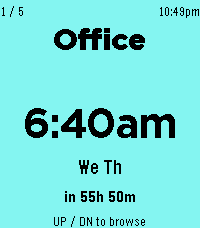
Tools & UtilitiesA large-text alarm clock designed to be easy to read at a glance. Set up to 5 alarms from your phone each with its own label, color, and weekly schedule. * Pressing the middle button takes you to the alarm that fires next. * Long pressing the middle button disables / enables the alarm.
 7
7Homey Flows
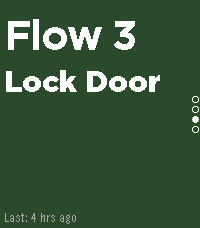
Tools & UtilitiesTrigger your Homey flows directly from your Pebble Time 2, no phone needed once configured. Browse up to 5 customizable flow shortcuts on your wrist and fire them instantly with a single button press. Perfect for triggering lights, locks, thermostats, scenes, or any automation you've set up in Homey. 1. Find your Homey Cloud ID Open the Homey app → Settings → General → scroll down to find your Cloud ID (a long alphanumeric string). 2. Create webhook-triggered flows in Homey In the Homey Flow editor, create flows with a "When a webhook is received" trigger card. The webhook names must be exactly: pebble_flow_1 pebble_flow_2 pebble_flow_3 pebble_flow_4 pebble_flow_5 Use only the ones you need, unused slots can be disabled in the app settings. 3. Configure the Pebble app Open the Pebble app on your phone → find Homey Flow Trigger → tap the Settings gear. Enter your Cloud ID and configure each flow slot: give it a display name, pick a background color, and toggle it on or off. Tap Save, your watch will update immediately. 4. Use it Press Up/Down on your Pebble to scroll between flows. Press Select to trigger the selected flow. The watch shows the name of the last trigger time and confirms each request.