 2
2Film Devle
Tools & UtilitiesBlack and White photographic film development timer
 1
1Landy Remote
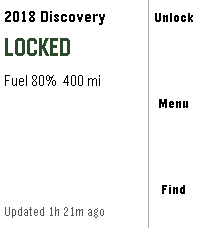
RemotesLock, unlock and find your Jaguar Land Rover from your wrist. **Anonymous usage statistics are collected and can be turned off in settings — see Privacy below.** **What it does** - Lock and unlock — unlock asks you to confirm first - Honk and flash to find the car in a car park - Find my car — compass arrow and distance to its last reported position - Remote climate — start and stop, with the cabin temperature set on the watch - At-a-glance status — locked or unlocked, fuel and range, doors or windows left open, and how fresh the data is - Tyre pressures, mileage, service and AdBlue distances, fluid warnings - Miles or kilometres, °C or °F, kPa, bar or psi Buttons for anything your vehicle or subscription does not support are not shown — the app asks your car what it can do rather than assuming. **You need** - A Jaguar or Land Rover with an active InControl subscription - The Pebble Core phone app - Lock, unlock and honk also need InControl Remote Premium-class service and your vehicle PIN **Safety** If the app cannot confirm you are stationary, the controls disappear and only information is shown. It will not send a command to a vehicle that might be moving. Expect this if location permission is off, or indoors with a poor GPS fix. **Privacy** Your credentials and vehicle data go straight from your phone to Jaguar Land Rover. This app has no server in between, and your password is never stored — only renewable tokens, on your phone. Anonymous usage statistics are collected by default and can be switched off in settings. Counted: app opens and version, which feature was used, whether a command succeeded or failed, whether the safety lock-out triggered, which services your vehicle supports, and the country of the request. Never collected: your VIN, your car's location, speed or distance, your email, PIN or tokens, or any vehicle status such as fuel, mileage or lock state. **Honestly** Remote commands go via Jaguar Land Rover's servers to the car's mobile connection. They take 5–20 seconds and sometimes fail, more often on older vehicles. The app tells you which happened — the car refused it, the car did not answer, or it could not be reached — because those need different responses from you. This app uses an interface Jaguar Land Rover provides for their own web app. It is not a published API and carries no compatibility guarantee, so a change at their end can stop it working until the app is updated. **Unofficial software. Not affiliated with, endorsed by, sponsored by, or supported by Jaguar Land Rover Limited. "Jaguar", "Land Rover" and "InControl" belong to their respective owners and are used only to describe what this app works with.** Source: https://github.com/ankur22/landy-remote
 5
5Talking Clock
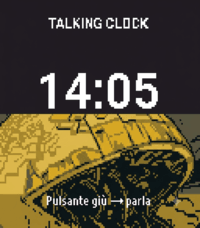
Health & Fitness## Talking Clock – English Version A small, standalone watch application that announces the exact current time in English when the user presses a button or performs a double tap on the screen. The user can choose which action will trigger the time announcement. For example, the time can be announced by pressing one of the watch buttons or by double-tapping the screen. ### Features * The application runs entirely on the watch. * It does **not require a connection to a mobile phone**. * The current time is announced using the watch's built-in speaker. * The time is pronounced **in English**. * The user can choose between the **12-hour and 24-hour formats**. * The **upper-right button** is used to switch between the 12-hour and 24-hour formats. * The other available buttons can be selected to announce the current time. * A **double tap on the screen** can also be used to announce the current time. * The application announces the **exact current time** according to the watch's internal clock. ### English Voice This is the English version of the application. All time announcements are spoken in English. For example: * **24-hour format:** “It is fourteen thirty-five.” * **12-hour format:** “It is two thirty-five PM.” The application should work completely **offline** and independently from any smartphone. No connection, synchronization, or companion mobile application should be required for the time announcement function.
 1
1Talking Clock IT
Tools & Utilities## Talking Clock – Italian Version A small, standalone watch application that announces the exact current time in Italian when the user presses a button or performs a double tap on the screen. The user can choose which action will trigger the time announcement. For example, the time can be announced by pressing one of the watch buttons or by double-tapping the screen. ### Features * The application runs entirely on the watch. * It does **not require a connection to a mobile phone**. * The current time is announced using the watch's built-in speaker. * The time is pronounced **in Italian**. * The user can choose between the **12-hour and 24-hour formats**. * The **upper-right button** is used to switch between the 12-hour and 24-hour formats. * The other available buttons can be configured to announce the current time. * A **double tap on the screen** can also be configured as a trigger for announcing the time. * The application announces the **exact current time** according to the watch's internal clock. ### Italian Voice This is the Italian version of the application. All time announcements are spoken in Italian. For example: * **24-hour format:** “Sono le quattordici e trentacinque.” * **12-hour format:** “Sono le due e trentacinque del pomeriggio.” The application should work completely offline and independently from any smartphone.
 38
38Another Alarm
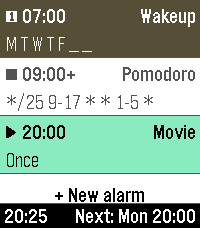
Tools & UtilitiesYet another alarms app, with cron mode for maximum flexibility, and many other useful features. Features: - Alarm sound & vibration - Increasing alarm volume - Snooze - Multiple alarms - Labeled alarms - Weekday-based repeat scheduling - Cron-based repeat scheduling - Quick disable / enable / skip next occurrence - High configurability The alternative cron mode makes it possible to define very versatile alarm repeat schedules. E.g., an alarm can be configured as "*/25 9-17 * * 1-5 *" to fire every 25 minutes between 9-17 o'clock on Mon-Fri for an automated work-time pomodoro interval timer. Cron mode allows scheduling configuration for - minute, - hour, - day of month, - month, - day of week, and - week number (ISO). The user interface follows the design of the Another Timer app. Use them both to feel familiar. Alarms can be labeled on the watch using the builtin touchscreen keyboard. The keyboard is adopted from metuuu's brilliant Mölkky Scorekeeper app, https://apps.repebble.com/m-lkky-scorekeeper_bb6ffbee520f4c4cafc2b424.
 2
2Wiz Light Control (test)
Tools & UtilitiesCurrently in progress
 1
1HyperView
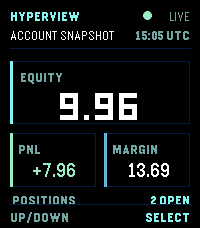
Tools & UtilitiesRead-only Hyperliquid account dashboard for Pebble Time 2. View equity, unrealized PnL, margin, open positions, and recent fills directly on your wrist. Configure your public wallet address in the phone settings. No private keys. No trading.
 35
35AquaCave - Drink Water!
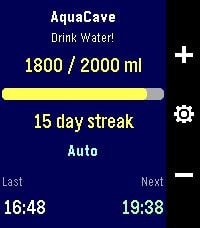
Health & FitnessAquaCave — Drink Water! A smart, focused water tracker for your Pebble. AquaCave helps you stay hydrated by tracking your daily water intake right from your wrist and reminding you to drink throughout the day. No phone required to use it — everything runs on the watch. Log a drink with a single button press, watch your progress bar fill toward your daily goal, and keep your hydration streak alive day after day. Features - Quick logging — add or remove water with the up/down buttons, in amounts you choose - Custom daily goal (500–4000 ml), or let AquaCave calculate it automatically based on your body weight, activity level, heart rate, and local outdoor temperature - Two reminder modes: a fixed interval, or an automatic mode that paces reminders evenly across your day - Active hours — only get reminded between your chosen start and end time, never overnight - Sleep-aware reminders — when enabled, reminders automatically pause while you're asleep and resume when you wake up, using Pebble Health sleep detection - Early-drink pacing — if you log a drink before your active window starts, reminders adjust so they spread out naturally from your start time instead of clustering - Streak counter plus statistics: 7-day average, best streak, and goals reached this month - Drink history with timestamps and an overview of your upcoming reminders - Optional vibration, left- or right-hand button layout - Settings menu with 5 organized sections — configure everything directly on the watch - Phone companion app with two-way sync: all settings are backed up to your phone and automatically restored when you pair a new watch or reinstall the app - Available in 8 languages: English, German, French, Spanish, Italian, Portuguese, and Simplified & Traditional Chinese — automatically detected from your watch language Compatible watches: Pebble Time, Pebble Time Steel, Pebble 2, and Pebble Time 2 (color and black-and-white displays supported). Support development AquaCave is free. If you find it useful and would like to support its development, you can buy me a coffee here: https://ko-fi.com/gessm — thank you!
 11
11Mölkky scorekeeper
GamesKeep score for Mölkky on your Pebble. Add up to 16 players, record each throw, undo mistakes, and view past games and player stats. Includes optional three-miss and final-round rules, offline watch storage with phone sync, and English/Finnish language support.
 24
24Liftoff 2
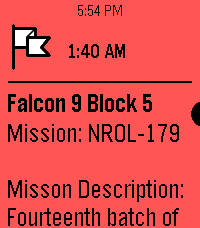
NotificationsInspired by the watch timeline app liftoff, this app shows timeline pins about upcoming launches with a small description provided thespacedevs.com. Unfortunately, due to the current pebble app being unable to retrieve info for timeline pins from servers, this app needs to trigger a wakeup call to fetch the api. Contact me at ffkoenig@gmail.com, @awesomemeeps (on the rebble discord server), or the Liftoff 2 project discussion in the rebble discord server if you have any issues or would like something to be added! Future updates: -Using a server (once server side timeline pins is added to the pebble app) -Improving UI -Using icons for timeline pins (Not possible right now, but should be once server side timeline pins are available)
 47
47Fruit Chop
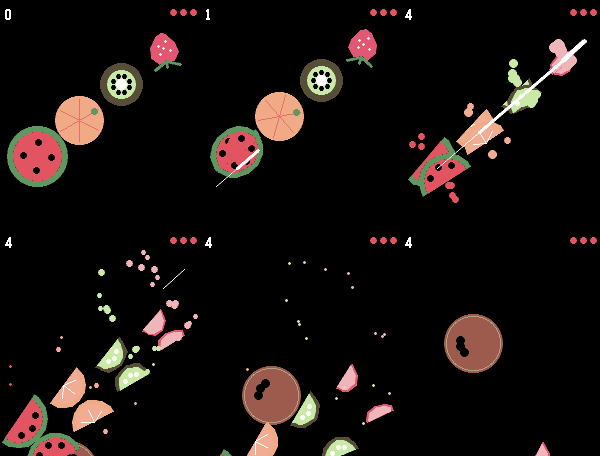
GamesSwipe across the screen to slice the fruit — just watch out for the bombs. That's all it takes to play Fruit Chop, a fast, fun fruit-slicing game built right for your wrist. This game needs a touchscreen, so it works only on the Pebble Time 2 and Pebble Round 2. Before playing, enable touch under Settings → Display → Touch.
 7
7Commander Life Tracker
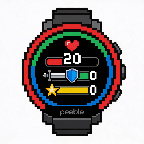
GamesA simple and primative tracker that tracks your life total and 3 instances of commander damage.
 41
41Two Tap Timers
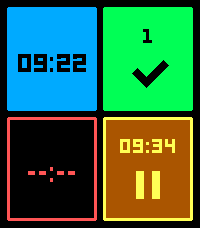
Tools & Utilities4 timers you can set with just 2 taps. - (Quick) launch the app - Tap one of the tiles - Select the number of minutes and your timer is running. - Tap again to pause/ continue - Hold down paused or completed timers to reset. You can configure 8 different durations and the way they are sorted on the settings page. (this multi timer requires touch to be enabled)
 4
4Berean Bible
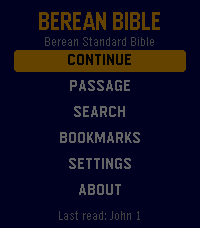
DailyThe whole Bible on your wrist. Berean Bible reads the Berean Standard Bible - a clear, modern, public domain translation - with nothing between you and the text: open it and you're reading, exactly where you left off. Chapters arrive through your phone from the fetch.bible CDN and are cached as you go, so the books you actually read are there when you want them. The text keeps its shape: prose paragraphs open with a gentle indent, the Psalms keep their poetry line by line, and superscriptions and Psalm 119's Hebrew letters stand where they've always stood. Say where you want to go. Press Search and speak - "John 3", "Psalm 23", "First Corinthians 13" - and you're there, even if you've never opened that book before. Speak a phrase instead - "for God so loved the world" - and get tappable results with the verse reference, each one opening the chapter scrolled to that very verse. * The complete Berean Standard Bible, all 66 books, no account and no fees - the text is public domain and served free by fetch.bible * Voice navigation: speak a reference and land in it; speak a phrase and search the books you've read * Passage picker built for a watch: a grid of book abbreviations and chapter numbers, not a mile-long list * Bookmarks: hold Select while reading to save your spot; reopen it at the exact scroll position later * Paragraph and poetry formatting, three text sizes, and a dark theme for night reading * On Pebble Time 2: full touch - drag to scroll with momentum, tap to page, tap any grid cell to pick it. Every button still does what it always did * Your place is always kept: book, chapter, and scroll position survive every exit, and the launcher shows where you are - "John 3" - before you even open the app * Reading continues naturally: page past a chapter's end and the next one loads Open. Read. That's the whole idea.
 0
0Amber Electric Devices
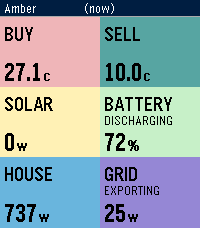
Tools & UtilitiesLive Amber Electric prices and home battery, solar & grid status. Right on your wrist! See what your power is actually costing you — or earning you — without pulling out your phone. Amber shows live buy/sell prices alongside your home's solar, battery, and grid activity, pulled straight from your Amber Electric account. **On your watch:** - **Buy / Sell** — current wholesale-linked import and export price, in cents/kWh - **Battery** — charge level and whether it's charging, discharging, or holding - **Solar** — current generation - **House** — current household consumption - **Grid** — current import/export power, and whether you're a net importer or exporter Data refreshes automatically when you open the app, and you can force a refresh any time with a long press on Select. **Requirements:** - An Amber Electric account (Australia only) - An Amber API key — generate one free at https://app.amber.com.au/developers/ and paste it into the app's settings on your phone No account data is stored on the watch itself — your API key lives in the Pebble app on your phone only. NOTE: This App is unofficial and unsupported by Amber Electric.