 2
2Scalemates
DailyScalemates profile viewer for having your Stash and Wishlist lists at hand when out and about ✈️on scalemodelling events 🛩️ or fairs. #ModelAircraft #ScaleModelling I know, pretty niche; you gotta be a double nerd for this... 😜 Just fill in your Scalemates user ID in the settings in the phone to find your Scalemates profile (see settings screen how to find that). Also select your feeds and cycle through activated feeds on the watch by long-pressing Select. Available feeds: 🛩️ Stash 🛩️ Wislist 🛩️ Started 🛩️ Completed 🛩️ For sale 🛩️ On order Detail page for each item showing the box art and some more info. Supports touch for scroll and select. Time 2 (Emery) only. Check out my other stuff here:
 59
59Pebble Nav HUD
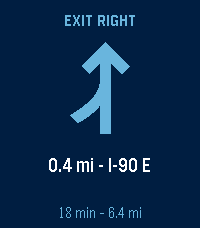
Tools & UtilitiesGoogle Maps turn-by-turn directions, on your wrist. REQUIRES a free companion app for Android: https://ryan-mooney.com/pebble-nav-hud Android only. There is no iOS version, because iOS does not let an app read another app's notifications. Start navigating in Google Maps and the next maneuver appears on your Pebble: the arrow, the distance, the street name, and how much of the trip is left. The buzz tells you WHICH WAY. A left ends on a long pulse, a right opens with one, so you can take the turn without looking down. That is the whole point of it. - 18 maneuvers, each with its own arrow: turns, slight and sharp turns, U-turns, merges, ramps, and roundabouts that know which way they go round - At the end, which side of the street the destination is on, counted down like a turn - A rerouting screen with its own double buzz, so a stale arrow is never mistaken for a live one - Time and distance to the destination, and your arrival time in the launcher - Seven languages, taken from your watch's own setting - Text size, three icon styles, six colour themes including one you set yourself - A rotating globe on the idle screen, with real continents on it Everything is set on the watch itself. Hold SELECT. The companion app requests NO Android permissions and cannot reach the network. It reads only Google Maps' navigation notification, and sends what it finds to your watch and nowhere else. Open source, MIT licensed.
 0
0Aura Weather
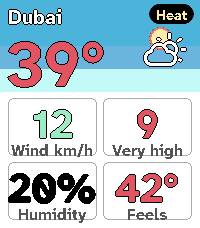
DailyAura Weather carries my Spain weather app's design language onto the Pebble Time 2: a living sky you read at a glance. The hero screen draws the sun (a moon at night) arcing over a day-to-night gradient computed from the real sunrise and sunset times for your location, with no baked art, so it always matches the light outside. Page through a deck of cards with UP and DOWN, with SELECT to refresh: the next eight hours, the next six days, a sun-and-moon card with golden and blue hour, a wind compass, UV and air-quality rings, a details grid, and a colour-coded warning card when one is active. Every number is tinted by Aura's own data ramps, so a hot day reads red, a calm wind reads teal, and the whole deck reads as one system. Cards appear only when they have something to say, and you choose which to show, reorder them, and pick the one the app opens on. It fetches its own weather on the phone through Open-Meteo, worldwide, with no account and no API key, so it just works on install. In Spain you can switch to the official AEMET source with a free key. There is a light theme alongside the default dark one: long-press UP to switch it on the watch, or set it from the phone. The last forecast is kept, so a card shows the moment you raise your wrist, before the phone answers. Free and open source.
 33
33Redloj - Bip!QR e Itinerario
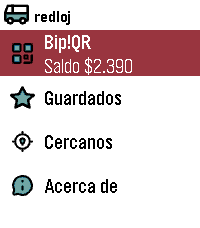
DailyEnglish: (This application was called "Transanpbl" and then "Redpbl". It maintains that functionality, adding Bip!QR payments) Santiago de Chile's Public Bus System (Also known as Red Movilidad) wallet app and schedule checker. Add your Bip!QR wallet and favorite bus stops using the app's config webpage, then check when the bus you need will stop using your Pebble. Español: (Previamente, esta aplicación se llamó Transanpbl y RedPbl. Hoy mantiene esa funcionalidad, agregando Bip!QR) Billetera de pago e itinerario de Buses del Sistema de Transporte Público de Santiago de Chile (También conocido como Red Movilidad) . Agrega tu Bip!QR y tus paraderos favoritos mediante la configuración de la aplicación y luego revisa cuánto falta para que pase el bus desde tu Pebble.
 1
1JP Trails
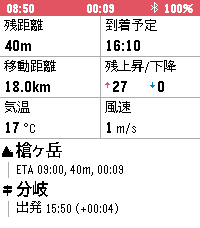
Health & FitnessJP Trails は、登山記録アプリと併せて使う Pebble Time 2 用の登山ナビです。スマホを取り出さなくても、手首を見るだけで登山の状況を一目で把握できます。 YAMAP で作った登山計画の URL をアプリの設定から取り込むだけで、地図に登山計画とルート・現在地が表示されます。 記録を開始すると GPS の軌跡やデータフィールドを確認できます。 できること (UP/DOWN で画面切り替え) - 記録の開始: Select 長押しで開始/停止 - 地図: 登山計画の取り込み時に地図を事前取得するので圏外でも地図が確認できます - データフィールド: 次の項目から 6 つを選んで表示できます - 累積上昇/下降: 記録開始からの累積の登り・下り - 心拍数 - 消費カロリー: YAMAP 式の消費カロリー (体重と装備重量を設定) - 現在標高 - 最高標高: 記録開始からの最高到達点 - 移動距離: 記録開始からの距離 - 上昇速度: 直近 20 分の平均上昇率 - 残距離 / 残上昇・下降 / 残時間 / 到着予定: 本日のゴールまで - ゴール標高差: ゴールと現在地の標高差 - コース逸脱: 計画のルートからの距離 - 日の入 / 日の出: 次の明暗の変わり目の時刻と、そこまでの残り時間 - 気温 / 風速 / 最高・最低気温: 現在地の予報 - 天気変化: 次に空模様が変わる時刻と変化の内容。記録中は 3 時間ごとに予報を更新 - 次の経由地ナビ: 次の経由地の名前・種別アイコン・到着予定時刻・残り距離・残り時間と、直近に通過した経由地の名前・通過時刻・計画との差分 (遅れ/進み) を常時表示 必要なもの - 計画の取り込みには通信が必要です。今のところ YAMAP のみ対応で、ヤマレコなど他のサービスや GPX の取り込みは今後検討します - 位置情報はスマホの GPS を使います。山行中は時計側で JP Trails を開いたままにしてください (終了するとスマホ側の GPS も止まります)。スマホの画面は消えていて構いません --- 出典 地図データ: 国土地理院 (地理院タイル一覧 https://maps.gsi.go.jp/development/ichiran.html) を加工して作成 天気: Open-Meteo
 6
6Pooble
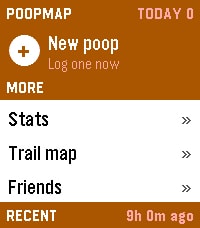
Health & FitnessPooble, an unofficial client for PoopMap Log a poop from your wrist. Rate it, dictate a note, and it lands on your map with the time and the place. LOGGING Pick "+ New poop". UP/DOWN sets a rating from 0.5 to 5.0, SELECT submits. Hold UP to dictate a voice note, or hold DOWN to set an exact time for logging after the fact. The home list shows date, time, rating and note, plus today's count and how long it's been since the last one. SELECT opens an entry, SELECT again edits it, and holding SELECT twice deletes it. Optional: auto place tags. A new log takes its place name — Home, Work, wherever — from your nearest saved place within 500 m. The coordinates stay live; only the label is borrowed. TRAIL MAP Every stop you've logged, plotted. UP/DOWN walks them in order and SELECT zooms. Hold UP for region mode, which jumps between areas instead of stepping through every stop. Hold SELECT to hide the connecting line. Optional: the map layer draws real streets, rivers, coastline and state lines behind your stops. It sends a box around the areas you've logged to a third-party OpenStreetMap server (overpass.openstreetmap.fr, in the EU) — approximate coordinates only, no account details and no note text. Data is cached on your phone for 30 days and cleared when you log out. Switch it off in settings for a plain grid, and nothing leaves the phone. FRIENDS AND STATS Your friends' recent activity, with ratings and notes. SELECT leaves a dictated voice comment; hold SELECT shows that friend's stats. Your own stats run to four pages, SELECT to flip between them: - Numbers — today, this week, month, year and lifetime totals, average rating, daily average, current streak and personal best. - Cadence — your distribution by hour and by weekday, the time of day you typically go, and how tightly that clusters. - Rhythm — when the next one is due, your typical gap, how regular you are, and your quickest turnaround and longest wait. - Windows — the six windows of the day, how many land in each, and the grade each one tends to earn. The launcher shows today's count and time since your last log, updating without opening the app. SETUP Requires a free PoopMap account. Log in once from the app's settings page in the Pebble phone app. Trail, Friends and Stats are on out of the box; each can be switched off there, and you can move them above or below your recent logs. This is a first release and it's experimental. Screens, settings and defaults may move between versions. If something breaks or looks wrong, report it through the developer contact screen on this listing. Pebble Time 2. Phone required for syncing.
 1
1Baseball ScoreKeeper
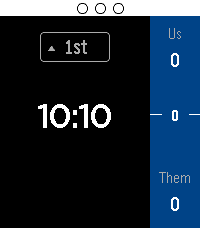
Tools & UtilitiesKeep track of your baseball game score while you play with the press of a button! Track outs and runs in each half of an inning Font size and text color are configurable Log historical game scores Instructions: Up button press: Increase score Down button press: Decrease score Select button press: Record an Out Up button hold: Scoreboard Down button hold: Undo Select button hold: Menu Outs are recorded by the dots at the top of the screen. Be sure to set the home/away team in the menu before starting the game
 1
1TinyMaker Monitor
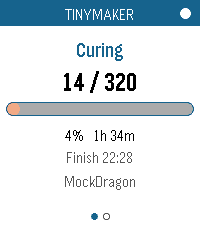
Tools & UtilitiesWatch a print on your TinyMaker resin printer from your wrist. Layer count, time left, resin level — live, on any Pebble. Requires the TinyMakerWifi community firmware (github.com/slibbinas/TinyMakerWifi). WHAT IT DOES Status page - Current print phase — Curing, Lifting, Peeling, Paused, Idle, Finished - Layer counter, e.g. 142 / 860 - Progress bar and percentage - Time remaining, plus the clock time it'll finish - Freshness dot: white when data is current, red once it's more than 50 seconds stale Resin page - Resin left as a percentage of the VAT, and in millilitres - LOW RESIN banner when the printer raises its low-resin flag - Print name and elapsed time Alerts — distinct vibration patterns for print finished, low-resin pause, print cancelled, and power-loss recovery. A finished print shows a summary card with total time and resin used; a low-resin pause jumps straight to the resin page. (These only fire while the app is open — see Limitations below.) Controls — every touch gesture has a button equivalent, so it behaves the same on watches without a touchscreen: - Switch page: Up/Down buttons, or swipe left or right - Refresh now: Select button, or tap the progress bar - Show "last updated": tap the header dot - Exit: Back button Two ways to get data — polls the printer's web API, or subscribes to MQTT if you have a broker. Picks automatically and falls back on its own. Runs on all seven Pebbles — aplite, basalt, chalk, diorite, emery, flint, gabbro. The layout rescales from 144x168 to 260x260 round, and the palette collapses to black-on-white on the monochrome watches. Gentle on the printer — polls every 20 seconds while printing, backs off to every 3 minutes when idle. SETUP Open the app's settings in the Pebble phone app and set Printer host to tinymaker.local (or its IP). That's it — the app finds the status endpoint itself. Your phone needs to be on the same WiFi as the printer. For MQTT instead: enable it on the printer, give your broker a WebSocket listener (Mosquitto: listener 9001 + protocol websockets — PebbleKit JS can't reach port 1883), and enter ws://<broker>:9001. The app reads the printer's Home Assistant auto-discovery configs to work out the topics itself. LIMITATIONS The app has to be open. PebbleKit JS only runs while the watchapp is in the foreground, so nothing is polled — and no vibration fires — once you exit. For alerts when you're not watching, use the printer's own notifications: tinymaker.local, then Settings, then Notifications sends you a Telegram, WhatsApp or Discord message when a print finishes, pauses for low resin, or is cancelled. Those arrive on your phone and forward to your Pebble automatically. Use this app for checking on the print; use those for being told about it. Verified end-to-end against a live print on emery, gabbro, chalk, basalt and aplite. MQTT is implemented but untested — the firmware ships with it disabled, so there was no broker to try it against.
 28
28Pebble MA
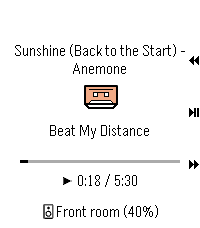
RemotesPebble Music Assistant client
 25
25qnote
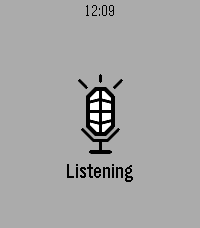
Tools & UtilitiesSpeak a note into your Pebble. It's on your phone before you lower your wrist. Opening qnote starts dictation immediately - no menu, no button to find first. Speak, confirm the transcription, and it is saved. Put qnote on a Quick Launch button and a single long press takes you from idea to recorded note. NEVER LOSES A NOTE. Every note goes out over two paths at once. When your phone is nearby it arrives instantly. When it isn't, the watch spools the note in its own storage and delivers it as soon as you are back in range - even if you closed the app hours earlier. HONEST ABOUT ITS LIMITS. The watch keeps the last 12 notes, because Pebble gives an app about 4 KB of persistent storage and a note is 256 bytes of it. Your phone is the archive. If all 12 are still waiting to reach the phone, qnote tells you rather than quietly overwriting something you said. FREE SOFTWARE. qnote is licensed under the GNU General Public License v3. Source for both the watchapp and the companion is on GitHub - read it, change it, pass it on. YOU NEED THE COMPANION APP. qnote stores its notes on your phone, so the watchapp alone will capture nothing. The companion is a free download from GitHub - it is NOT on the Google Play Store, so Android will ask you to allow installing it from your browser or file manager: https://github.com/neonfire42/qnote/releases/latest/download/qnote.apk Android only. There is no iOS companion, so qnote cannot store notes from an iPhone. Also requires a Pebble with a microphone (every model except the original Pebble and Pebble Steel) and the Pebble mobile app 1.0.7.7 or newer. On the phone you get categories, full-text search, editing, sharing and Markdown export. No account, no server, no analytics - notes move only between your watch and your phone.
 15
15Sykerö Smart Alarm
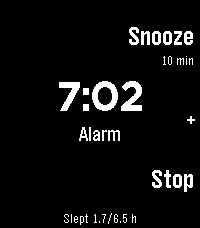
Tools & UtilitiesSykerö Smart Alarm wakes you a few minutes early, at a moment you are already stirring — and never a minute later than the time you set. Instead of firing at the first twitch of movement, it learns how still you have been tonight and waits for a sustained rise above your own baseline: a real lighter-sleep signal, inside a window you choose ahead of your alarm. There is always a hard time behind it, so a quiet night still wakes you on time. A "last night" summary on the watch shows how still you were, what it took to trigger, and when it would have fired at each other sensitivity — so you tune it from your own data instead of guessing. A gradual wake instead of one abrupt buzz: vibration starts gentle with long gaps, then tightens and strengthens, with sound joining later on watches with a speaker. Choose Gentle, Normal or Insistent, or set your own timing. A deliberate stop gesture (long press, or a two- or three-tap) means a sleepy hand can't dismiss it by accident. Up to 8 alarms, each with its own repeat days, snooze and skip-next. Everything is configured from your phone; the watch shows status and quick actions. Worth ten minutes before your first night — what the watch measures, how it decides, every setting, and what the app deliberately does not do: https://github.com/Sykero-Software/PebbleSykeroAlarm/blob/master/docs/how-it-works.md
 56
56Blackjack
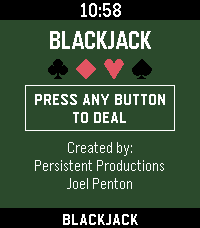
GamesBlackjack for Pebble Classic player vs. dealer, single 52 card deck, no betting Designed for Pebble 2 Duo Open source code — github.com/Joel256/Pebble-Blackjack Made by: Persistent Productions - Joel Penton
 6
6ReVolver
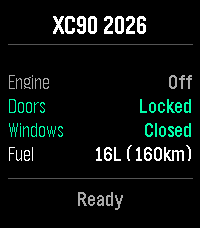
RemotesRemote control your Volvo car from your wrist. ReVolver — Remote Volvo controller. Also "volver" (Spanish): "to return/come back" to your car. Control your Volvo from your Pebble watch via the official Volvo Connected Vehicle API. Monitor: Engine, Doors, Windows, Fuel & Range Commands: Flash, Honk, Lock/Unlock, Engine Start/Stop, Climate Start/Stop Highlights: - Dynamic menu based on your car's capabilities - Confirmation for sensitive actions - Vibration feedback - Auto token refresh Setup: Enter VIN > Log in with Volvo ID > Done. Privacy: Tokens stay on your phone. Open-source auth proxy — no data stored server-side.
 11
11AI Assistant
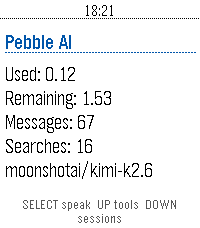
Tools & Utilities**THIS IS A VIBE CODED PROJECT, THERE IS BUGS AND ROUGH EDGES.** **THIS HAS ONLY BEEN TESTED ON THE Pebble Time 2, AND HAS BEEN OPENED ON THE Pebble Time.** # Info I would probably recommend you to just use Bobby or Wrist AI. Unless you have tried them and don't vibe with them. Also the code for this is on GitHub, if you want to modify or critique my (GPT-5.6-sol's) code. You are also free to contact me on either GitHub though and issue or by pressing the `CONTACT DEVELOPER` button at the bottom of this page. I may be a bit slow when it comes to answering, sorry in advance. If you want to know everything about the app and what tools it has, where data is send, stuff like that, head over to the GitHub (`SOURCE LINK` at the bottom of the page) and check out the README.md. # Controls ## Home Screen - SELECT: Start voice dictation. - UP: Open tool settings. - DOWN: Open saved sessions. - BACK: Exit the app. - Hold SELECT: Clear the current conversation. - Hold UP: Open tool settings from any screen except a choice prompt. - Hold DOWN: Open saved sessions from any screen except a choice prompt. ## Conversation Screen - UP / DOWN: Scroll through the conversation. - SELECT: Dictate another prompt. - BACK: Cancel an active request. If no request is active, return to the home screen. - Hold SELECT: Clear the conversation and start a new session. ## Tool Settings - UP / DOWN: Move between tools. - SELECT: Enable or disable the selected tool. - BACK: Return to the previous screen. ## Saved Sessions - UP / DOWN: Scroll through saved conversations. - SELECT: Start a new dictated prompt. - BACK: Return to the previous screen. ## Choice Prompts - UP / DOWN: Move between choices. - SELECT: Confirm the highlighted choice. - Select Say your own: Dictate a custom answer. - BACK: Cancel the choice prompt. ## Touchscreen Models - Swipe vertically: Scroll through the current screen. # Vibrations ## Short Pulse - When the first text of an assistant response arrives. - When you clear the current conversation. - When a tool setting is successfully toggled on or off. ## Double Pulse - When an assistant response finishes. - When the phone reports an error. - When a prompt, choice answer, cancellation, or other AppMessage fails to send. - When an incoming message is dropped during an active request. ## Normal (if things go well) 1. A short pulse when the answer begins arriving. (You can now begin reading) 2. A double pulse when the complete answer has arrived.
 1
1unWatch
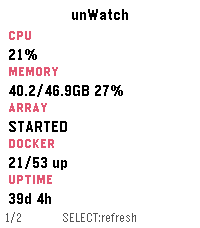
Tools & UtilitiesMonitor your unRAID server directly - nobody else sees your data! A Pebble Time 2 watchapp that shows live stats from an unRAID server on your local network, spread across several pages you can enable/disable in settings. Press SELECT to refresh, swipe or press UP/DOWN to change pages. Everything happens over your LAN. Your phone talks to the watch over Bluetooth, and the phone talks to Unraid's GraphQL API directly over Wi-Fi. Nothing goes over the internet. You can connect remotely using a service like Tailscale or other VPN. Pages Stats - CPU/memory %, array state, Docker running/total, uptime. Temperatures - CPU temp and the 3 hottest disks. Array - capacity (used/free/total in TB) and parity check status. Virtual machines - running/total count and up to 3 running VM names. UPS - status, battery %, load %, estimated runtime. Alerts - unread warning/alert/total counts from Unraid's notification center. Pages can be disabled as desired.