 38
38Eye Protect (20-20-20)
Health & FitnessStaring at screens all day? Give your eyes the break they desperately need with the 20-20-20 rule! This simple and essential app automatically reminds you about the recommended 20-20-20 rule. How it works? When you open the app it immediately toggles its mode between active and inactive (nice in combination with quick launch). When active, every 20 minutes, your Pebble watch will gently vibrate 3-times. This is your cue to look at something 20 feet away (about 6 meters). You can stop after your pebble vibrates 3 times again (20 seconds).
 3
3Bussruter
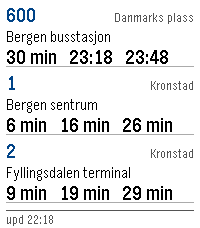
DailyReal time bus routes in Norway. Show up to three different bus routes and get real time updates of when a bus is at a given stop. Data made available by Entur (https://entur.no)
 23
23Twist It!
Gamesbop it twist it pull it pull it bop it clone that uses the speaker controls: up: twist (volume up if the game isn't active) select: bop down: pull (volume down if the game isn't active) touch controls: tap: bop swipe down: pull you can flick your wrist to twist it!
 6
6CitiBike Compass
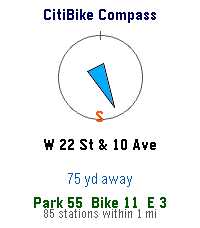
DailyFinds nearest CitiBike Locations
 0
0FrameCounter
Tools & UtilitiesA simple app to count how many frames you've taken on your film camera
 44
44Touch Test
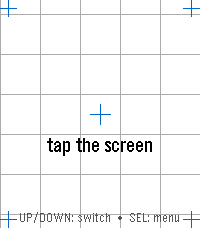
Tools & UtilitiesTouch Test — Watch Hardware Diagnostic A menu-first hardware diagnostic suite for your Pebble: 16 self-contained tests covering touch, buttons, motion, compass, heart rate, health, ambient light, haptics, sound, backlight, Bluetooth, battery, display, and device identity — fast, no-fuss, and event-driven so it won't touch your battery. Open the Diagnostics menu and tap or scroll to any test. SELECT opens it; BACK returns to the menu from any test, and BACK again from the menu leaves the app; holding BACK exits from anywhere. Sixteen diagnostics on Pebble Time 2, fourteen on Pebble Round 2: • Touch — tap anywhere and a red marker drops exactly where the watch registered your touch, with the raw x, y coordinate over a reference grid and crosshairs. The quickest way to check whether your touchscreen is aligned. • Zones — sweep your finger across the whole screen; each zone turns green until every one has registered ("ALL ZONES OK"), so you can find dead spots. SELECT resets and runs it again. • Buttons — press and hold BACK, UP, SELECT, or DOWN and watch the matching on-screen button light up, with a sustained "held" state while you keep holding. • Motion — a live tilt bubble-level, per-axis X / Y / Z readouts, and a "SHAKE!" flash, driven by the accelerometer. • Compass — a live needle and heading, plus a calibration view with a 16-sector heading-coverage ring and guidance for getting a clean fix. • Heart Rate — filtered and raw BPM, a pulsing heart glyph, and a scrolling trace of recent samples. • Health — steps, distance walked, active time, calories, sleep, and your current detected activity. • Haptics — six vibration patterns, with a waveform preview so you see the pattern before you feel it. SELECT plays the next one. • Touch Haptics — tap the screen and feel it buzz where you touched. A tap in the top half gives a short pulse, one in the bottom half a long one, with a crosshair marking the spot and a running pulse count — so you can check both that the vibration motor responds and that the watch registers your touch where you actually put your finger. • Piano (Pebble Time 2 only) — a one-octave touch keyboard with octave shift, waveform selection, and a 3-voice chord test. • Backlight (Pebble Time 2 only) — a color wheel; touch it to tint the RGB backlight LED to any color, with a live hex readout. • Bluetooth — live phone-app and PebbleKit connection status, a dropped-link counter for each, and a link-latency ping to your phone. • Battery — charge percentage as a filled ring, plus charging and plugged indicators. • Display — full-screen test patterns (color bars, gray ramp, solid colors, checkerboard, grid, edge-alignment frame) for spotting dead or stuck pixels. SELECT cycles the patterns. • Device Info — model, color, firmware version, resolution, free memory, and the detected hardware capability list — the first screen to check what your watch claims to be. Built for Pebble Time 2 (emery) and Pebble Round 2 (gabbro) — the Pebble models with a touchscreen. Lightweight and entirely event-driven: nothing polls in the background, so it won't drain your battery.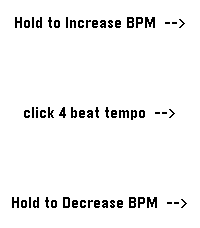 7
7Party Light
Tools & UtilitiesUses the RGB backlight of the Pebble Time 2, so the app only works for the Time 2. Changes backlight color to a new backlight color in the set BPM. Colors are random from: Red, Blue, Green, Cyan, Magenta, Yellow, Warm White and Amber. Middle button: set BPM (tap in a four-beat rhythm). Up button: click or hold to increase BPM (decrease the blink interval by 2 ms). Down button: click or hold to decrease BPM (increase the blink interval by 2 ms). Enjoy the party!
 17
17Train 2 Time
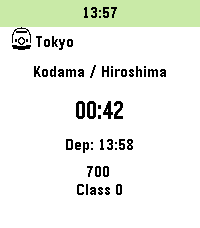
DailyInspired by "TrainTime" by otoone_dev: https://apps.rebble.io/en_US/application/5904a0c90dfc329df8000706 I created this app to improve its usability for my own needs. It is a simple app that counts down the minutes until your train departs. Timetable data is fetched from user-created Markdown (.md) or Text (.txt) files hosted online (intended for use with GitHub Gist "Raw" URLs). Sample data is also available on GitHub. Note: Since this was designed for the Japanese railway system, some behaviors may differ from your local transit rules. Controls: - [UP / DOWN]: Change train - [Hold UP / DOWN]: Add to timeline - [SELECT]: Change station - [Hold SELECT]: Change current data slot Features: - Fetches timetable data only at app launch. - Customizable limits for the number of trains and the time range to fetch (within stable memory limits). - Stores up to 5 timetable URLs. - Supports 3 schedule types per station: Weekdays, Sundays/Holidays, and Saturdays. - Fallback logic: Sunday/Holiday and Saturday schedules can be omitted; the app will default to the Weekday schedule. - Uses a 24-hour format from 04:00 to 27:59 (considering 4:00 AM as the start of the day). - Supports "\n" in the remarks section for up to 2 lines of text (approx. 9 full-width characters per line). - Optimized for approximately 5-10 stations. - For color-enabled Pebbles: Background color for the current time and highlight color for post-departure count-ups can be customized. - Text and background colors for train types are now customizable on Pebble Time 2 and later (Defaults: Text #000000, BG #FFFFFF). - Japan-specific: Can automatically fetch Japanese public holidays via: https://holidays-jp.github.io/api/v1/date.json (Disabled by default). Special thanks to Hiroshi Matsuo. otoone_dev氏作の「TrainTime」を愛用していたのですが、自分なりに使い勝手を良くしようと思い立ちこのアプリを作りました。 列車の発車時刻まであと何分?をカウントダウンするアプリです。 時刻表データはユーザー自身がweb上にmarkdown(.md)またはtext(.txt)ファイルを作成し、それを参照する方法をとっています (Github Gistの非公開URL、Rawを想定しています)。 GitHubにサンプルデータを用意しました。 特徴: - アプリ起動時のみ時刻表データを参照します - 参照する列車の本数や、向こう何時間まで参照するかは設定で変更できます(クラッシュしない程度の制限をかけています) - 時刻表データのURLは5つまで記憶できます - 駅ごとに時刻表は平日、日曜祝日、土曜の3種類 - 時刻表は[平日>日曜祝日>土曜]の順に参照するため、日曜祝日と土曜は省略可 - 時刻表は午前4時を一日の基準とした04:00から27:59の24時間を使います - 備考部分は改行「\n」が使えるので2行までなら表示できます(全角9文字x2行を想定) - 5-10駅くらいのデータを想定して作っています - カラー対応端末は現在時刻の背景色と列車出発後カウントアップのハイライト色を変更できます - Pebble Time 2以降では列車種別の文字色と背景色を指定できるようになりました(デフォルトで文字色000000、背景色FFFFFF)。 - 日本向けの設定として、自動で日本の祝日を参照できます(デフォルトではdisable)。Hiroshi Matsuo様ありがとうございます。 Data Example: // Force specific dates as Holidays or Saturdays (Optional) // 特定の日付を強制的に祝日や土曜として扱えます(省略可) @HOLIDAYDAY:2026-12-31 @SATURDAY:2027-01-01 // Station Name // 駅名 # Tokyo // Icon to the left of the station name (Optional) // 1:Shinkansen 2:Retro Train 3:Modern Train 4:Bus 5:Clock 6:Monorail 7:Cable car 8:JR Central Shinkansen 9:JR East Shinkansen... // 駅名の左隣に表示するアイコン(省略可) // 1:新幹線 2:国鉄風電車 3:現代風電車 4:バス 5:時計 6:モノレール 7:ロープウェイ 8:東海道新幹線 9:東北新幹線 10:国鉄風特急 11:京急風電車 12:L特急 13:寝台特急 14:SL 15:アプリアイコン ## 1 // Schedule Type: weekday, holiday, or saturday ### weekday // Format: Departure Time, Destination, Type (Optional), Remarks Line 1 \n Line 2(Optional) \n Remarks Line 3 (PT2 or later), Text Color (PT2 or later, Optional), Background Color (PT2 or later, Optional) // 発車時刻,行先,列車種別(省略可),備考1行目\n備考2行目(省略可),種別文字色(PT2以降のみ),種別背景色(PT2以降のみ) - 04:00,Kyoto,exp,Dir.\nFirst,000000,FFFFFF - 27:59,Osaka
 2
2RESTForge
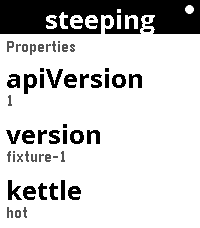
Tools & UtilitiesRESTForge — control any Siren API from your wrist RESTForge turns your Pebble into a remote control for any web API that speaks Siren — a standard way for a server to describe itself. You don't tell the app what buttons to show. The server does. RESTForge just reads what the server offers — links to follow, fields to fill in, actions to press — and puts it on the watch screen. That means one watchapp works with many different backends, and new ones can be added without changing the app at all: - It already works with f3sctl, a real server for running a small homelab rack (switching hosts on and off, watching jobs). - The full, plain-English contract a backend must follow is in the project's docs/ folder, so anyone can read it and wire up their own server — a home automation system, a build server, a status dashboard, anything. - Point RESTForge at your server's base URL, paste in a secret key, and browse what it offers from the watch: scroll lists, open details, follow links, fill in a field and confirm an action. Long-running jobs are watched until they finish, and the watch shows you the result. Nothing about any one server is baked into the app — that's the whole point, and it's enforced by the build, so the watchapp stays generic as more backends appear. Works on Pebble Time 2 and Pebble Round 2. Set up your backends in the phone settings page; the secret stays on the phone, never in a URL.
 9
9BrewSession
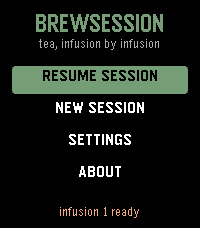
Tools & UtilitiesA tea timer that knows which infusion you're on. Set a custom steep time as fast as the stock timer - no tea database, no menu asking which infusion this is. Hit Start and pour during the felt countdown: a tick on your wrist each second, one long buzz at "go." When the steep ends the watch buzzes until you shake it off. Come back for round two and the app already knows - "Infusion 2" is waiting with its time computed. The per-infusion increment is asked for exactly once, and only when you commit to a second infusion. If you never brew one, you're never asked. Steeping shorter as you go? Negative increments are first-class. * Recents are the presets: your last sessions, one press to rebrew * The on-screen teacup fills with tea as the steep runs * Skip infusions, adjust a running steep +/-5s, abandon with a long press * The alarm survives the app being closed - a scheduled wakeup relaunches it at the right moment * Hand-drawn tabular digits, so the countdown never shimmies * Touch on Pebble Time 2: drag the picker wheel, tap to start, tap to dismiss - and every button still does what it always did * A setting to open straight into your brew session No phone connection needed after install.
 7
7Countdown_touch
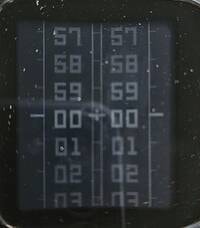
Tools & UtilitiesPebble countdown app that uses the touchscreen to set the minutes and seconds, while the top-right button is used to start and stop the countdown. During the last ten seconds, the app gives an audible countdown. When the countdown reaches zero, the end is indicated both audibly and visually.
 6
6Backgammon
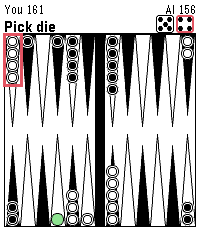
GamesBackgammon, but on Pebble! Working on more updates to make it polished.
 6
6Y*bert
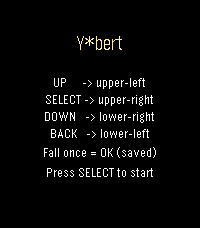
GamesAn isometric jump-puzzle tribute to Q*bert. Change every cube's color to clear the stage — one free save if you fall! UP -> jump upper-left SELECT -> jump upper-right DOWN -> jump lower-right BACK -> jump lower-left
 32
32PebbleDoist
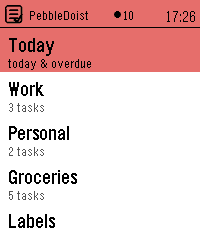
Tools & UtilitiesYour Todoist tasks on your wrist — add them by voice. Browse Todoist by list, label or Today, read details and subtasks, tick tasks off, and dictate new ones. Touch on PT2. 5 languages. PebbleDoist puts Todoist on your wrist. The overview opens on a Today row, the lists you picked (each with its open-task count) and your labels. Open a list to see its tasks with their due dates, select one to read its description, labels and subtasks, and tick things off as you go — instantly, with a short undo window before anything reaches Todoist. Adding a task takes one press and your voice: dictate it, and natural-language dates like "friday" land as a real due date. FEATURES • Today — everything due today or overdue, each row prefixed with the list it belongs to and its due date underneath. • Labels — browse your Todoist labels and see every task carrying one, across all your lists. • Details — a task's full title, deadline, description and labels as coloured badges, with its open subtasks listed underneath, each with a checkbox. • Add by voice — dictate a new task, or a new subtask straight into the task you are looking at. Bound to Quick Launch, one press starts the dictation. • Complete or delete — a task's menu completes it in Todoist right away, or deletes it after a confirmation. Optional quick-complete turns a single press into a tick, with an undo window. • Touchscreen on Pebble Time 2: tap a row to open it or tick it off, drag to scroll, swipe right to go back. One tap is enough everywhere. The buttons keep working exactly as they did. • Timeline pins (optional) — tasks due in the next few days appear on the Pebble timeline with a reminder that buzzes at the deadline, and completing or rescheduling a task clears or moves its pin. • Text size — small, medium or large task rows, set from the phone. • Available in English, Nederlands, Français, Deutsch and Español — on the watch and in the settings — following your watch language or set manually. • Privacy: your Todoist API token stays on the phone and is never sent to the watch. SETUP 1. In Todoist, copy your API token (Settings → Integrations → Developer). 2. On the phone, open PebbleDoist's settings, paste the token and save. Reopen the settings to tick the lists you want on the watch, choose the start screen, and optionally turn on timeline pins. 3. Optional: bind PebbleDoist to Quick Launch for a one-press "speak a task". Requires a Pebble Time 2. Touch needs firmware 4.33.2 or newer; on older firmware the buttons do everything the touchscreen does.
 5
5PebbleKimai
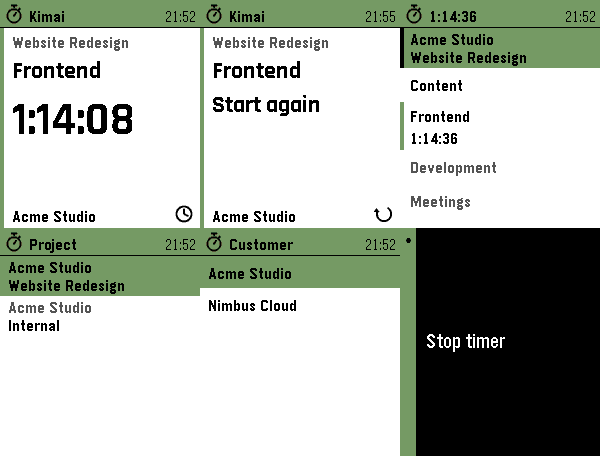
Tools & UtilitiesTrack your time in Kimai, straight from your wrist. Start, stop and switch Kimai time tracking from your Pebble. Recent activities in one press. Touch on PT2. 5 languages. PebbleKimai puts your self-hosted Kimai time tracking on your wrist. The home screen is a card: the project you are booking on, the activity you are on, and a big ticking elapsed time — or, when idle, your last activity with a one-press "Start again". Tap the time to stop, long-press Down for the activities you ran recently, or open the full list to start something else. The Kimai server always stays the source of truth. FEATURES • Start screen at a glance — project, activity and a big ticking elapsed time, or your last activity with a one-press restart when idle. • Recent activities — one long press shows the last five activities you ran, across every project. Picking one books it on its own project and selects that project on the watch, so an activity bound to another project just works. • Touchscreen on Pebble Time 2, using the watch's own touch navigation: tap a row to start/stop/switch, swipe right to go back — the same feel as every other menu on the watch. On the start screen, each part does what it shows: tap the elapsed time to stop, the project to change it, the icon for your recent activities. Physical buttons keep working everywhere. • Active-project row on the watch — tap to choose the project time is booked on; long-press to choose a customer, and the project list filters to that customer. Your latest choice is remembered on the watch. • Shows your global activities plus the activities bound to the active project. • One press to start when idle. Stop and switch each ask for a single confirmation, so a running timer is never stopped by accident — including a stray tap on the screen. • Live, drift-free elapsed time: the watch always recomputes it from the server's start time, so it stays accurate even after a reconnect. • Available in English, Nederlands, Français, Deutsch and Español — on the watch and in the settings — following your watch language or set manually. • Privacy: your API token stays on the phone and is never sent to the watch. SETUP 1. In Kimai, create an API token (your profile → API Access). 2. In the Pebble app, open PebbleKimai settings and enter your server URL and token. Reopen settings to pick a default project (and customer, if you have more than one). You can change both on the watch anytime. Your phone needs network access to your Kimai instance (same network, or via a reverse proxy / VPN). HTTPS with a valid certificate is recommended. Works on Pebble Time / Time 2 (Basalt, Chalk, Emery) and the Aplite and Diorite platforms.