Plugins are a dev preview. Enable them first in the Pebble mobile app: Settings → Plugins → Plugins/permissions preview. Learn more
 7
Timer
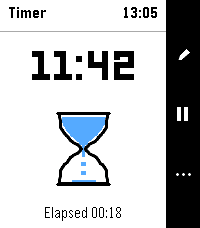
Tools & UtilitiesReusable countdowns, right on your Pebble. Save up to eight timers and control them with the watch buttons. Choose hours, minutes and seconds, start a countdown, then keep its duration ready for next time. Saved timers survive closing and reopening the app. - Set a duration from five seconds to 24 hours. - Pause, resume, reset or delete a timer on the watch. - See the remaining time on a large countdown screen. - Snooze a finished timer for one minute, or choose Done to dismiss it. - Use vibration, with optional sound on Time 2. Round 2 uses vibration; sound respects system mute and Quiet Time. - Choose text size and a Light or Dark watch appearance. Available in 17 interface languages. Countdowns run on the watch. A scheduled alarm does not need a connected phone. Want to keep a countdown on your watchface? Dynamic and Halftone can display Timer as an Activity, an ongoing update with the time remaining. Dashboard can display it too. This optional sharing needs a connected phone and plugin support enabled in the official Pebble phone app. Open Timer to pause, resume or change it. Free. For Pebble Time 2 and Round 2. Part of XOCE. No XOCE account, ads or analytics.
 7
Counters
Reminders & TasksTally counters for any watchface: glasses of water, coffees, push-ups. Tap to add one.
 7
MET Norway Weather
WeatherWeather forecasts from the Norwegian Meteorological Institute (MET Norway) for your Pebble watch. Get the weather now, hour by hour for today and tomorrow, the week ahead, and sunrise and sunset, for each of your weather locations and in your units. It can be your watch's weather source, so watchfaces and apps that show weather use it. Security and privacy: - No account or API key. Forecasts come from MET Norway's free public weather service. - Your phone's location is only used for the current-location forecast. - The source code is on GitHub. To set it up, install the plugin and choose it as your weather source in the Pebble app's Weather settings.
 6
Muse Chat
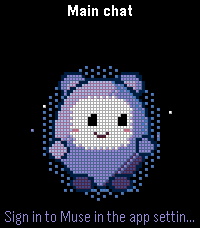
Tools & UtilitiesBefore you install: 1. Turn on the plugin preview in the Pebble phone app: Settings > Plugins. Muse Chat's settings page and its bundled plugin need it. 2. You need a Muse account (muse.ai) and a computer to connect it once: a. On the computer, sign in to muse.ai in a browser (Chrome, Edge or Firefox). b. Open the developer tools (F12) > Application (Firefox: Storage) > Cookies > https://muse.ai, and copy the Value of the cookie named hatch_sess. c. In the Pebble app, open Muse Chat > Settings, paste it into the field and tap "Save and connect". hatch_sess is your Muse sign-in: move it to your phone only in a way only you can see, and don't share it. Read and reply to your Muse chats from your wrist. - Chats: open Main chat or any of your side chats, read the conversation, and switch chats from the watch. - Reply: send a quick reply with one press, or dictate a message. Edit the quick replies in the settings. - Avatar: your Muse appears on the watch as an animated pixel avatar. It listens while you dictate, works while Muse thinks, writes along while the reply comes in, and cheers when it arrives. Ask Muse to design its own avatar from the settings page. - Text size: small, medium or large text for the conversation. Black, white or gray background. - English and Japanese, following your phone's language. How to use: - Main screen (the avatar): Up opens the conversation history, Down opens quick replies, Select opens the chat list, and long-pressing Select starts voice dictation. - History: scroll with Up/Down, press Select to reload the latest conversation, long-press Select to dictate. - A quick reply is sent as soon as you pick it. You can edit the phrases in the settings. - Pick a chat in the chat list to switch to it. Privacy: the Muse session you paste goes straight to the app's bundled plugin, which keeps it in the phone's secure storage. It is never sent to the watch, shown on screen or written to logs, and the field is cleared once you save. The app talks only to Muse's own services (muse.ai and its chat server hatch.metaaivm.com). The developer runs no servers and collects nothing. Muse Chat is an unofficial personal project. It is not made, endorsed or supported by Meta or by Core Devices. It uses Muse's web interface, so a change on Muse's side can stop it working until it is updated. For Pebble Time 2 and Pebble Round 2.
 6
OpenCode
AI AgentsControl an OpenCode V2 server from Pebble. Send prompts, read the latest reply, answer agent questions, interrupt foreground sessions, and monitor background jobs. Requires a reachable OpenCode server and saved credentials.
 6
Daily Notes for Obsidian
NotesSend memos from Pebble straight into today's Obsidian daily note. Ask Index to add something to your daily note, and it lands as one line under a "## pebble" section: ## pebble - 20:01 : Feeling good today - 20:54 : Call the dentist tomorrow How it works - Writes directly to your vault folder on the phone. No Obsidian plugin, no server, works offline. - Follows your vault's Daily notes settings (folder, date format, template). Each one can be overridden in the plugin settings. - Creates today's note from your template if it doesn't exist yet. {{title}}, {{date}} and {{time}} are filled in. - The section heading and line format can be customized. Setup 1. Turn on Settings > Plugins > "Plugins / permissions preview" in the Pebble app. 2. Open this plugin's settings and choose your vault's top folder (the one that contains .obsidian). 3. Tap "Show where today's memo goes" to check the destination. Unofficial. Not affiliated with or endorsed by Obsidian. 6
Moon & Sky
WeatherThe moon's phase and the sun's day anywhere in the world, plus the UK aurora alert, for any watchface.
 6
Stocks
FinanceShare prices for the stocks you pick, on your Pebble watchface or when you ask. Choose your tickers in the plugin settings. Each one shows its price and today's change, in money and as a percentage. Watchfaces that show stocks can display them, and you can ask, for example "How is Apple doing today?". Prices come from Yahoo Finance through an unofficial connection that Yahoo doesn't document, so it could change at any time. Security and privacy: - No account or sign-in. The plugin only requests prices for the tickers you choose. - The source code is on GitHub. To set it up, install the plugin, open its settings and add your tickers.
 6
OpenCode Status
Tools & Utilities, AI AgentsOpenCode Status puts your OpenCode sessions on your Pebble. See running sessions, questions, permission requests, and unread replies at a glance. Open a session to read its latest reply, answer questions, review permissions, or dictate a new prompt. Requires the OpenCode Pebble plugin, a reachable OpenCode V2 server, and plugins enabled in the Pebble app.
 5
Home Assistant Entities
Smart HomeChoose what goes on your watch by labelling it in Home Assistant. Give any entity the label "pebble" and it appears on your Pebble, for any watchface or app that uses plugin data. Take the label off and it's gone. There's no list to manage on your phone. - Sensor readings with units, ready for a watch: 21.5°C, 230 V, 40% - Open, closed, on, off and away in plain words - Lights, switches, locks, climate and media players - Updates every minute - Works away from home with Nabu Casa or your own domain - Read only: it never changes anything in Home Assistant You'll need a watchface or app that reads plugin data, Home Assistant 2024.4 or later, and an administrator's access token (the only way to read labels). The token stays encrypted on your phone and only goes to your server. Setup steps are in the plugin's settings. Not affiliated with or endorsed by Home Assistant or the Open Home Foundation. Keywords: home assistant, smart home, label, labels, sensors, plugin, entities, temperature, lights, locks, climate, home automation
 5
Countdowns
CalendarDays to go until the dates you care about, on any watchface.
 5
Remember The Milk
Reminders & TasksAdd tasks to Remember The Milk from your Pebble watch or Index ring. Say what you need to do, for example "Add oat milk to my groceries". The task goes to your Inbox, or to the list you name, with the due time you said. Remember The Milk reminds you using the reminder settings in your account. Security and privacy: - The plugin uses your own Remember The Milk API key, which you request from Remember The Milk. You then allow access on Remember The Milk's own page. - Your key and sign-in are stored in your phone's secure storage and are only used to add tasks to Remember The Milk. - Tasks go from your phone straight to Remember The Milk over HTTPS. - The source code is on GitHub. To set it up, request an API key on Remember The Milk's website, then open the plugin's settings, enter the key and shared secret, and allow access.
 5
ČHMÚ Weather
WeatherCzech station observations and local ALADIN forecasts for your Pebble. ČHMÚ Weather is an unofficial weather plugin that runs inside the Pebble phone app. Choose it as your weather provider for Pebble Weather, the timeline and compatible readings in Dynamic, Halftone, Dashboard and other apps. - Use your saved Pebble locations and units. - Find a nearby station automatically or choose a fixed Czech station. - See station temperature, with humidity and wind when available. - Get hourly and daily ALADIN forecasts. - Add missing forecast fields, rain probabilities, forecast UV and later days through Open-Meteo completion. It is enabled by default and can be turned off in settings. - Configure the plugin in English or Czech. Covers Czech locations. Nearby station observations may differ from conditions at your exact location. Cached readings keep their original age; Pebble controls native Weather update timing. Requires internet access and plugin support enabled in the official Pebble phone app. This is a phone plugin with no watch app to open. Free. Part of XOCE. No additional account, API key, ads, analytics or developer-operated server. Requests go to ČHMÚ and, when enabled, Open-Meteo. Independent of ČHMÚ, Open-Meteo and Core Devices. Source and privacy: https://github.com/xefensor/pebble-chmu-weather
 4
Notion
NotesSave notes and to-dos to Notion from your Pebble watch or Index ring. Say what you want to save, for example "Note: ask Sam about the deposit". Depending on your settings, it's added as a to-do under a "Todo" heading, as a new page, or as text at the end of a page you choose. Security and privacy: - You connect Notion on Notion's own sign-in page, and choose which pages the plugin can use. - Your connection is stored in your phone's secure storage and is only used to save notes to Notion. Disconnecting in settings removes it. - Notes go from your phone straight to Notion over HTTPS. - The source code is on GitHub. To set it up, install the plugin, open its settings, connect Notion and pick a page.
 4
Netatmo Weather
WeatherConnects Netatmo weather stations as a plugin source