 295
3 Things: An ADHD-Friendly Task Manager
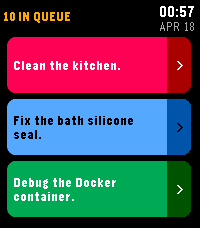
Tools & Utilities3 Things keeps you focused on what matters most by showing only your top 3 tasks at a time. Any additional tasks are queued and automatically replace completed ones. Designed especially for people with ADHD or executive dysfunction - by limiting what's visible to just 3 items, it reduces decision paralysis and overwhelm while keeping your full to-do list just out of sight and ready to sub in.
 292
Timer - Instant Timer
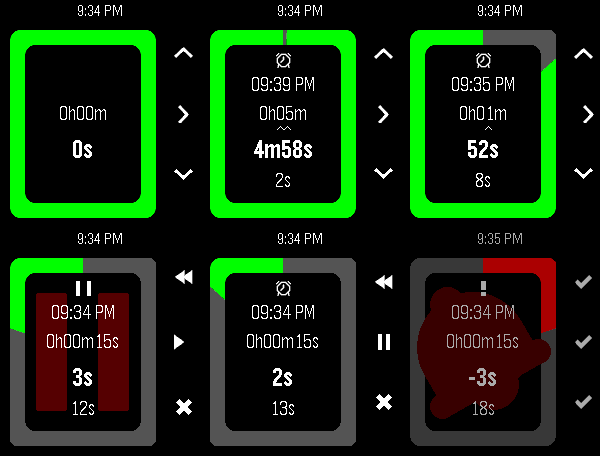
Tools & UtilitiesStopwatch / Alarm / Timer combo designed for quick launch; everyday cooking, reminders and alarms. Touch controls; set with one swipe! Optional audio. Packed with unique, detailed behaviour to optimise easy frequent use. Optional touch controls (PT2/PR2): Set with just one or two swipes! - Timer: touch, hold and drag to select minutes; circle clockwise to wind-up hours, or anticlockwise for seconds - Alarm: touch, hold and drag to select hours, then minutes - Start touching from the middle to set a timer duration, or from the edge to set an alarm time - To cancel, finish touching in the middle or don't select any minutes This app does 3 things I couldn't find anywhere else: - Start counting immediately on launch - Show all 4 relevant values (alarm time, duration, remaining, elapsed) at all times - Modify the duration at any point without any pause or confirmation Other features: - Timer modification controls optimised for speed (1h, 5m, 1m increments) - Configuration: - Alarm audio; beep sound volume - Full colour customisation & Themes - Vibe patterns - Battery saving - Various touch options - Battery saving: - Auto switch between seconds/minutes update rate, synced with backlight and/or remaining time - Zero background power use - Auto-cancel alarm vibe after 1m - Runs in background, wakeup for alarm - Counts overtime after alarm vibe - After expiry, set a new alarm from the same base just by increasing the duration again - Short vibe on start/stop for blind operation - Glance info in system app launcher - Pause, resume, restart, reset - Round and rect, black, white and colour pebbles Button controls: - Select/Back to choose modification digits (15/30 seconds available while under 2/5mins) - Up/Down to increment/decrement. Hold to repeat. Down at 0 wraps up. - Select Long-press (or Press at lowest digit) to toggle pause/resume and enter "control mode": - Up (rewind icon) to restart the timer (i.e. set elapsed time to 0) while retaining the timer/alarm duration - Up Long-press to reset the entire app to 0 - Select (play/pause icon) to pause/resume counting - Down (save icon) to save and exit - Down Long-press to discard and exit - Back to return to timer modification - Back while at the largest digit to exit with options: - Up/Back (save icon) to save and exit - Down (X icon) to discard and exit - Select (> icon) to return to timer modification - Back Long-press to save and exit - Select (✓ icon) or Back to dismiss alarm bell. This app is great if you want to: - Set a generic egg timer running fast without looking in the middle of cooking, and then change it as you go along - Often quickly set an alarm clock to remind you about something in the near future - Set a wakeup alarm quick at a varying time just before you go to sleep - Do all of the above with a single app using one quick-launch slot Use (a) different app(s) if you want: - More than one alarm/timer/stopwatch at once i.e. multi timers - To slowly set a timer/alarm to a long but precise time - Automatically repeat alarms daily/weekly - Millisecond precision - Sports-stopwatch split times / lap times - A history of previously set times - Voice control Suggestions for further improvements welcome, open source btw. Thanks for checking this out! Let me know if you end up using it :)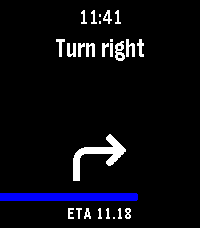 256
PebbleNavi
Tools & UtilitiesAndroid 16 Google Maps live notification navigation directions to Pebble. Companion app is in Google play closed testing. Google still requires more testing and testers so send me message with your google account email and I will add you to testers list. (Companion app can also be downloaded from https://lumie.red/pebblenavi_v14.apk) Companion app update v1.4: Autolaunch timer reset. First attempt to filter non-navigation notifications from Google maps. Companion app update v1.5: Autoclose of watchapp when navigation ends. Currently only in Google play store closed testing. Samsung OneUI support is still incomplete. App does not support old style "normal" notifications, only android16+ live notification navigation is supported currently.
 253
Obelisk
Games@ericmigi [Pebble CEO] on Twitter: "Loving this new @Pebble game!"
 252
Wrist AI Evo
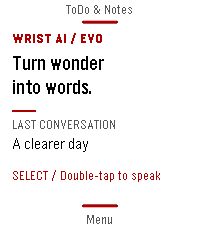
Tools & UtilitiesWrist AI Evo — Turn wonder into words. A clearer page for your next thought. Wrist AI Evo brings a Paper-inspired interface to Wrist AI, with full-screen reading, quiet typography, colour accents, voice conversations, tasks and notes on your Pebble. TALK, READ, CONTINUE Speak a question, review the transcript and read the reply on your wrist. Keep separate conversations, switch between up to five configured models and continue with follow-up questions. On supported touch watches, double-tap the Home content to speak, pull down for ToDo & Notes and pull up for Menu. Each page returns in the direction it came from. Physical buttons remain available. CHOOSE YOUR AI Connect OpenRouter, AIHubMix or your own OpenAI-compatible chat completions endpoint. Bring your own API key and choose models offered by your provider. No proprietary AI relay server is required. Optional web search is available in OpenRouter mode. KEEP IDEAS CLOSE Create tasks and notes, read a note in full, manage completed items in Archive and return to the conversation behind an item. Optional Todoist two-way sync links your tasks across devices. The Home label shows Syncing during synchronization and OK after a successful sync with no queued changes remaining. MAKE IT YOURS Choose a fixed or random accent, adjust reply text and discover 20 rotating Home headlines. Optional Memory.md keeps useful long-term preferences. Timeline, reminders, location and health context can be enabled separately. Spoken replies use Google Cloud TTS on supported speaker watches; the dedicated volume page applies changes immediately. SET UP ONE STEP AT A TIME Open Settings in the Pebble companion app and use the large Guide button. Follow the settings in order, review required and optional choices, then save. Skip the entire Guide without clearing your edits. It opens on first use and after seven days unless automatic opening is disabled; the manual entry remains available. Guide reminders are stored in the current settings WebView. REQUIREMENTS AND PRIVACY Requires a compatible Pebble companion app, an internet-connected phone and your own AI-provider key. Provider charges may apply. TTS needs a separate Google Cloud TTS key. Pebble 2 Duo TTS is experimental and has not been validated on physical Duo hardware. Timeline requires compatible companion-app support. Chats, notes, memory and integration records are stored in the companion environment. AI requests go through your phone to the services you select. Location and health sharing are optional. Anonymous daily activity counting can be disabled in Settings > Privacy; its payload does not contain chats, prompts, notes, health, location or API keys. Builds are provided for Pebble Time, Pebble 2, Pebble Time 2, Pebble 2 Duo and Pebble Time Round. Features vary by model. Source and support: https://github.com/deusaw/Pebble-Wrist-AI Support development: https://www.paypal.com/paypalme/Asterwyn
 251
Pebble Maps
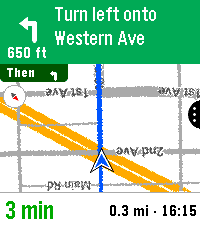
Tools & UtilitiesPebble Maps Google Maps on your wrist. Search for places, browse what's nearby and get turn-by-turn directions by car, on foot, by bike or by transit, all from your Pebble. You don't need an extra app on your phone. Free, using your own Google Maps key Pebble Maps is free. It runs on your own Google Maps API key, which you create in a few minutes. Google gives each key a free monthly allowance of about 10,000 map pictures and 5,000 searches, and normal use by one person should stay well within it. You won't be charged unless you go over and have billing set up to allow it. Why your own key? Google bills every key by how much it's used. If the app shipped with one shared key, every user's maps and searches would add up on one bill, and the free allowance would run out within days for everyone. With your own key, your allowance is yours alone. Step-by-step setup instructions are on the app's Settings page in the Pebble app. What it does -Search by voice or keyboard, with suggestions as you type on touch watches. -Browse nearby places by type, such as restaurants, coffee, gas, groceries or transit, nearest first. "Open now" hides anywhere that's closed. -Places on the map as dots or name flags, so you can get a feel for an unfamiliar neighborhood at a glance. -Place pages with rating, hours, reviews, photos, phone and website. -Directions by car, foot, bike or transit, with times side by side so you can pick the fastest. -Turn-by-turn navigation with turn cards, rerouting, and vibrate or spoken alerts. -Transit schedules: tap a ride to see the next departures, with live times where available, so you know whether to run for the train. -Live location that follows you heading up or north up, plus a battery-saver snapshot mode. -Favorites with their own default travel mode each, for example Home by transit and the gym by bike. -Works on every Pebble: color and black-and-white, round and rectangular, buttons or touch, with dark map and larger text options.
 249
WISP -Wrist Intelligence & Speech Portal
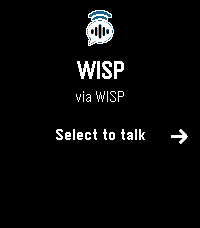
Tools & UtilitiesYour AI assistant. Your voice. Your Pebble. WISP transforms your Pebble smartwatch into a voice-powered AI assistant, letting you interact with your favorite artificial intelligence services directly from your wrist. Originally developed as Gemini with Voice, WISP has expanded beyond a single AI provider into a flexible, plugin-powered platform supporting multiple AI assistants and text-to-speech services. Ask a question using your watch's microphone, receive a response on the screen, and hear it spoken aloud on supported Pebble devices. ## Features ### Universal AI Assistant Support WISP works with compatible AI agent plugins installed in the Pebble phone app. Supported integrations include: - Google Gemini - OpenAI ChatGPT - Anthropic Claude - Grok - Muse - Other compatible agents using the Pebble plugin interface Only installed and compatible AI agents appear in the selection list. Some agents support complete conversational responses, while others support sending messages and returning a delivery confirmation. Available functionality depends on the selected plugin. WISP automatically recognizes supported providers and displays the corresponding name and icon on your watch. ### Voice Interaction Press Select to begin speaking. WISP captures your speech using Pebble's built-in dictation capabilities and sends the transcribed request to your selected AI assistant. Responses are displayed directly on your watch and can be read without audio or spoken aloud using text-to-speech. ### Universal Text-to-Speech WISP integrates with the Universal TTS plugin, allowing you to select from multiple speech synthesis services independently of your AI provider. Universal TTS supports services such as Google Cloud TTS, ElevenLabs, Microsoft Azure Speech, Gemini TTS, Deepgram, and others. Your selected TTS provider, credentials, and voice preferences are configured through the Universal TTS plugin. This means you can use one AI service for conversation and a completely different provider for spoken responses. Improved Audio Streaming WISP incorporates a Bluetooth audio streaming system designed specifically for Pebble's hardware limitations. Features include: - Compressed IMA-ADPCM audio transmission - Adaptive audio buffering - Bluetooth packet acknowledgment and retransmission - Buffer management to reduce playback interruptions - Continuous playback across multiple sentences - Improved handling of temporary connection delays - Adjustable playback volume Audio is transmitted progressively, helping reduce the need to download an entire spoken response before beginning playback. Legacy Gemini with Voice Support Already using Gemini with Voice? WISP retains support for existing configurations, including: - Direct Google Gemini API access without an AI plugin - Direct Google Cloud Text-to-Speech - Saved API credentials and voice selections - Existing appearance and personalization settings You can continue using the original direct integrations or transition to the newer plugin-based system whenever you prefer. Customizable Experience Personalize WISP to match your preferences: - Custom AI instructions: Define how the assistant should respond. - Font size: Adjust text readability on your watch. - Appearance: Choose light, dark, or automatic day/night mode. - Volume: Control spoken response playback. - Speech options: Choose Universal TTS, legacy Direct Google TTS, or text-only responses. - AI provider selection: Switch between installed compatible agents. Smart Provider Recognition WISP automatically identifies supported AI providers and displays their corresponding logos. Before a provider is identified, WISP displays its own branding. Requirements - A supported Pebble smartwatch with a microphone - A compatible Pebble phone application - An internet connection for cloud-based AI and speech services - An installed and configured AI agent plugin, or a direct Gemini API key - Universal TTS plugin or a direct Google Cloud TTS configuration for spoken responses - A speaker-capable watch for audio playback Text responses remain available on compatible watches without a speaker. Getting Started 1. Install WISP on your Pebble smartwatch. 2. Open WISP settings in the Pebble phone app. 3. Select an installed AI agent or configure the legacy Direct Gemini API. 4. Configure Universal TTS if you want spoken responses, or select Direct Google TTS if you already use it. 5. Open WISP on your watch and press Select to start talking. WISP handles the interaction between your selected AI assistant, speech provider, and Pebble watch. ## Open Source WISP is an open-source project developed for the Pebble community. Source code, documentation, and updates: https://github.com/ericlmccormick/Pebble-WISP Related plugins: AI Conversation: https://github.com/ericlmccormick/Pebble-AI-Conversation Universal TTS: https://github.com/ericlmccormick/Pebble-Universal-TTS ## Support Development WISP is independently developed and maintained. If you enjoy the app and would like to support continued development, new features, and compatibility
 244
Notes
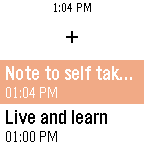
DailyThe quickest and simplest way to take a note. Just open the app, say what you want and come back to it later. See all your notes in your timeline right when they were created.
 240
Pebble Meds
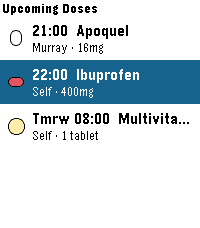
Health & FitnessNever miss a dose — for you, your family, or your pets. PebbleMeds delivers quiet, wrist-based medication reminders with simple one-button confirmations. It's designed for people managing multiple medications or schedules across multiple people (or animals) in a household. Features: - Up to 16 medications with flexible scheduling — fixed daily times (e.g. 8am and 10pm) or interval-based (e.g. every 8 or 12 hours) - Multiple takers — track medications for yourself, family members, or pets, all in one app - Take, skip, or snooze any reminder directly from your wrist — no phone required once configured - Colorful pill icons — choose from round, oval, oblong, drop, or shield shapes in your color of choice, so you can identify medications at a glance - Privacy mode — notifications and Timeline pins show "Medication Due" instead of the medication name, useful in public or shared spaces - Timeline integration — upcoming doses appear as pins so you can see your full schedule at a glance - Snooze control — if you miss a reminder, it re-alerts after a configurable delay (default 15 minutes); skipping a dose stops further reminders for that dose - Optimized for Pebble Round 2 and Time 2; fully compatible with all Pebble models including classic monochrome devices How It Works Configure your medications using the Pebble phone app. Your schedule syncs to the watch, which handles all reminders independently - no phone connection needed once synced. When a dose is due, your watch vibrates and displays the medication details. Press the middle button to confirm you took it, the bottom to skip it, or the top to snooze for a few minutes. Interval-based medications (like antibiotics taken every 8 hours) reset their timer when you mark a dose as Taken, so the next reminder is always spaced correctly from when you actually took it- not from a fixed clock time. Limitations - Requires the Pebble phone app to configure medications; the watch stores the schedule locally after the first sync - Up to 8 wakeup slots scheduled at a time due to a Pebble platform limit; the app self-reschedules automatically after each dose fires - Interval scheduling tracks the last-taken timestamp on the watch; if the watch is reset or the app is reinstalled, interval timers restart from the configured start time
 233
Wristotle
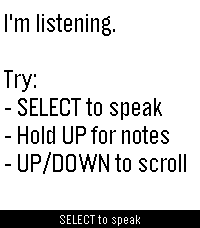
DailyWristotle turns your Pebble's dictation button into a voice command surface. Press the button, speak, and the Wristotle companion app on your Android phone handles it — calls, texts, reminders, alarms, music, notes, tasks, weather, sports, world clock, calculator, and an Ask-Agent path — then sends the answer back to your wrist. Replies arrive as chat bubbles, and lookup-style answers render as full-screen cards: a colored band shows the action and an icon shows the subject, so you can read the result at a glance. Highlights - Voice commands straight from the dictation button — no extra hardware - Full-screen reply cards for sports, weather, and meetings - Browse your notes and tasks right on the watch - Set and view alarms on the watch (phone / watch / both) - Optional spoken replies on supported watches (Pebble Time 2) - Configurable buttons — bind SELECT and long-press Up/Down to Dictation, Menu, Notes, or Tasks - Optional colour theme and chat bubbles Requires the free Wristotle companion app on your Android phone (works with microPebble or Core Devices). Everything runs on-device by default — no account, no tracking. AGPLv3. Companion app + setup guide: https://wristotle.codeberg.page/ Needs a Pebble with a mic (basalt, chalk, diorite, emery, flint, gabbro — not aplite).
 207
Pebble Ebook Reader
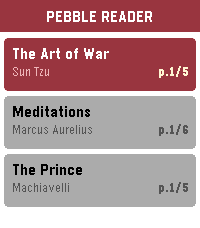
Tools & UtilitiesTurn your Pebble into an e-reader, perfect for quick reads during commutes, waiting rooms, or anywhere you have a spare moment. Time to read on your wrist. The app is being developed right now, specially tricky on the companion app side to manage the loaded books/remove/sync etc... Even more difficult to test for now until the real hardware arrive, but I'm on a mission to make a nice ereader app in order to binge a bit of books from time to time. But feel free to play with the current demo, let's go!
 205
Maptastic
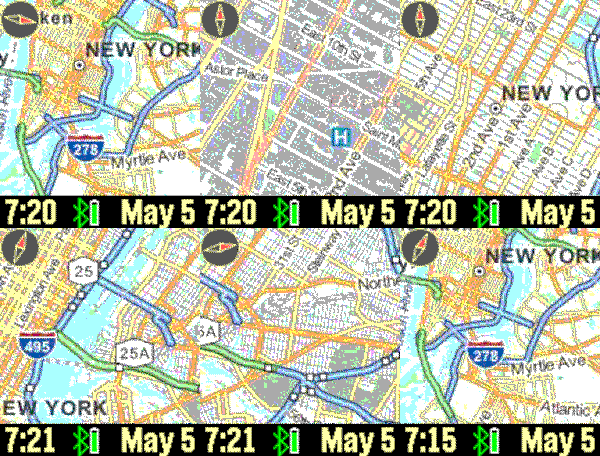
DailyImagine a map displayed on your wrist. Pans, zooms, and tracks your location. Customizable features include the mapping service, date, screen, vibration, connectivity, map labels, distance units, and more. Top button: backlight; bottom button: pans map based on watch tilt; flick/tap: distance; shake watch: refresh map. Tracking enabled until map is manually panned. New: long up button press for your current location address. Drag on screen to pan map. Mapping tiles Copyright and courtesy of OpenStreetMap, OpenStreetMap contributors, Google Maps, ESRI ArcGIS, and Stamen. Stamen data by Stamen Design (https://stamen.com); OpenStreetMap (https://openstreetmap.org) mapping tiles under Creative Commons licenses. See the instructional video for a demonstration of the Maptastic features.
 203
Pebble AlarmSync
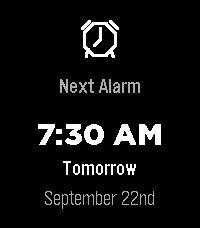
Tools & UtilitiesPebble AlarmSync makes it possible for your Pebble to: - see your next scheduled phone alarm - vibrate whenever your phone alarm or timer goes off - snooze or dismiss your phone alarm or timer directly from your Pebble Requirements: - Android only (iOS blocks access to alarms) - Install Pebble AlarmSync Android companion app from the Google Play Store https://play.google.com/store/apps/details?id=com.tinkertools.pebblealarmsync - Enable required permissions in the Pebble AlarmSync app Support: Like the app? Find it useful? Or just want to show a little extra appreciation for all the time and effort I put in? Want to buy me a coffee? 🥰 (I'm definitely not a morning person, so I can use all the morning help I can get. 😅) https://buymeacoffee.com/adamsifounakis
 196
What time is it?
Tools & UtilitiesMusic and visuals demo designed for Pebble Time 2. It was presented at Xenium 2026 in Poland. Press select to toggle light on/off Press down to toggle loud music / higher audio quality https://youtu.be/r3HWmCo4JLY Read more about the demo scene computer art subculture: https://en.wikipedia.org/wiki/Demoscene
 192
Calendar for Pebble
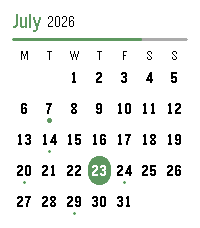
DailyA touch calendar watchapp for Pebble Time 2 and Pebble Round 2. Shows the month with a dot on every day that has events; tap a day for an agenda you can scroll through. Syncs from iCloud and Google Calendar. iCloud calendar link: 1. iPhone: Calendar app → Calendars → tap the ⓘ next to a calendar → enable Public Calendar → Share Link → Copy. 2. Paste the `webcal://…` link into a calendar row in Settings.(Public sharing is read-only and needs no password.) Google calendar link: On a computer at calendar.google.com: 1. Hover the calendar → ⋮ → Settings and sharing. 2. Easiest (public): under "Access permissions", tick "Make available to public", then copy the share link (the `…?cid=…` URL) — the app converts it automatically. 3. Private (keep it unlisted): scroll to "Integrate calendar" → copy "Secret address in iCal format (ends in `.ics`). 4. Paste the link into a calendar row in Settings. Credits App menu icon adapted from [pebble-dev/iconography (https://github.com/pebble-dev/iconography) Watch screenshots for banner created using (https://pebble-render.aru.dev/)